EasyManua.ls Logo

Tyco Electronics T212M-PRINTER - User Manual

Default Icon
105 pages
Print Icon
To Next Page IconTo Next Page
Loading...
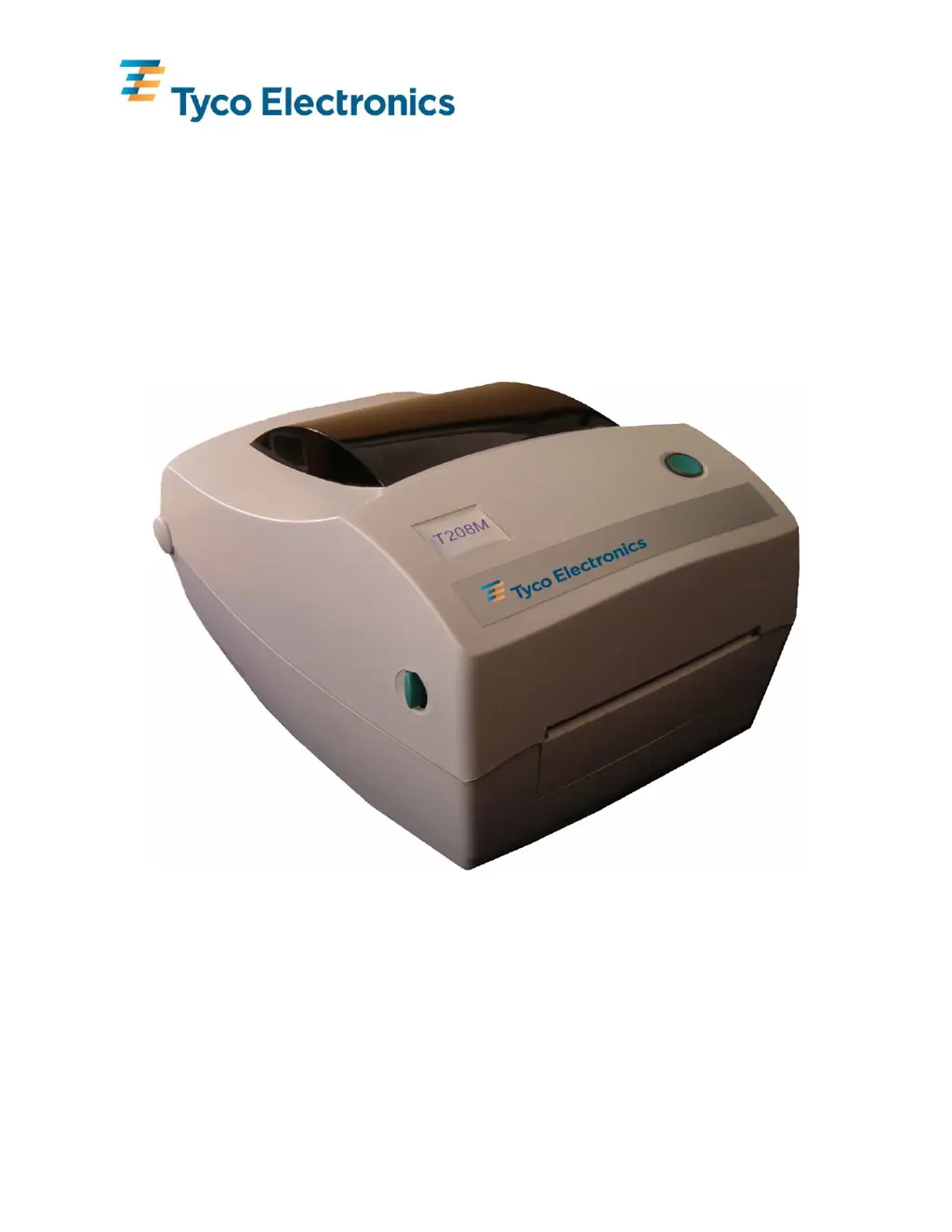
T200 SERIES THERMAL TRANSFER PRINTER
SYSTEM USER’S GUIDE
(T208M-PRINTER, T208M-C-PRINTER, T212M-PRINTER & T212M-C-PRINTER)

Table of Contents

Questions and Answers

  • C
    Cindy GonzalezAug 18, 2025
    Why is the LED Green on my Tyco Electronics Printer but it won't print?
    • S
      suzanne72Aug 18, 2025
      If the LED is green but your Tyco Electronics printer won't print, check the interface cable connections from the computer to the printer. Also, ensure the cover is locked closed. Verify that the media and the ribbon are loaded correctly, making sure the ribbon is installed with the ink side facing out.
  • G
    gravesbenjaminAug 20, 2025
    What to do if my Tyco Electronics Printer is printing faded or poor quality?
    • G
      Gregory RamirezAug 21, 2025
      If your Tyco Electronics Printer is feeding media but not printing, or the print quality is poor, verify that you're using the correct product/ribbon combination and that it's loaded correctly. Check that the cover is closed and locked. Clean the print head with a cleaning pen and adjust the print speed/darkness in the software. Ensure font types/sizes and graphics aren't too small.
  • C
    Catherine MorrisAug 23, 2025
    What to do if my Tyco Electronics Printer prints only partial labels or skips labels?
    • T
      Timothy PearsonAug 23, 2025
      If your Tyco Electronics Printer prints only partial labels or skips labels, calibrate the printer. Also, check that the product isn't getting caught while feeding and ensure the cover is locked closed. Verify the software settings, especially that the Top Margin setting isn't too high.
  • M
    millermartinAug 26, 2025
    What to do if my Tyco Electronics Printer stops printing and the LED turns Orange or Red?
    • A
      austinloweAug 26, 2025
      If your Tyco Electronics Printer stops printing and the LED changes to Orange or Red, calibrate the printer. Check that the product isn't getting caught while feeding. Also, verify that the data on the label isn't too large for the printer memory and check all software settings.
  • A
    allendebraAug 28, 2025
    What to do if the cutter is not cutting on my Tyco Electronics Printer?
    • M
      Michelle JonesAug 28, 2025
      If the cutter is not cutting, check the software setting. Also, check for jams. The cutter may require replacing.
  • A
    abellAug 30, 2025
    What to do if the cutter jammed on my Tyco Electronics Printer?
    • X
      xwilsonAug 30, 2025
      If the cutter jammed, unplug the power and interface cables. Use tweezers to remove scraps from the cutter opening.
  • A
    Aaron PerezSep 2, 2025
    How to fix wrinkles in ribbon that result in missing print on Tyco Electronics Printer?
    • J
      James BennettSep 2, 2025
      To fix wrinkles in the ribbon that result in missing prints, check that the ribbon is mounted straight on the take-up core.
  • A
    April GreenSep 5, 2025
    What to do if the Tyco Electronics Printer's cutter cuts through labels instead of liner?
    • S
      Stephanie RobinsonSep 5, 2025
      If the cutter cuts through labels instead of the liner, check all software settings.
  • K
    Katelyn HornSep 7, 2025
    Why is the LED Orange on my Tyco Electronics Printer?
    • J
      Jonathon CabreraSep 7, 2025
      If the LED is Orange, check that the cover is closed and locked. The printer may have received partial or incorrect data, so check the software program and reboot the printer.
  • M
    Melissa AllenSep 10, 2025
    What does it mean if the LED is blinking red on my Tyco Electronics Printer?
    • A
      Aaron BushSep 10, 2025
      If the LED blinks red, it could mean that a firmware download is in process; the indicator lights will turn red, then green. It may also signal the beginning of calibration after turning on the printer; in this case, release the Feed button.

Summary

Forward

Important Information!

Shock Hazard Warning

Warns about operating the printer and power supply in wet locations to prevent injury.

Media and Ribbon Warning

Advises using approved supplies and proper loading to prevent printer damage and jams.

Static Discharge

Warns against touching print head/components due to static damage risk.

Printer Set-up and Operation

Attaching the Power Supply

Step-by-step guide to connecting the power supply module and cord to the printer.

Connecting the Interface Cable

Instructions for connecting parallel, serial, and USB interface cables to the printer.

Ribbon Handling

Ribbon Selection

Importance of selecting the correct thermal transfer ribbon for print quality and product compatibility.

Loading Ribbon

Detailed steps for correctly loading a thermal transfer ribbon into the printer.

Calibration Procedures

Sensor and Firmware Management

Changing Sensor Type

Instructions for switching between Transmissive, Reflective, and Continuous sensor modes.

Maintenance Procedures

Cleaning the Print Head

Instructions for cleaning the print head using a cleaning pen or IPA wipe.

Troubleshooting

Tyco Electronics T212M-PRINTER Specifications

General IconGeneral
ManufacturerTyco Electronics
ModelT212M-PRINTER
CategoryPrinter
TypeThermal Transfer Printer
Print Resolution203 dpi
Print SpeedUp to 4 inches per second
ConnectivityUSB
Weight4.4 lbs

Related product manuals