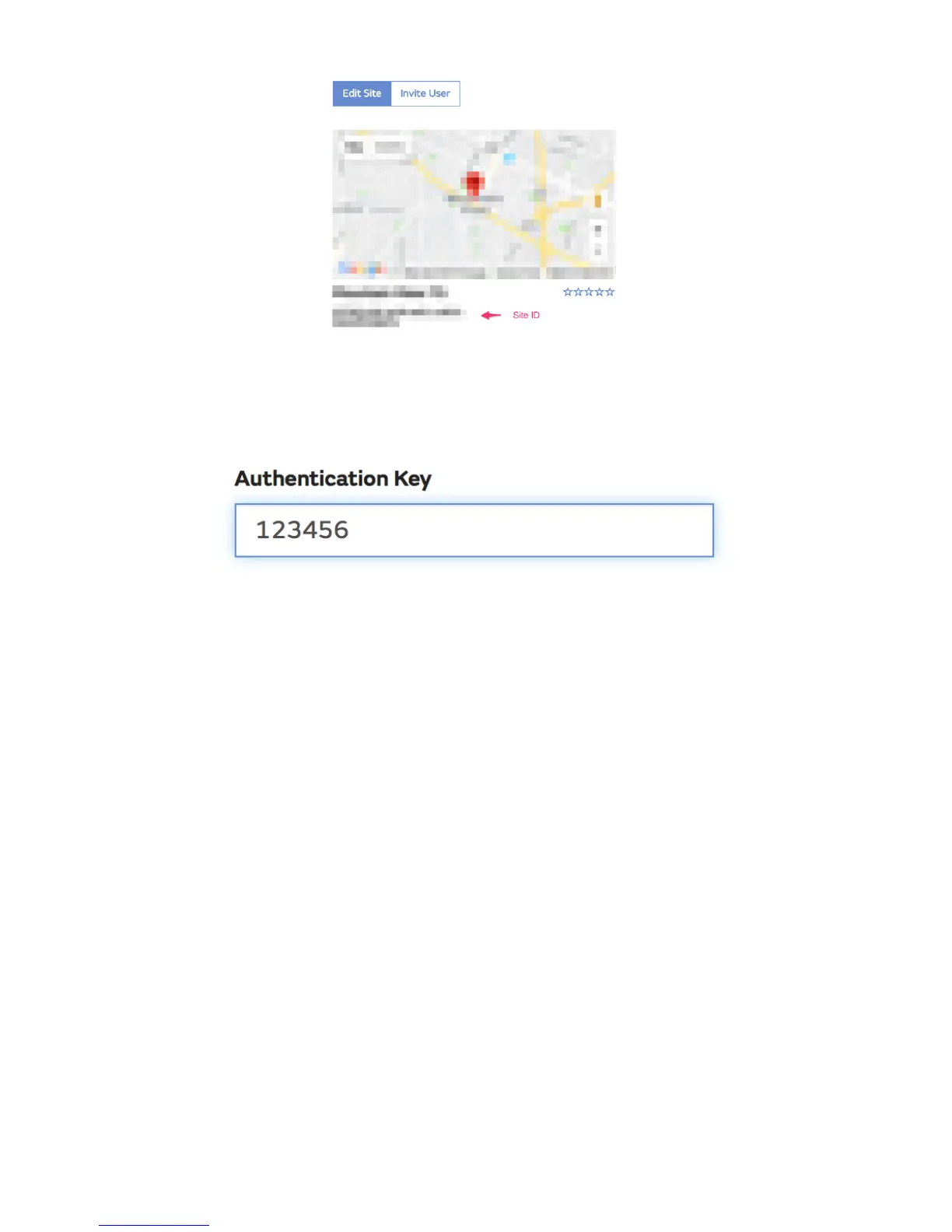
You will also need to establish a unique 6 digits PIN code that you should
keep secret. It is the “Authentication Key.” Set up this number by clicking
on “Edit Site”) (Error! Reference source not found.) and filling out the
with a 6-digit number of your choice:
You will need both “Site ID” and “Authentication Key” to set up the upload
configuration for WOW in the Weather Server.
In your mobile application, navigate to the “Device List” page and tap on
the device you want to configure WOW for. You will then be shown the
“wunderground.com” configuration. Please ignore and tap “Next” to see
the “Weathercloud” configuration. Please press “Next” one more time and
you will now be on the screen where you will configure WOW.
On this screen, you will fill out “Station ID” with the WOW “Site ID” value,
and “Station Key” with the WOW “Authentication Key” you created. Press
“Save” to finalize the configuration.
Mobile application – Device list
You can see your console through the “Device List” menu option:
Tapping on your console’s entry in the device list will bring you to the page
where you can change WU registration information. If you want to stop
your console upload data to Wunderground, delete your Station ID and
select “Save”.


 To Next Page