Console Operation
Note: Multiple display console settings can be easily set up
using the WeatherSmartIP PC software. To do this, the software
needs to be installed on a PC and the display console needs to
be connected to your Wi-Fi network. Instructions on connecting
your display console are located later in this user guide (Page 31
for Android, 42 for iOS).
Program mode
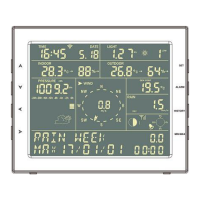
The screen is divided into 10 segments for selection and there is a
message display panel on the bottom segment.
There are six program modes: normal, setting mode, history mode, alarm
mode, max/min mode and calibration mode.
All the modes can be exited at any time by pressing the HISTORY key or
waiting for a 30-second timeout to take effect.
Normally, if the segment selected has multi parts, press the SET key to
choose different part. Example: the current section is RAIN, you can
press the SET key to alternate the display of RAIN RATE, RAIN EVENT,
DAY, WEEK, MONTH, YEAR and TOTAL.
1. Quick Display Mode (Update every 5 Seconds)
In the normal mode press” ”or” ” key to switch among different
segments. The respective chosen segment will be marked with the arrow
symbol” ”. And there will be corresponding information display on the
message board which is the lower 2 lines on the screen.


 To Next Page