UBTECH CADEBOT USER MANUAL
11.Opening the position list on the right side, selecting existing points will automatically
zoom in the map to display the location of the selected point, long-pressing and dragging
the point can switch its position, and clicking on the point below can rotate its direction.
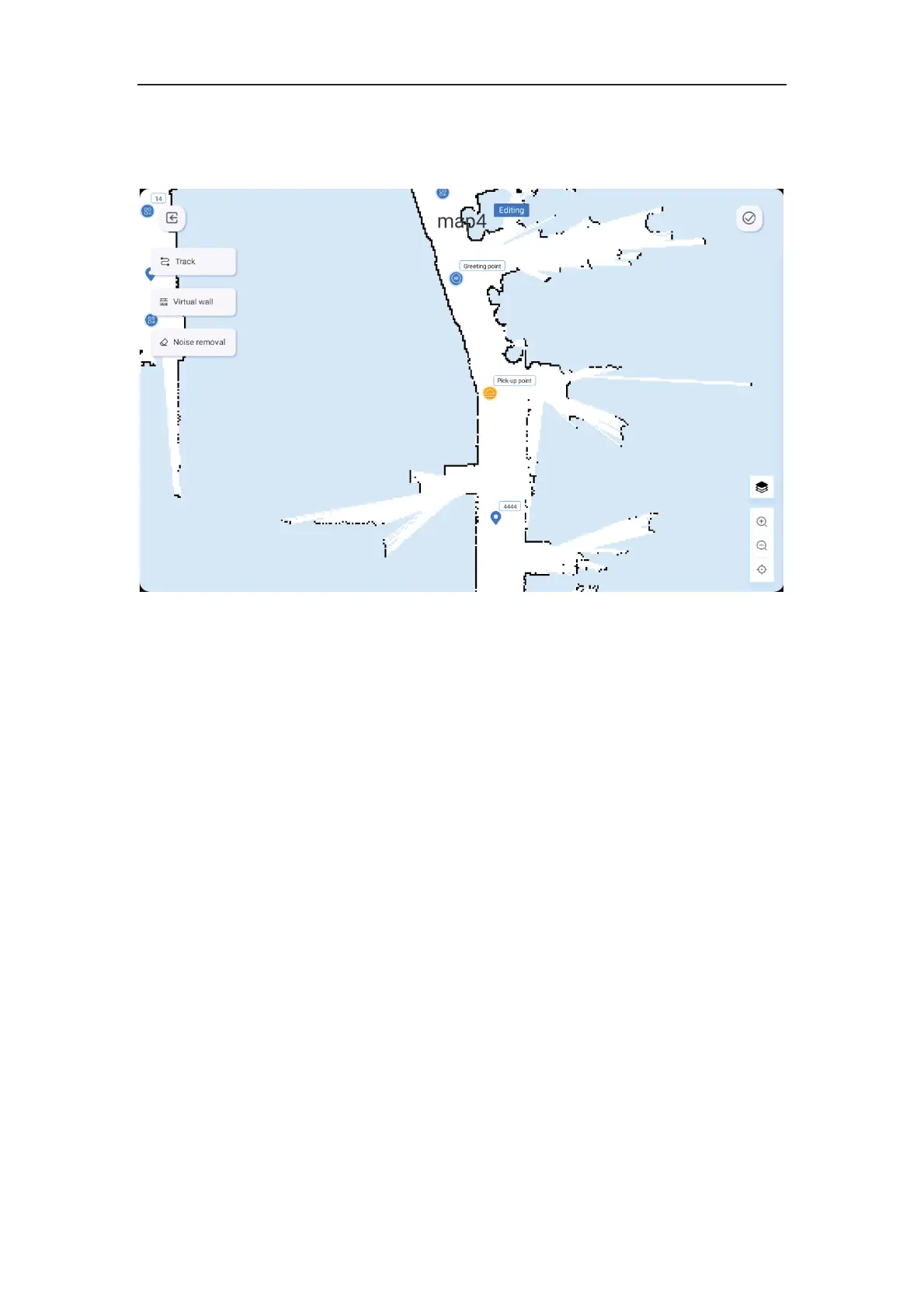
12.Click on Edit to enter the track and virtual wall editing interface.
13.Click on the virtual wall, select points on the map, connect them with lines, and the
virtual wall will be generated automatically (i.e. the robot cannot continue to move forward
after reaching the area, and must turn around to find a new route).
14.Click on Noise Removal, users can perform map beautification operations and erase
the obstacles and areas that were automatically generated by the radar scan on the map.
15.Click on Track, select points on the map, connect them with lines, and the track will be
generated automatically. If the robot's route is close to the track, it will prefer to take the
track.
16.After saving the map edit, you can choose to upload it to the cloud or not.



 To Next Page