ULEAD VIDEOSTUDIO USER GUIDE
22
Step 2: Apply a theme template and burn to DVD
1. Specify a Volume name and Recording format for your movie.
2. Select a theme template from one of the available presets to apply to your
movie then select its output video quality.
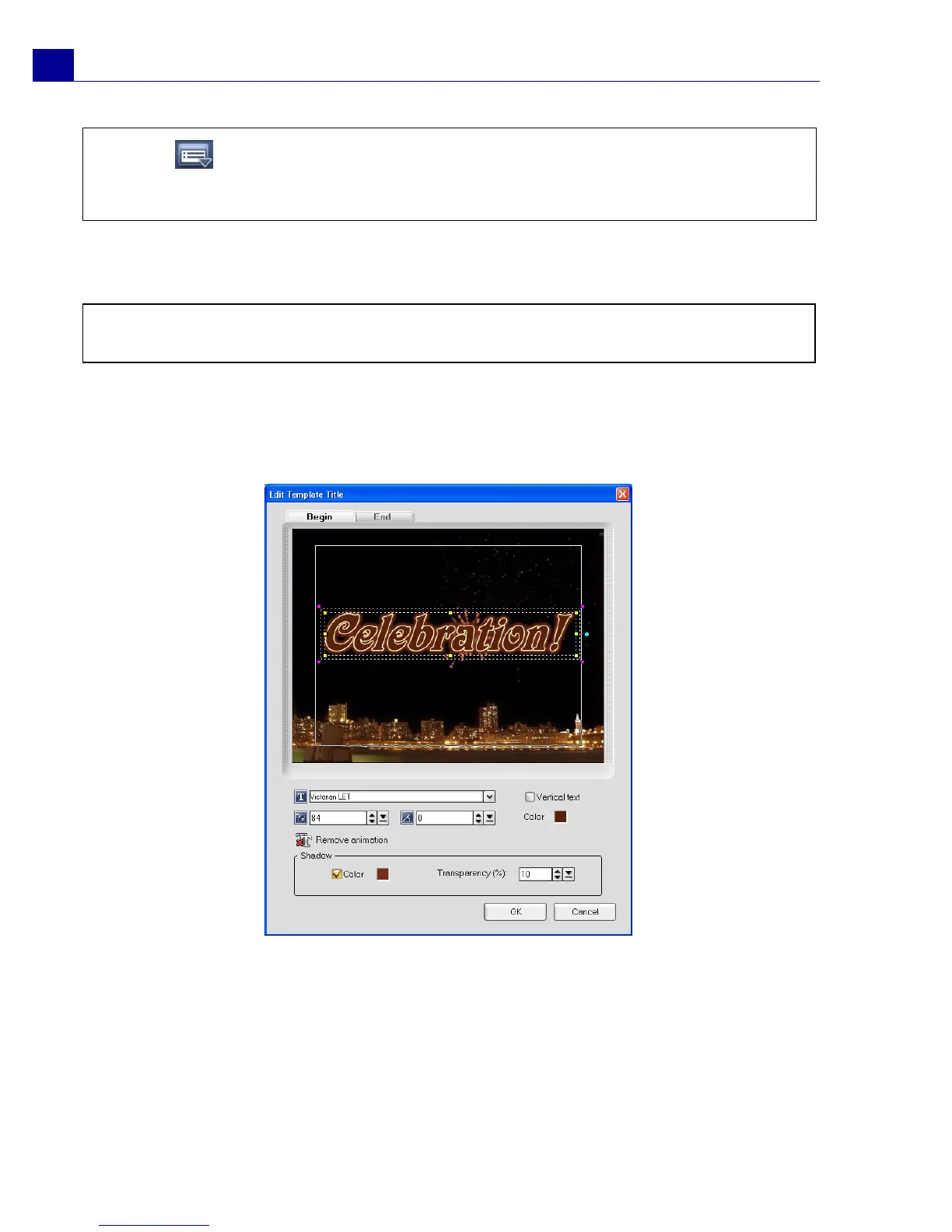
3. To customize the theme template text, click Edit Title.
4. In the Begin tab of the Edit Template Title dialog box, double-click the text to
modify. You can also modify its attributes like font, color or shadow settings.
5. Click the End tab to modify its text. Click OK.
Tip: Click and select Save DV Quick Scan Digest to save scanned file and import
without having to scan again or Save DV Quick Scan Digest as HTML to manage large
number of tapes by printing this HTML file and attaching it with your tapes.
Note: If you have more than one burner installed in your computer or the default drive is
not a burner, specify the burner you want to use in the Advanced Settings dialog box.



 To Next Page