ULEAD VIDEOSTUDIO USER GUIDE
41
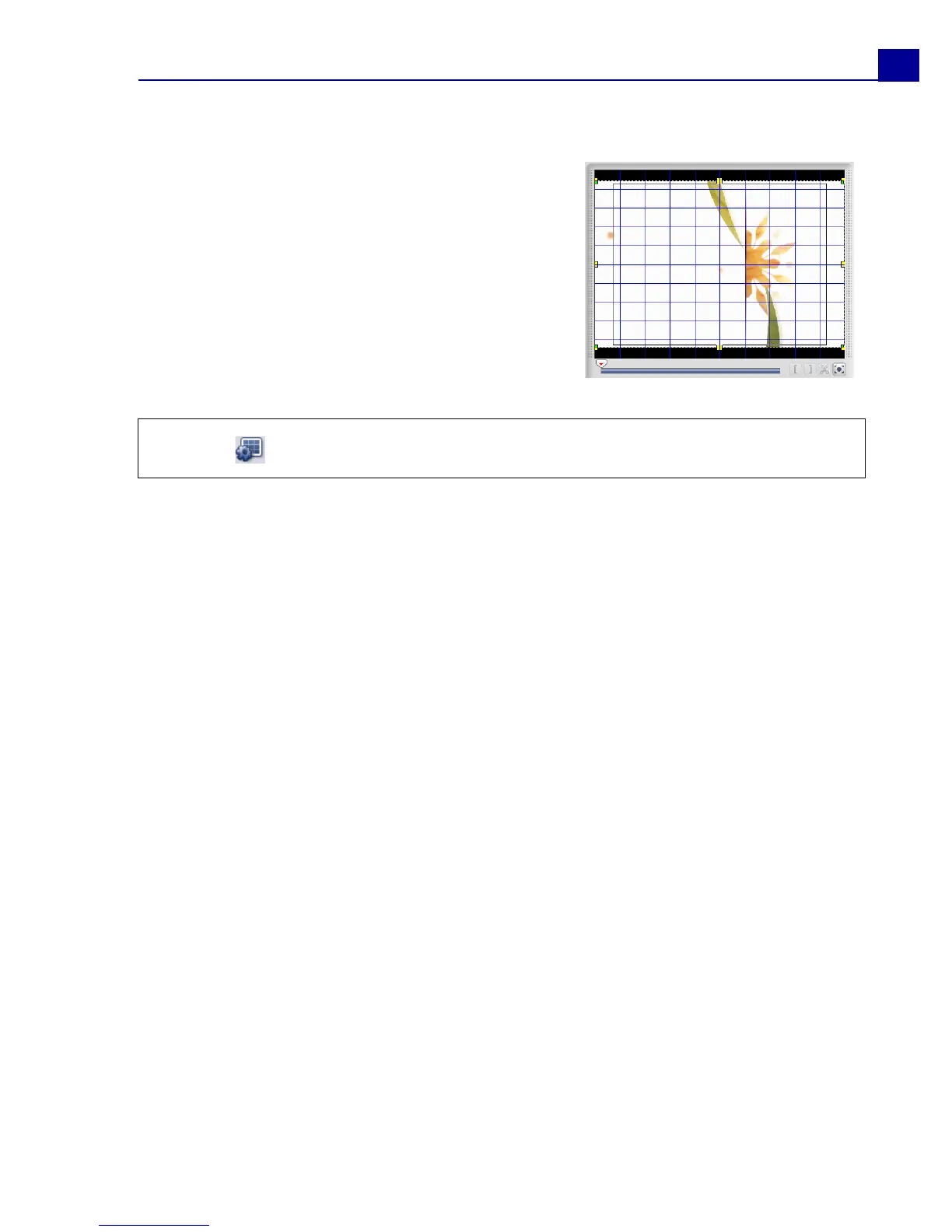
Showing and hiding grid lines
You can use grid lines to guide you when
repositioning or resizing images and videos or
when adding titles to your movie.
• To show grid lines in the Edit and Overlay
steps, select a clip in the Timeline then
select the Attribute tab. Select Distort
clip then select Show grid lines.
• To show grid lines in the Title step, select
Show grid lines in the Edit tab.
Saving your project
While composing your movie project, select File: Save [Ctrl + S] to frequently
save your project and avoid accidental loss of your work. VideoStudio project files
are saved in .VSP file format.
To automatically save your work, select File: Preferences - General then select
Automatically save project every: and specify the time interval between saves.
To open an existing project, select File: Open Project [Ctrl + O]. To create a
new project again, select File: New Project [Ctrl + N].
Saving project as Smart Package
Packaging a video project is useful if you want to back up your work or transfer
your files for sharing or for editing in a laptop or another computer.
To save projects as Smart Package, select File: Smart Package. Specify the
Folder path, Project folder name and Project file name. Click OK when done.
To open an existing project, select File: Open Project [Ctrl + O]. Browse for the
project folder and choose the project file you want to open.
Tip: Click to adjust grid line settings.



 To Next Page