ULEAD VIDEOSTUDIO USER GUIDE
96
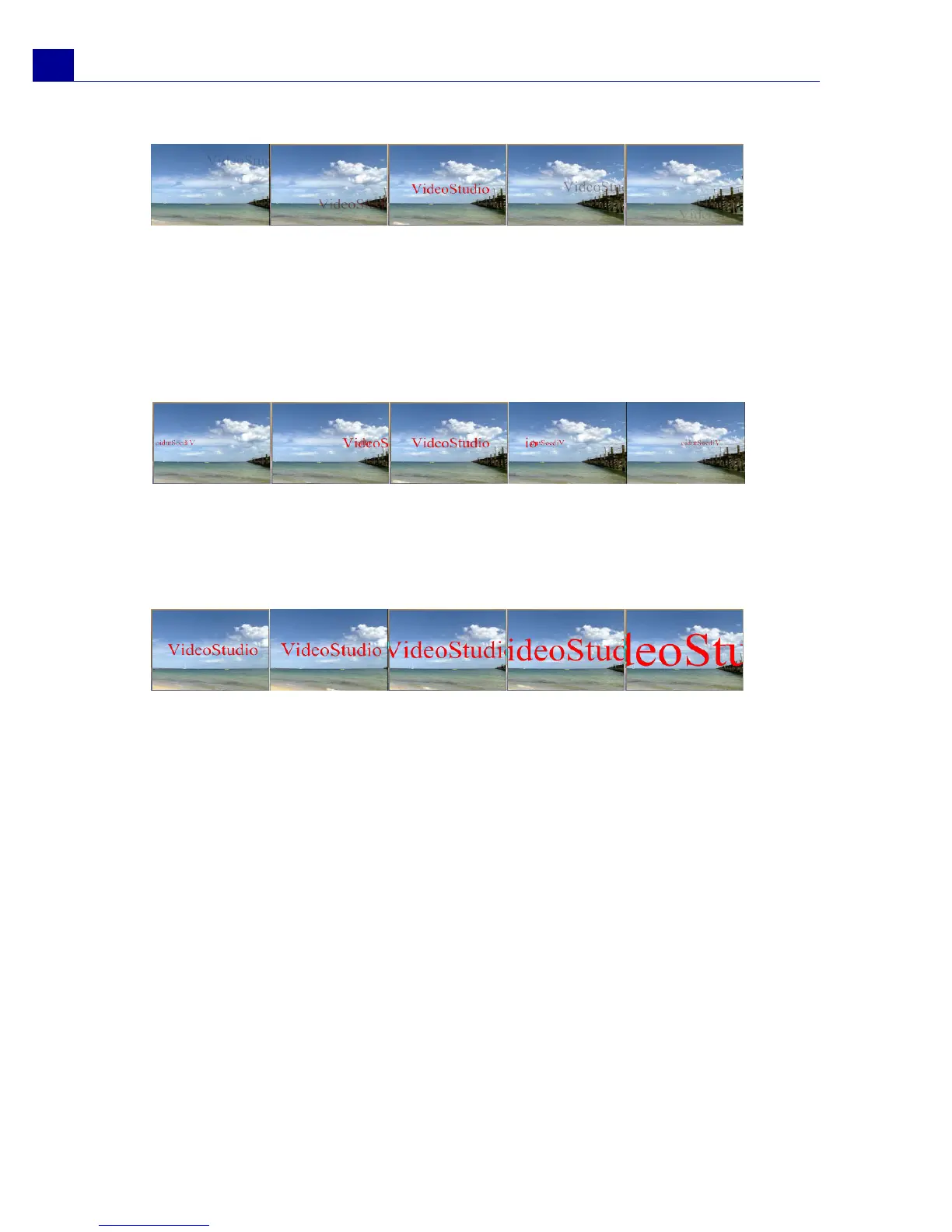
Swing dialog box
• Pause: Applies a break in between the start and end direction of the animation.
Select No Pause to make the animation run seamlessly.
• Swing degree: Select the level of curve applied to the text.
• Enter/Exit: Denotes the trail from where the motion of the title will start and end.
• Clockwise: Select to animate the curve in a clockwise direction.
Turn dialog box
• Enter/Exit: Denotes the trail from where the motion of the title will start and end.
• Pause: Applies a break in between the start and end direction of the animation.
Select No Pause to make the animation run seamlessly.
Zoom dialog box
• Show title: Select to display the title at the end of the animation.
• Unit: Determines how the title appears in the scene:
Text: The whole title appears in the scene.
Character: The title appears in the scene one character at a time.
Word: The title appears in the scene one word at a time.
Line: A line of text appears in the scene one at a time.
• Zoom start/Zoom end: Enter the title zoom ratio at the start and end of the
animation.
Saving your titles to the Library
If you still intend to use the title you have created for other projects, it is
recommended that you save it in the Library. Simply select a title in the Timeline
and drag it to the Library.



 To Next Page