ULEAD VIDEOSTUDIO USER GUIDE
28
7. Use the Volume slider to adjust the volume of the background music with
respect to the video's audio. Dragging the slider to the left increases the volume
of the background music and decreases the volume of the video's audio.
8. Click Next.
Step 3: Finish
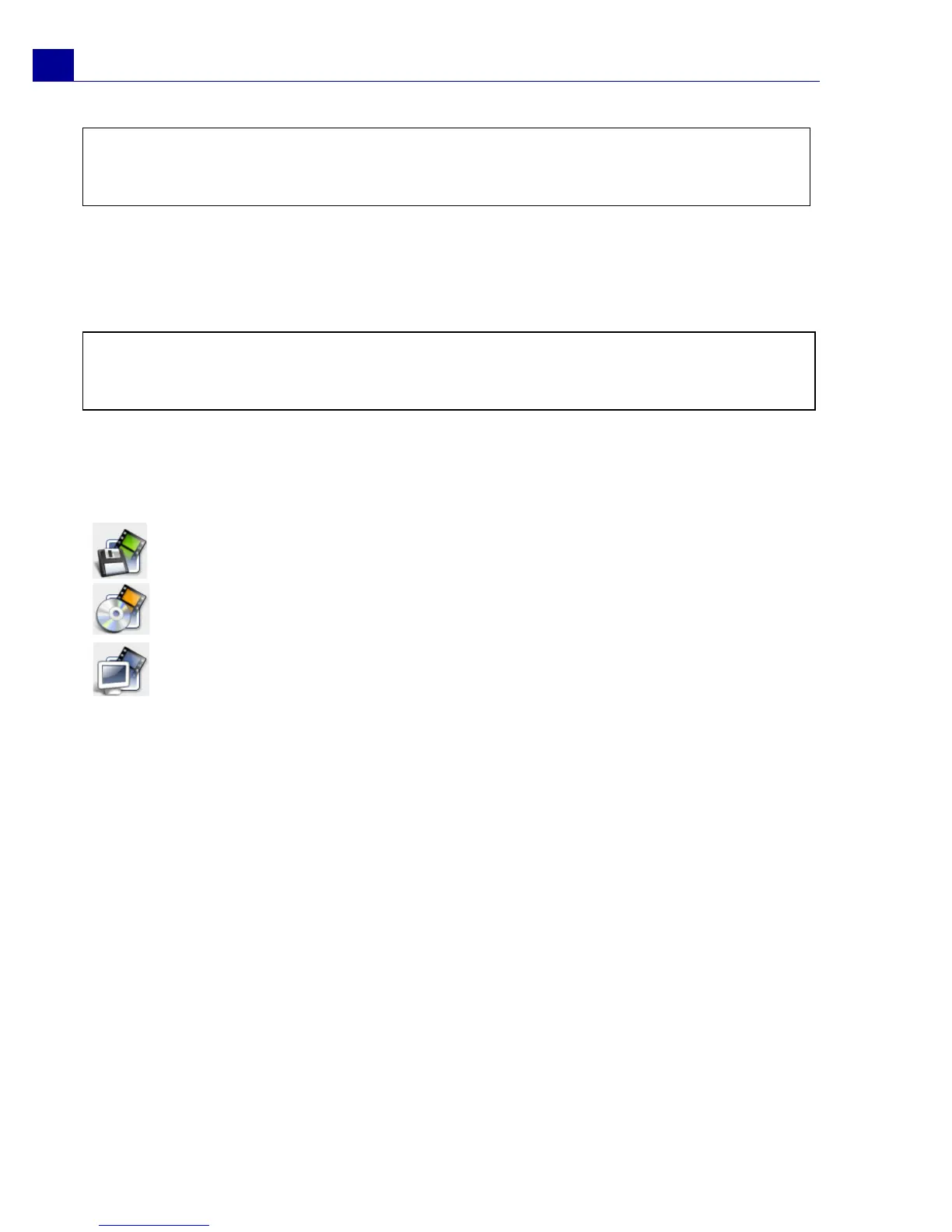
Select how to output the final movie:
VideoStudio Editor
VideoStudio Editor provides a step-by-step workflow that makes creating movies
simple and easy.
This section introduces you to the VideoStudio Editor interface and briefly explains
the steps involved in creating a movie. Refer to the succeeding chapters for more
in-depth information on each step.
Note: Make sure that your background music is 30 seconds or longer if you want to fit the
video to the music. If the music duration is less than 30 seconds, the music will not be
looped leaving the remaining video without any background music.
Note: If you opened the VideoStudio Movie Wizard within VideoStudio Editor, clicking Next
will skip the last step and directly insert the clips onto the Timeline in the VideoStudio
Editor.
Click Create Video File to output your movie as a video file that can be
played back on the computer.
Click Create Disc to burn your movie onto a disc.
Click Edit in Ulead VideoStudio Editor to make further edits to your
movie using VideoStudio Editor.



 To Next Page