ULEAD VIDEOSTUDIO USER GUIDE
84
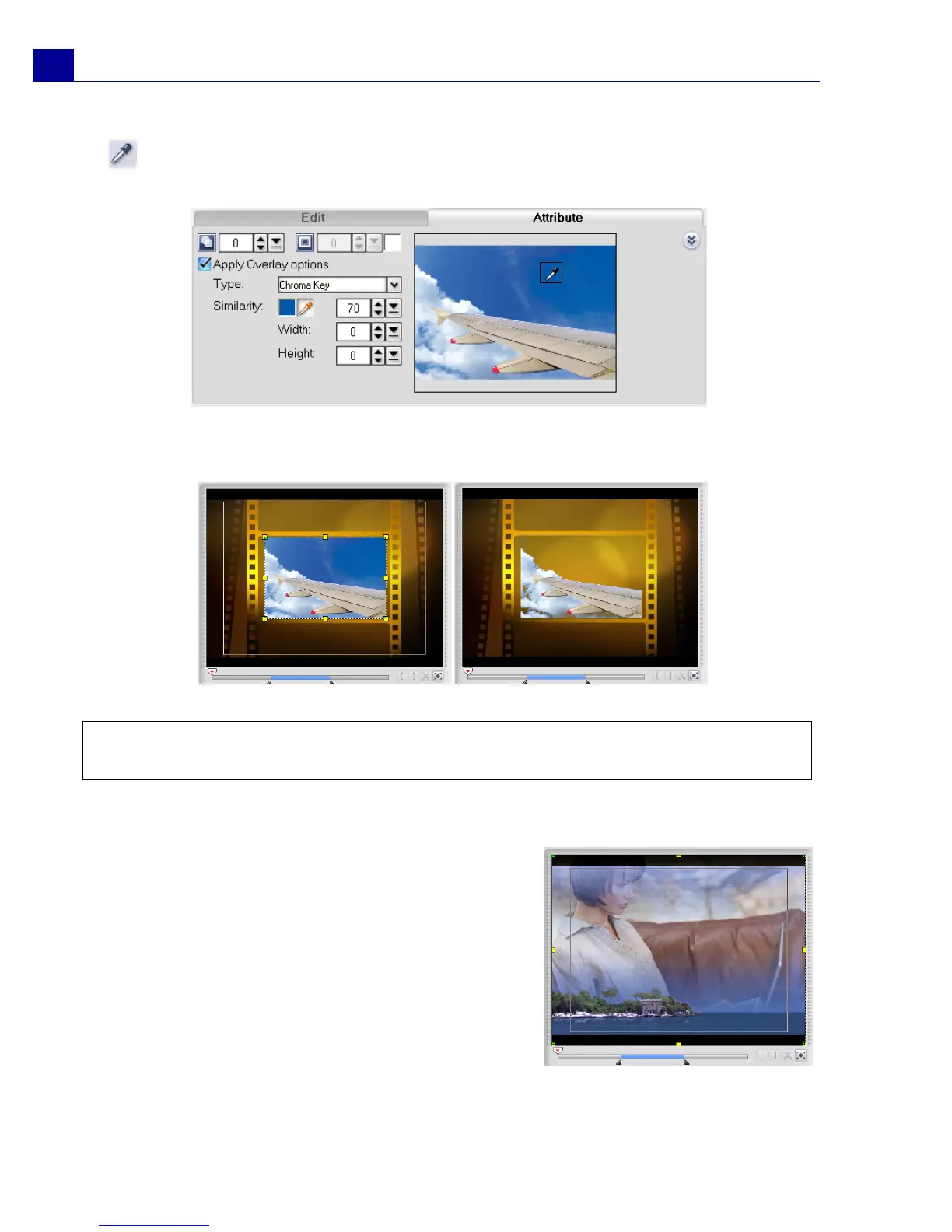
3. Click the Color Box and select the color to be rendered as transparent. Or select
and then click a color in the Preview area of the Options Panel that will be
rendered as transparent.
4. Watch the Preview Window to see how the new settings are affecting the image.
Adding a mask frame
Masking is a powerful method to control your
clips’ transparency. A mask or a matte, as it is
also called, is simply a black and white image you
can use in your projects to define which areas of
your video become transparent and which remain
opaque.
Tip: Drag the Similarity slider to specify the color range of the selected color that will be
rendered as transparent.
Without Chroma Key With Chroma Key



 To Next Page