ULEAD VIDEOSTUDIO USER GUIDE
91
Inserting subtitles to your project
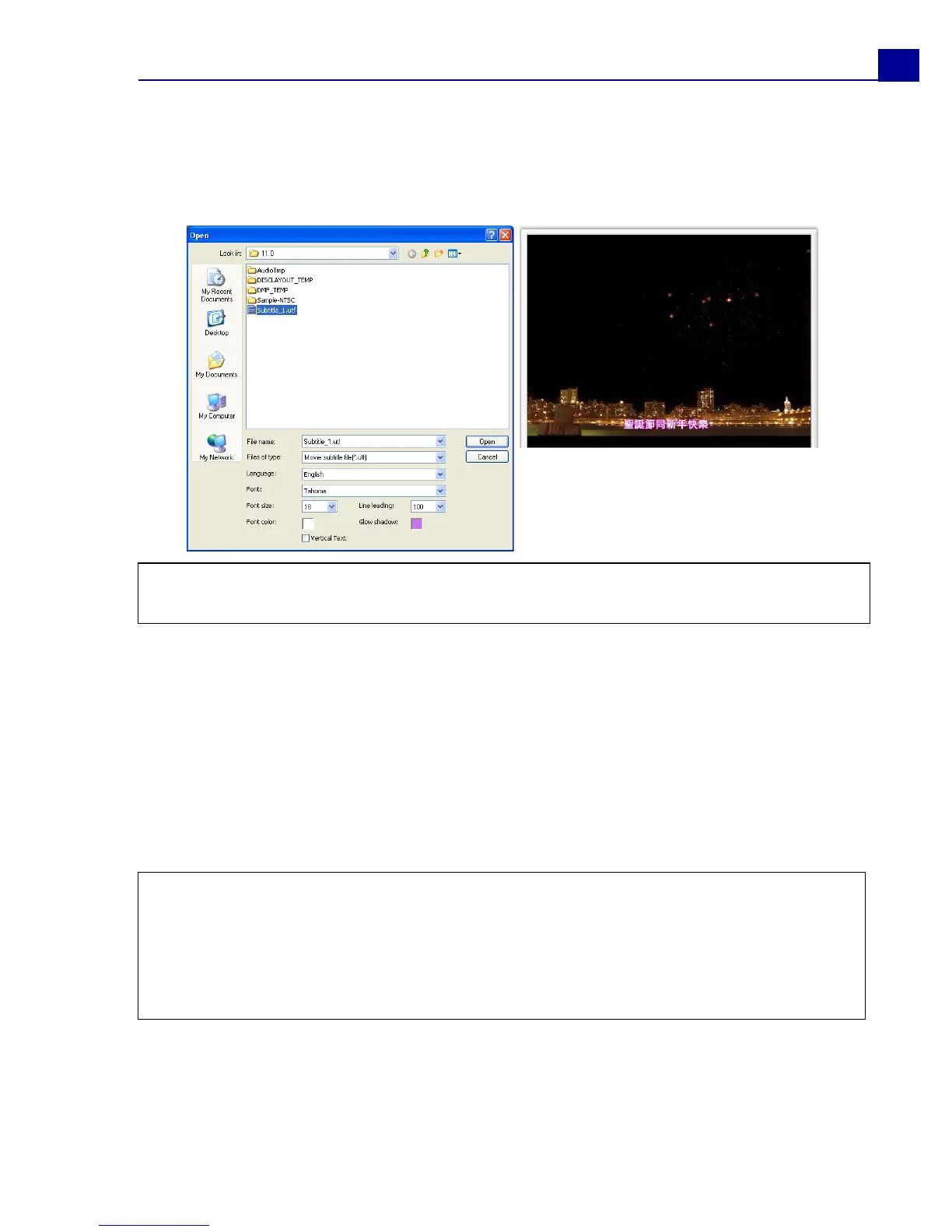
You can use your own movie subtitle files for your project. To insert your own, click
Open Subtitle File. In the Open dialog box, locate the file you want to use and
click Open.
To edit its text attributes, select the Font, Font size, Font color, Line leading
and Glow shadow for your subtitles. You can also choose Vertical text to set the
text orientation to vertical.
Saving subtitle files
Saving movie subtitles allows you to reuse them in the future. Click Save Subtitle
File to open the Save As dialog box. Locate where to save your movie subtitle and
click Save.
Note: To open subtitles with non-English characters, select the appropriate option in
Language.
Notes:
• Movie subtitles will automatically be saved as *.utf files.
• To save subtitles in foreign languages like Chinese, Japanese or Greek, click Open
Subtitle File in the Options Panel and browse for the particular file. Before you
open the file, however, make sure you select the corresponding language in
Language.



 To Next Page