ULEAD VIDEOSTUDIO USER GUIDE
53
• Select one or more video files in Windows Explorer then drag and drop to the
Video Track.
• To insert a clip from a file folder directly to the Video Track, click Insert
Media Files located to the left of the Timeline.
Images
The ways of adding still images to the Video Track are the same as when adding
video clips.
Before you start adding images to your project, determine first the image size that
you want for all your images. By default, VideoStudio adjusts the size to keep the
image’s aspect ratio. To make the size of all inserted images the same as your
project’s frame size, select
File: Preferences - Edit then change the Image
resampling option default to Fit to project size.
Color clips
Color clips are solid colored backgrounds that are useful for titles. For example,
insert a black color clip as background for end credits. You can use the preset color
clips or create new color clips in the Library.
To select a color clip in the Color Library:
1. Select Color from the Library drop-down menu.
2. Choose your desired color displayed in the Library and drag to the Video or
Overlay Track.
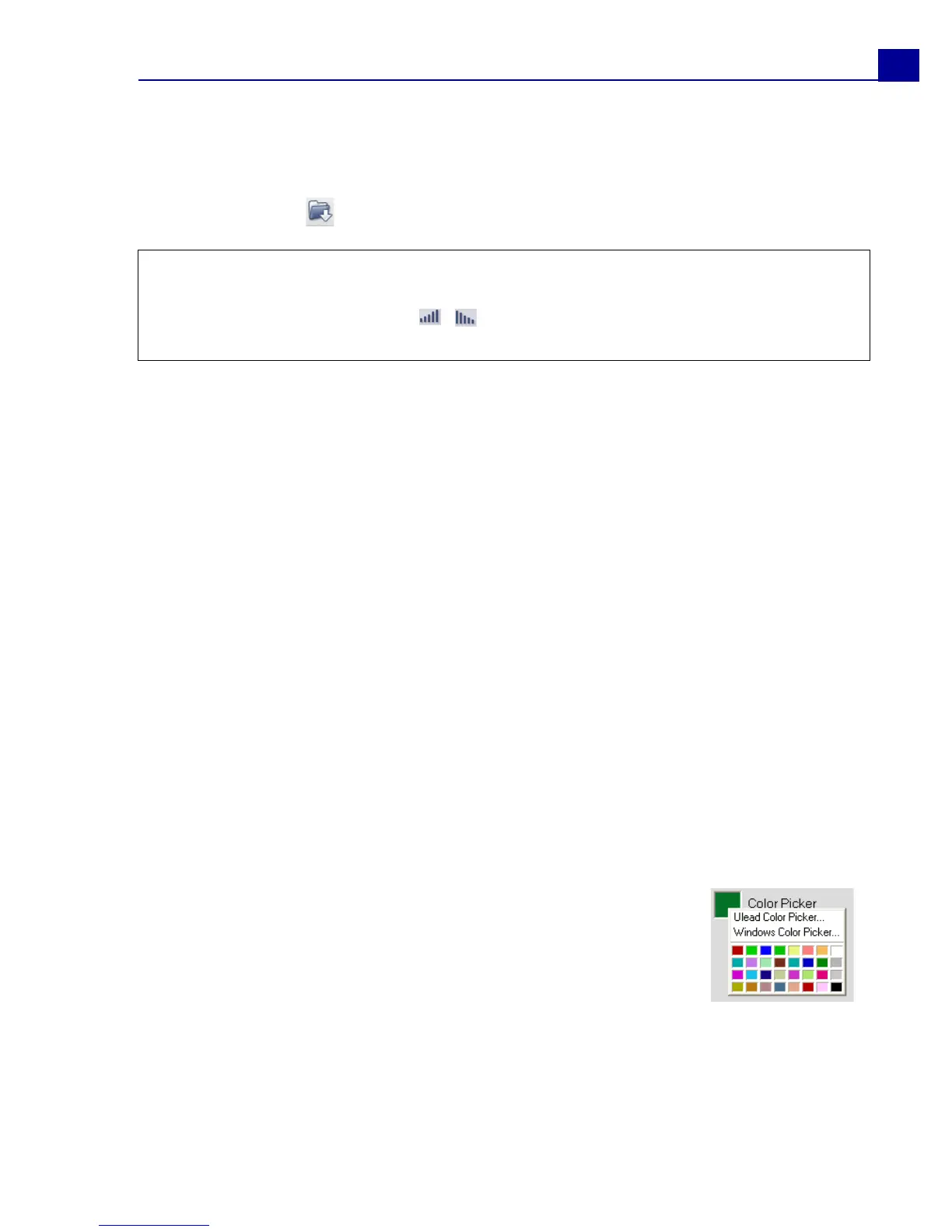
3. To load another color that is not in the Library, click the
color box beside the Color Picker. Here, you can select a
color either from Ulead Color Picker or the Windows Color
Picker.
4. Set the Duration of the color clip in the Options Panel.
Notes:
• Aside from video files, you can also add video from DVD or DVD-VR formatted discs.
•Use the Fade-in/out buttons to make the audio of the video clips in your
project smoothly fade from one clip to the next.



 To Next Page