ULEAD VIDEOSTUDIO USER GUIDE
71
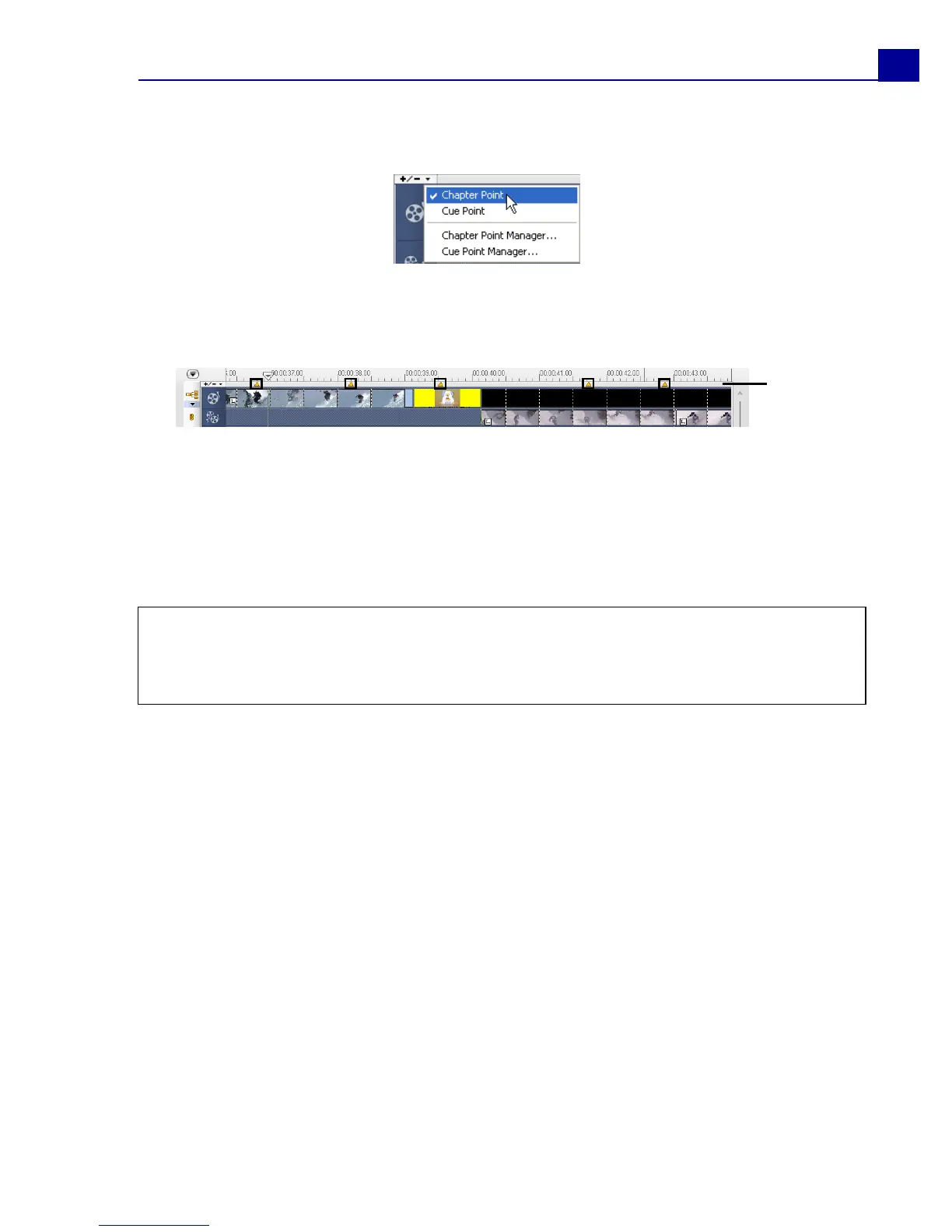
To add chapters:
1. Make sure that the Chapter Point is selected in the Chapter/Cue Menu.
2. Drag the cursor to the part of the project you want to assign as chapters and
click the bar below the Timeline ruler. Notice that, below your Timeline ruler,
yellow chapter points are set as markers in your movie.
You can also drag the Timeline slider to the desired chapter point position in
your project. Click the Add/Remove Chapter Point.
3. To edit a chapter, click on a chapter point you want to edit and drag to a new
position.
4. To rename, double click a chapter point and then enter a new chapter name.
Click OK.
Note: To remove chapters and cues, simply drag the markers outside the Timeline ruler
and then drop. Or you can also drag the Timeline ruler to the chapter or cue point you
want to remove and then click Add/Remove Chapter Point or Add/Remove Cue
Point.
Chapter
points



 To Next Page