The Unify CP400 is a customer training guide for a telecommunications device, likely an IP phone, designed for business communication. The guide provides an overview of the phone's physical components and step-by-step instructions for common calling functions, including making calls, answering calls, switching between handset and speakerphone, placing calls on hold, muting calls, redialing, transferring calls, and conducting conference calls.
Device Overview and Components:
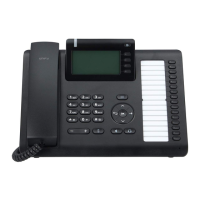
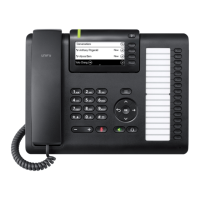
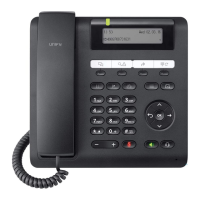
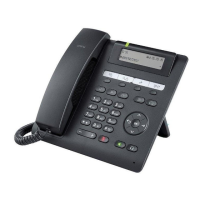
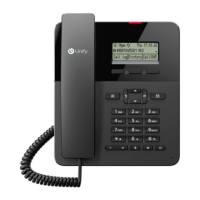
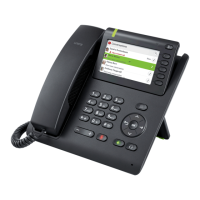
The Unify CP400 phone features a clear layout of buttons and indicators to facilitate ease of use. Key components include:
- LED Indicator: A visual indicator, likely for status notifications such as new messages, missed calls, or active features.
- Menu Key: Provides access to the phone's menu system for configuring settings and accessing advanced features.
- Call Forwarding Key: A dedicated button for activating or deactivating call forwarding.
- Soft Keys: Context-sensitive buttons located below the display, whose functions change based on the current screen or activity. These are crucial for navigating menus and executing actions like "Answer," "Hold," "Reconnect," "Consult," "Complete Transfer," "Return to held call," "Add participant," and "Start Conference."
- Navigation Keys: A set of directional keys (up, down, left, right) and a central "Select/OK Key" used for navigating through menus, lists, and confirming selections.
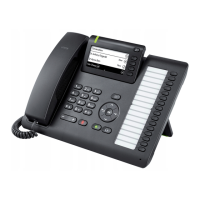
- Programmable Keys: Multiple buttons on the right side of the phone that can be customized for speed dial, line appearances, or other frequently used functions.
- Volume +/- Key: Adjusts the volume of the handset, speakerphone, or ringer.
- Mute Key: Mutes the microphone during a call. An LED indicator on this button illuminates when mute is active.
- Speakerphone Key: Activates or deactivates the speakerphone function.
- Headset Key: Activates or deactivates the connected headset.
- Dial Pad: Standard numeric keypad (0-9, *, #) for dialing numbers.
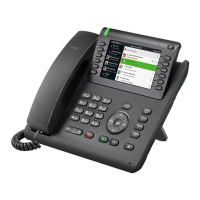
- Display Screen: Shows call information, menu options, and other relevant data. The image shows a graphical interface with icons for various functions and a list of conversations.
Usage Features:
The training guide details several core functionalities:
Making a Call (Internal or External):
Calls can be initiated in three ways:
- Using the Handset: Pick up the handset, enter the desired number, and press the "OK" key.
- Using Hands-Free Speakerphone Mode: With the handset on-hook, enter the desired number and press the "Speakerphone Key."
- Using a Connected Headset: With the handset on-hook, enter the desired number and press the "Headset Key."
Answering Calls:
Incoming calls can also be answered in three ways:
- Using the Handset: Pick up the handset.
- Using Hands-Free Speakerphone Mode: With the handset on-hook, press the "Speaker Key."
- Using a Connected Headset: With the headset mode activated, press the "Headset" soft key.
Answering When in Another Call:
If an incoming call arrives while already on a call, pressing the "Answer" soft key will answer the new call and place the original call on hold.
Switching from Handset to Speakerphone:
During an active call:
- Press the "Speaker" key; its LED will illuminate.
- Replace the handset; the audio will transfer to the speakerphone.
- To switch back to the handset, simply lift the handset, and the "Speaker" LED will turn off.
Placing a Call on Hold:
- During a call, press the "Hold" soft key.
- To retrieve the call, press the "Reconnect" soft key.
Muting a Call:
- Press the "Mute" button; its LED will illuminate, and the display will indicate that the call is on hold.
- To un-mute, press the "Mute" button again; the LED will turn off.
Redial:
- Press the "Conversation" soft key to display the call list.
- Use the navigation keys to select the desired number.
- Press the "Dial" soft key.
Transferring Calls (Internal or External):
Two methods are available for transferring calls:
-
Blind Transfer: Transfers the call without speaking to the other party.
- While in a call, press the "Consult" soft key.
- Enter the number or extension of the recipient.
- When the phone rings, press the "Complete Transfer" soft key or hang up to complete the transfer.
- To cancel the transfer and return to the original call, press the "Return to held call" soft key.
-
Attended Transfer: Transfers the call after speaking to the other party.
- While in a call, press the "Consult" soft key.
- Enter the number or extension of the recipient.
- Explain the call transfer to the recipient.
- Press the "Transfer" soft key to complete the transfer.
Conference Call:
To initiate or add participants to a conference call:
- While on a call, click the "Add participant" soft key; the current caller is placed on hold.
- Enter the number of the third party to add.
- If the new participant does not answer, press "Return to held..." to go back to the original call.
- Press the "Start Conference" soft key to join the calls.
- To add more people, press the "Add participant" soft key again.
- Enter the number of the next party.
- Press the "Conference" soft key to join the calls.
Maintenance Features:
The document itself includes a version history, indicating that it is a living document that may be updated.
- 09/11/2021 (Version 1.1): Added Page Footers & Title Image.
- 12/10/2021 (Version 1.0): Release version.
This suggests that the documentation is actively maintained to reflect any changes or improvements to the device or its usage instructions. While the guide doesn't explicitly detail device maintenance, the clear instructions for operation contribute to proper usage, which is a form of preventative maintenance for electronic devices.

 Need help?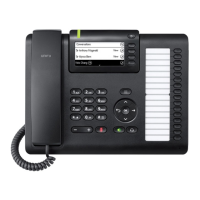




 To Next Page
 General