MSC-400 Reference Manual
Rev 4
84
PROGRAMMING MASTER/SLAVE SYSTEMS
Programming a Master/Slave System is essentially programming a system with two MSC-400s. Each
Controller will be cond for the devices it is sensing and controlling, the main differences are, in
Configuration, the devices sensed and controlled by the Master are set to Master and the devices sensed
and controlled by the Slave are set to Slave. Additionally, each Controller is cond with a different RFID.
The remote(s) used in a Master/Slave system are also set up essentially the same as in a single
controller system, but are also cond for two RFID’s…one for the Master and one for the Slave.
Smart Macros, in Master/Slave Systems, are programmed exactly the same as with single controller
systems. As long as the individual Connected Device Configurations and Sensor Input assignments are
correct, Smart Macros need no additional programming. However, in a Master/Slave system, the two
controllers must be connected via Output Port 12 on both controllers so the Master can communicate with
the Slave to tell it when to output specific commands in Smart Macros. To make this connection work, the
PORT 12 TO SLAVE BOX must be checked when downloading to both controllers. See section:
CONNECTIONS/MASTER SLAVE SYSTEMS for additional information. Pg#
For the purpose of explanation, an Example System with 15 devices will be used. Master/Slave
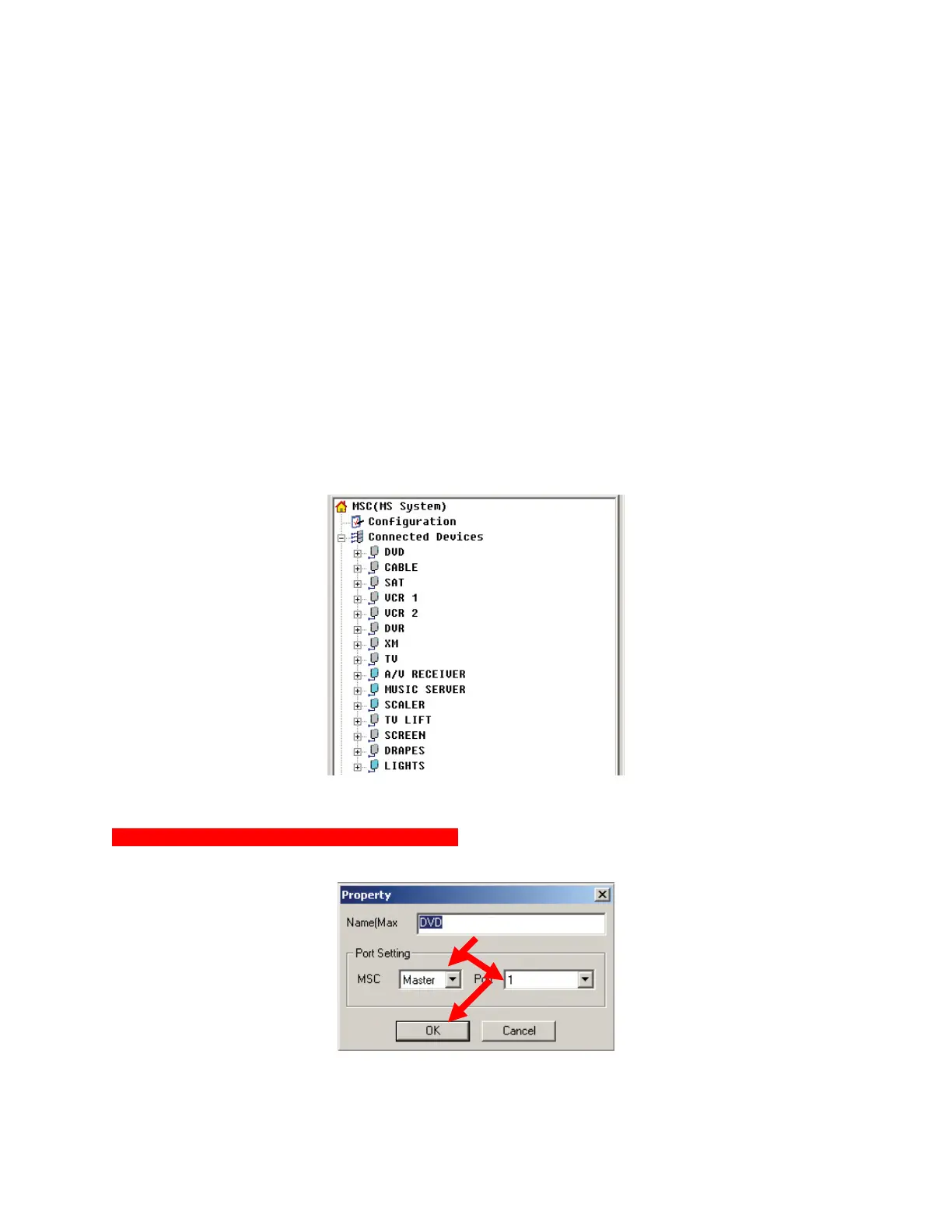
Connected Devices The Master Controller has eleven A/V Connected Devices, both IR and RS232
Controlled, and the Slave has four automation Devices also both IR and RS232 controlled. All Smart
Macros for this system have already been created and will not be covered in this section. See section:
MACRO GROUPS AND SMART MACROS for additional information. Pg# To program a Master/Slave
System:
Master/Slave System Connected Devices
Configuring MSC Master and Slave Controllers
1. In MSC EDITOR TREE VIEW, right click DVD. In the POP-UP, select PROPERTIES. The
PROPERTY WINDOW will appear. Connected Device Property Window
Connected Device Property Window
2. In the PORT SETTING BLOCK, set MSC to MASTER. Set PORT to 1. Click OK.
1
2-3



 To Next Page