MSC-400 Reference Manual
Rev 4
36
Programming Smart Macros
There are two ways that Smart Macros can be triggered in a MSC-400 System.
• Normal Macro - A Normal Macro is triggered by an RF Trigger from a remote control. Normal Macros
are typically used for System ON/OFF, Source Select and Favorite Channel Macros.
• Sensor Triggered Macro - A Sensor Triggered Macro is triggered when an appropriately cond
Sensor Input detects a change of state. The trigger mechanism can be set to send the Smart Macro
when an ON or OFF condition is sensed or when a sensor changes from ON to OFF or vice versa.
This type of Smart Macro is typically used for special applications such as automatically turning the
system ON/OFF when triggered by a video game or camcorder.
A Typical Smart Macro
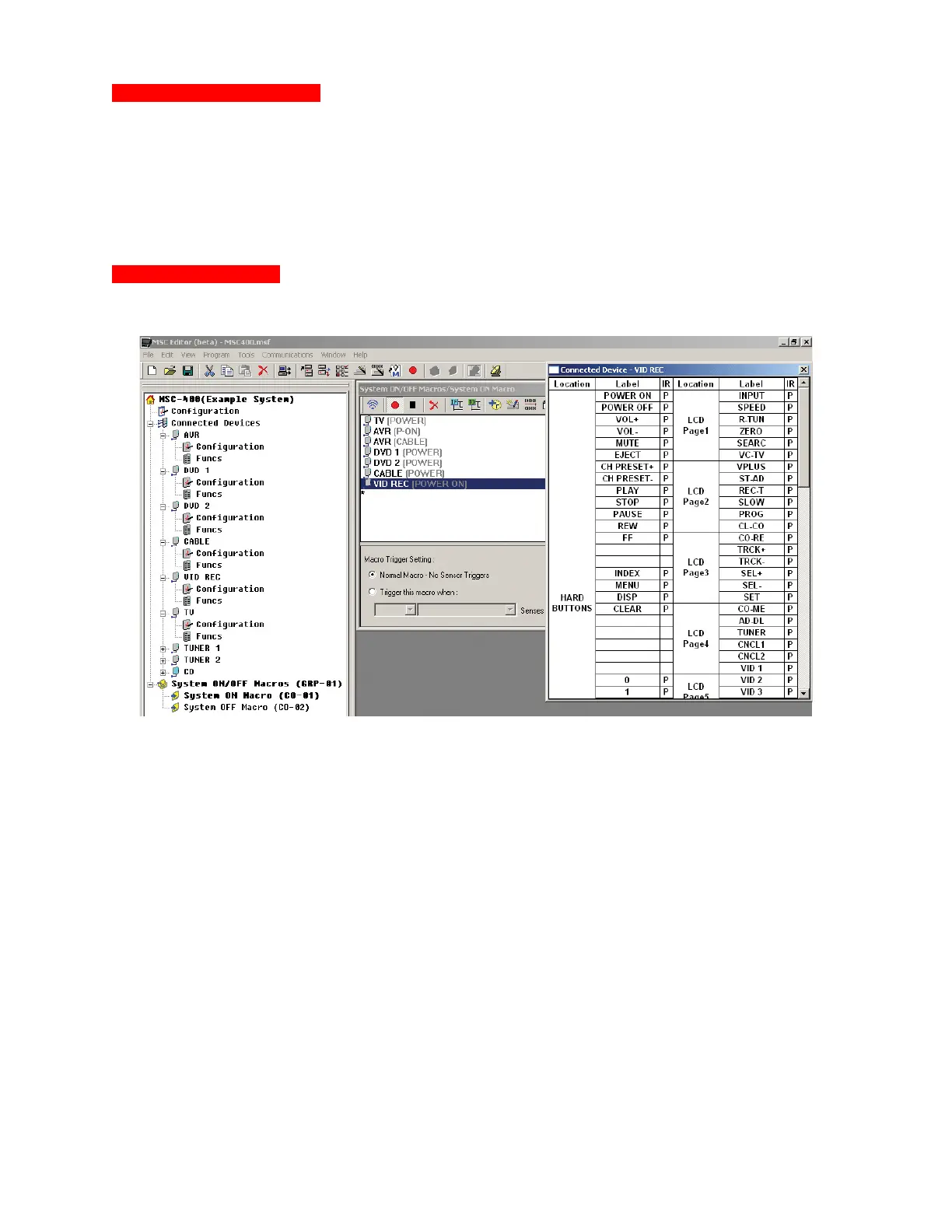
For this example, you’ve decided that the clients are best served with a macro that turns on all system
devices and switches to Cable TV.
Record System ON Commands to Smart Macro
1. In MSC EDITOR TREE VIEW, click the ‘+’ next to SYSTEM ON/OFF MACROS to expand the list
then click SYSTEM ON MACRO. SYSTEM ON/OFF MACROS/SYSTEM ON MACRO will appear in
the TITLE BAR of the SMART MACRO EDITOR WINDOW.
2. Under MACRO TRIGGER SETTING select: NORMAL MACRO – NO SENSOR TRIGGERS. (The
System ON Macro will be initiated by a button press on a remote.)
3. In TREE VIEW click the ‘+’ next to CONNECTED DEVICES to expand the list.
4. In the SMART MACRO WINDOW, click the red RECORD BUTTON.
5. In TREE VIEW, double click the first CONNECTED DEVICE (AVR – A/V Receiver). The
CONNECTED DEVICE IR COMMAND WINDOW for the AVR will appear.
6. In the IR COMMAND WINDOW, click the AVR POWER ON COMMAND. (If there is no discrete
command for Power ON, click Power.) The COMMAND will appear in the SMART MACRO
FUNCTION LIST.
7. In the IR COMMAND WINDOW, click the AVR CABLE INPUT COMMAND. This will be used to
switch the AVR to the Cable input as part of the System ON Macro.
8. Repeat STEPS 5-6 for ALL Connected Device power commands. For the example system, the
homeowners wants all devices ON, so POWER COMMANDS for all devices will be recorded to the
SMART MACRO FUNCTION LIST.
9. When all commands have been added to the list, click the black STOP BUTTON.
1
2
3
4
5&8
9
6-8



 To Next Page