MSC-400 Reference Manual
Rev 4
35
Smart Macro Window
The Smart Macro Window is where all programming for MSC-400 Smart Macros is done. IR and RS232
Commands, Delays, IF/ELSE Statements, Action Variables and all steps and conditions are cond in this
window for System ON/OFF Macros, Source Select Macros, etc. The functions of each of the
Programming Buttons or Icons are detailed here for reference. Their specific applications are detailed in
the Programming Section of this Manual.
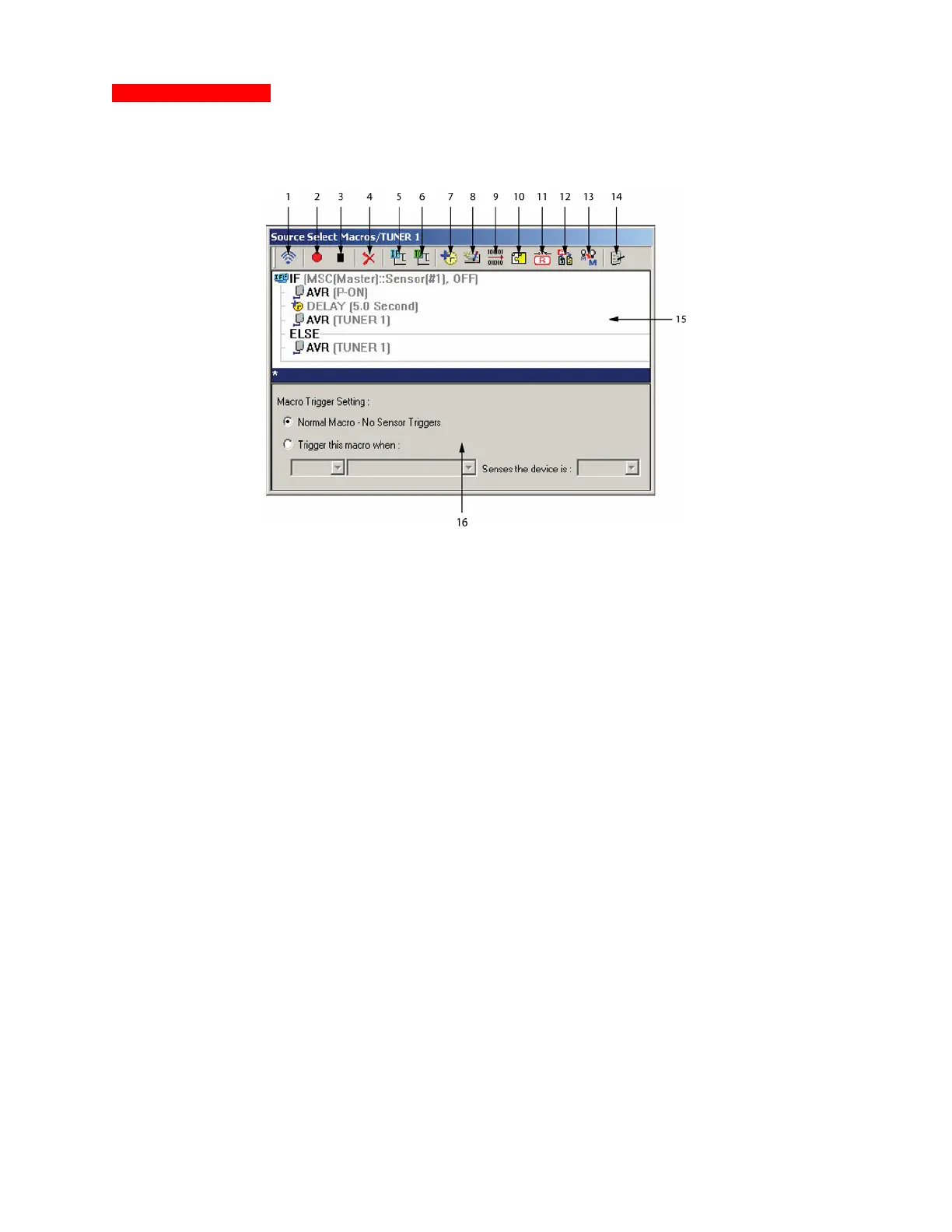
MSC-400 Editor Smart Macro Window
1. Test – Click this Icon with the PC Connected to the MSC to test Commands and Macros.
2. Record – Click this Icon to add IR or RS232 Commands to a Macro List.
3. Stop – Click this Icon to Stop the Record function when all commands have been added to a Macro.
4. Delete – Click this Icon after selecting a step in a macro to delete the step.
5. IF/ELSE – Click this Icon to add an IF/ELSE Bracket to a Smart Macro for conditional control of
system devices based upon device status. i.e.: IF ON do nothing. IF OFF turn ON, etc.
6. Toggle Macro – Click this Icon to create special Macros that scroll through commonly used
commands such as Favorite Channels, Surround Modes, etc.
7. Delay – Click this Icon to add delay to a Smart Macro to allow different system components to
perform a function and be ready to receive additional commands, or add space between commands
for components that are too slow to process fast sequences of commands.
8. IR Data Setting – Click this Icon to open the IR Setting Window. The IR Setting Window enables IR
Learning directly to the MSC, allows editing of IR Command repeat cycles and embedding commands
into macros from the IR Database.
9. Serial Output – Click this Icon to open the Serial Command Window. This window enables testing
and embedding RS232 commands into Macros from the Serial Database.
10. Connected Data - Click this Icon to insert any IR or RS232 Command to a Smart Macro for any
device cond to the system. Can also adjust IR Repeats and RS232 Ramp Start and Ramp Speed.
11. Relay – Click this Icon to add and con Relay Commands into Smart Macros.
12. Action Variable – Click this Icon to con Action Variables to Smart Macros.
13. Nest a Smart Macro Alias Into a Smart Macro – Click this Icon to Nest a single line entry for a
Smart Macro in place of the list of steps in that macro.
14. Property – Click this Icon to open the Property Window which allows manual configuration of IR or
Serial Port assignment by Device. Typically, the system defaults should be used.
15. Smart Macro Function List – The Commands, Delays and Conditional Instructions included in each
Smart Macro.
Macro Trigger Setting – Sets the parameters for whether a macro will execute when a remote button is
pressed (Normal) or when triggered by a video or voltage trigger (Trigger this macro when…)



 To Next Page