MSC-400 Reference Manual
Rev 4
45
7. Now let’s take care of the other problem in our macro, the Power On delay for the Audio receiver.
Once again, click on the IF button on the top of the macro window.
8. Drag the AUDIO power, the AUDIO input command and the 5 second delay into the IF branch.
9. Set
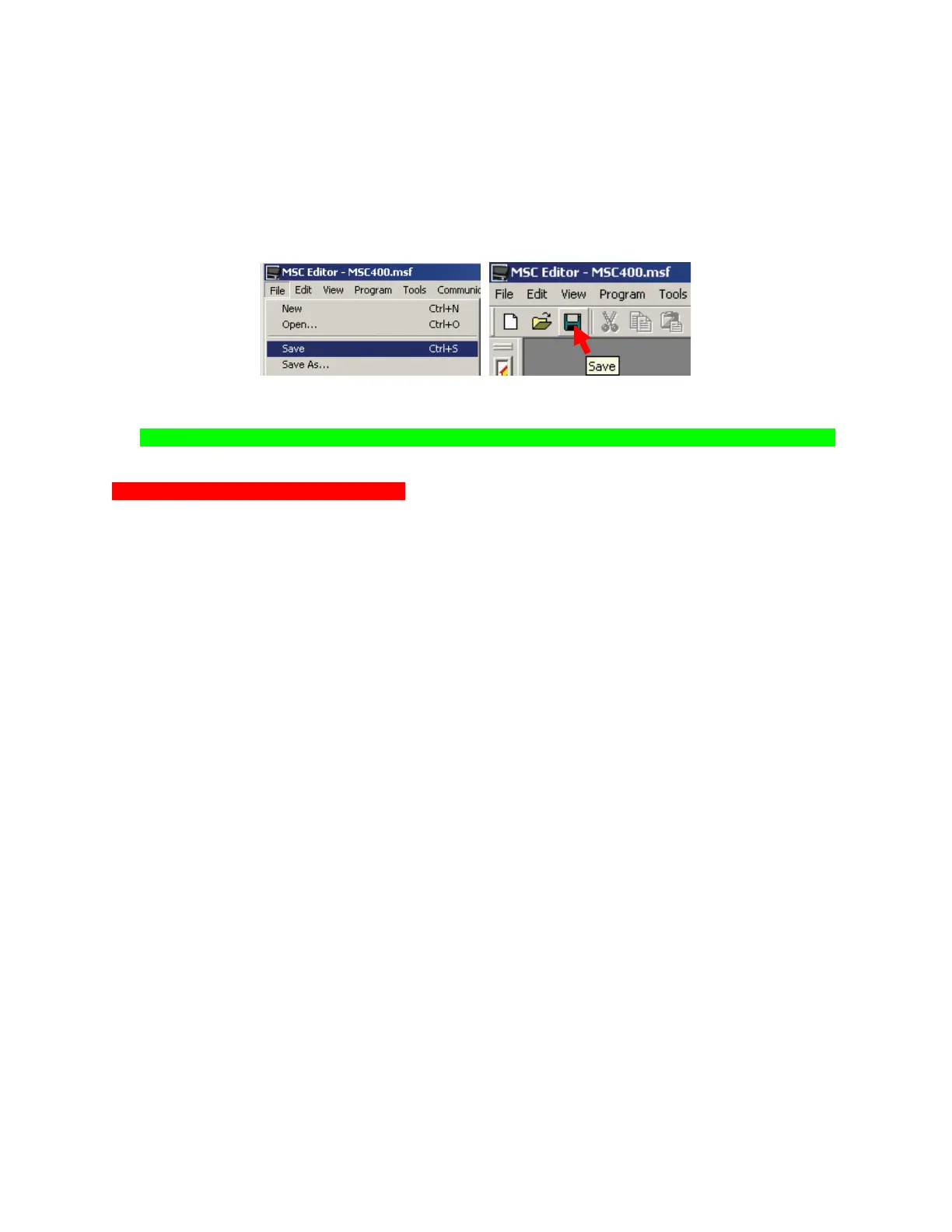
10. To SAVE, do either of:
a) In the MSC EDITOR MENU BAR, click FILE, then click SAVE.
b) In the MSC EDITOR TOOL BAR, click the SAVE ICON.
11a 11b
11. To TEST, download the MSC Project to the MSC-400. Also see Section: PROGRAMMING SMART
MACRO TRIGGERS TO THE REMOTE.
NOTE – Macro Triggers must be programmed to a remote to test Smart Macros from a remote.
Programming Sensor Triggered Macros
Sensor Triggered Macros are programmed in mostly the same way as Normal Macros with one key
difference. In the Smart Macro Window under MACRO TRIGGER SETTING, instead of selecting
NORMAL MACRO (STEP 2 in the SYSTEM ON MACRO, STEP 2B in the SOURCE SELECT MACRO
examples), select TRIGGER THIS MACRO WHEN, and set the appropriate configuration from the pull
downs. These are the same settings as are cond in the IF SETTING WINDOW for a normal Smart Macro,
except here, rather than being initiated by an RF Trigger from a remote button press, when the specified
condition is sensed, the associated macro is executed. This is extremely effective for video games. When
the game turns on, the presence of the video game composite video signal on a MSC Sensor Input will
trigger the associated Smart Macro, i.e.: Turn the system ON if OFF, select the appropriate source input
for the video game, etc. In addition, one of the Sensor Inputs will need to be cond for the sensor of the
device triggering the macro. See section: CONFIGURATION for additional information. Otherwise, follow
the steps in SYSTEM ON/OFF MACROS OR SOURCE SELECT MACROS to program a SENSOR
TRIGGERED SMART MACRO.



 To Next Page