MSC-400 Reference Manual
Rev 4
34
c) Right click the MACRO GROUP DIRECTORY. In the POP-UP, select ADD SMART MACRO.
d) Right click the SMART MACRO. In the POP-UP, select RENAME. The SMART MACRO
DIRECTORY will become active. Type the name of the SMART MACRO. (System ON Macro).
e) Click anywhere in TREE VIEW to SAVE.
f) Repeat STEPS C-E to add a SYSTEM OFF MACRO.
OR…
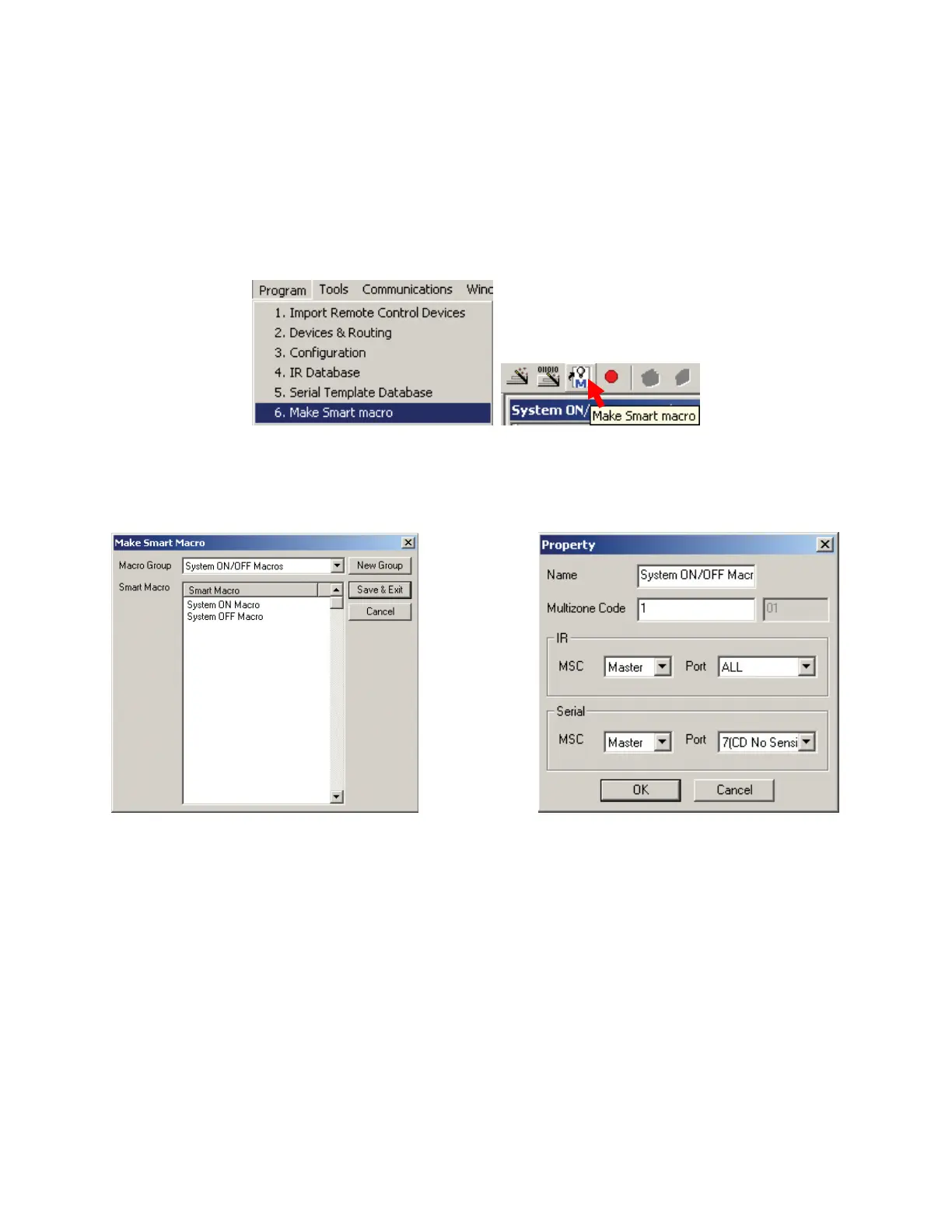
1. To open the MAKE SMART MACRO WINDOW, do either of:
a) In the MSC EDITOR MENU BAR, click PROGRAM, then click MAKE SMART MACRO.
b) In the MSC-EDITOR TOOL BAR, click the MAKE SMART MACRO ICON.
The MAKE SMART MACRO WINDOW will appear. Make Smart Macro Window
2. In the MAKE SMART MACRO WINDOW:
a) Click the NEW GROUP BUTTON. The PROPERTY WINDOW will appear. Property Window
Make Smart Macro Window Property Window
b) In the NAME BOX, type the name of the new MACRO GROUP. (System ON/OFF Macros) It is
not necessary to make any other changes in this window at this time.
c) Click OK. The new MACRO GROUP will appear in the MACRO GROUP BOX in the MAKE
SMART MACRO WINDOW.
d) Double click in the BLANK SPACE directly below SMART MACRO. A TYPE TOOL will become
active.
e) Type the name of the SMART MACRO. (System ON Macro.)
f) Press ENTER on the PC KEYBOARD or double click in the BLANK SPACE directly below
SYSTEM ON MACRO. The TYPE TOOL will again become active.
g) Type: SYSTEM OFF MACRO.
h) Click SAVE AND EXIT. The MACRO GROUP and SMART MACROS will appear at the bottom of
TREE VIEW.
2b
2c
2a
2d,e,f,g
2h



 To Next Page