18
3.3.2.4. Video recording: Tap the video recording icon to start recording, and the icon will turn red
and a red signal point and the duration prompt will appear on the upper right corner of the
screen; tap again to end the video recording, and the signal point and duration prompt will
disappear from the screen with a text prompt "The video has been saved successfully.
3.3.2.5. Storage path: After photoshooting or video recording, a unique date folder named after the operation
date will be automatically generated.
3.3.2.5.1. If the patient ID is set: A folder named by the patient ID will be automatically generated in the date
folder after photoshooting or video recording. For example, if the operation date is Sept. 17, 2020,
and the patient ID is 12, the file path will be: >2020-09-17>12.
3.3.2.5.2. If the patient ID is not set: A "pictures" folder will be generated in the date folder after
photoshooting, and the file path will be: >2020-09-17>pictures, where all image files are stored in
PNG format. A "medias" folder will be generated in the date folder after video recording, and the
file path will be: >2020-09-17>medias, where all video files are stored in MP4 format.
The photo & video files are named after consecutive numbers in the order of year, month, day, hour, minute
and second.
The maximum allowable length of the video is 90 minutes (i.e. 4GB). Therefore, any video recording over 90
minutes will be automatically stored by splitting into two or more videos. When the available memory is less
than 4GB, a text prompt indicating insufficient memory will appear on the screen.
3.3.2.5. Battery capacity: The battery capacity icon in the lower left corner can display the remaining battery
capacity, which changes depending on the remaining capacity and status of the battery.
When the battery capacity is greater than 20%, this icon is green; when the battery capacity is less than 20%,
it is orange; when the battery capacity is less than 10%, it is red,and a text prompt of insufficient battery
capacity appears on the screen.and a lightning symbol appears in the icon when charging.
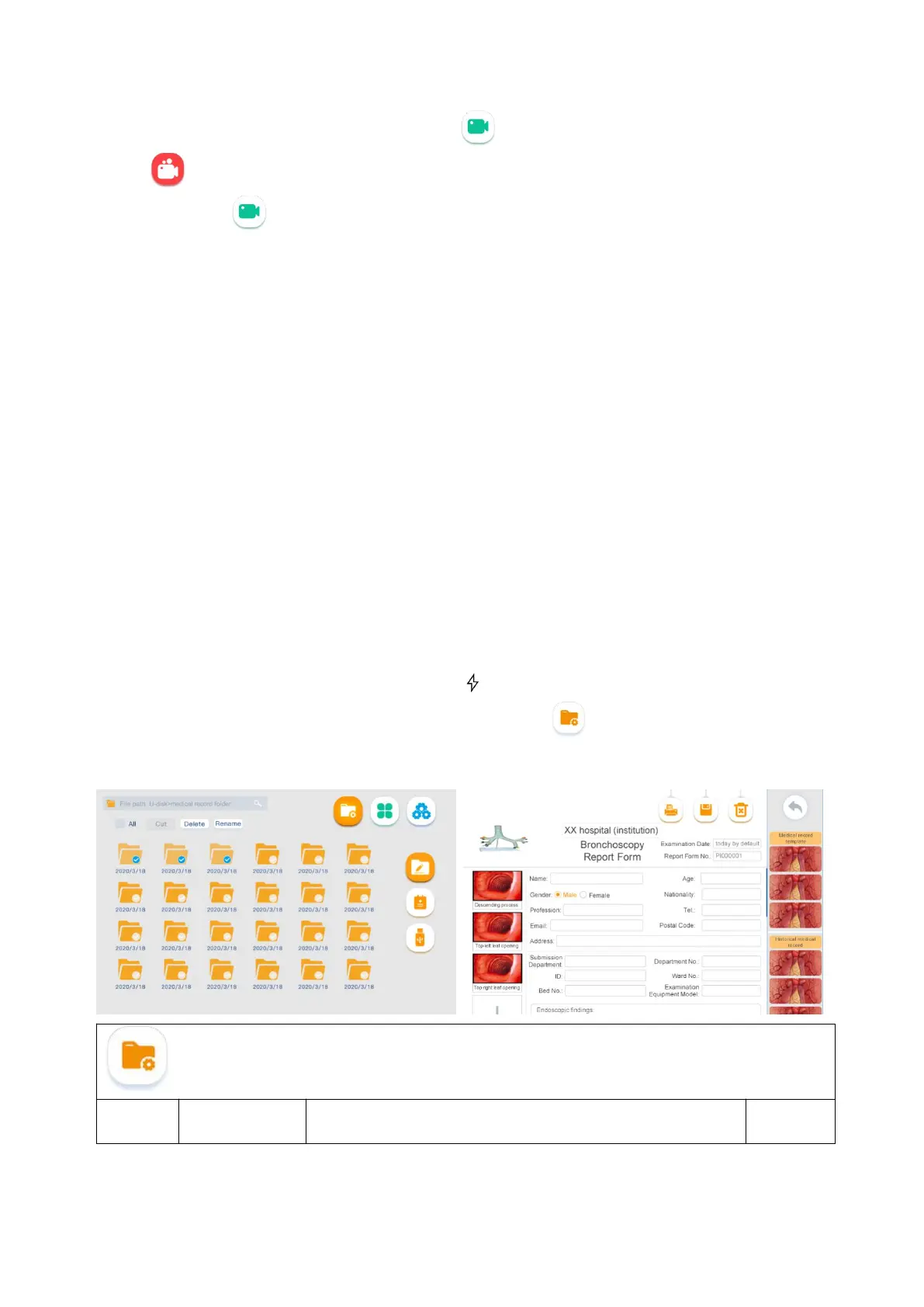
3.3.3. File Management interface: Tap the File Management button to enter the File Management
interface. This interface is used mainly for operations such as file viewing, folder editing & deleting, file
moving, and medical record editing, as shown in the figure below.
Description of file management-related icons



 To Next Page