CAMIP21
V . 01 – 04/02/2015 11 ©V elleman nv
Adding a Camera
T he s ys tem s upports up to 3 C A MIP21 cameras.
1. C onnect the additional c amera to the Wifi router using the inc luded Ethernet cable. T he Wifi router
mus t be the same router to which your mobile device is c onnected.
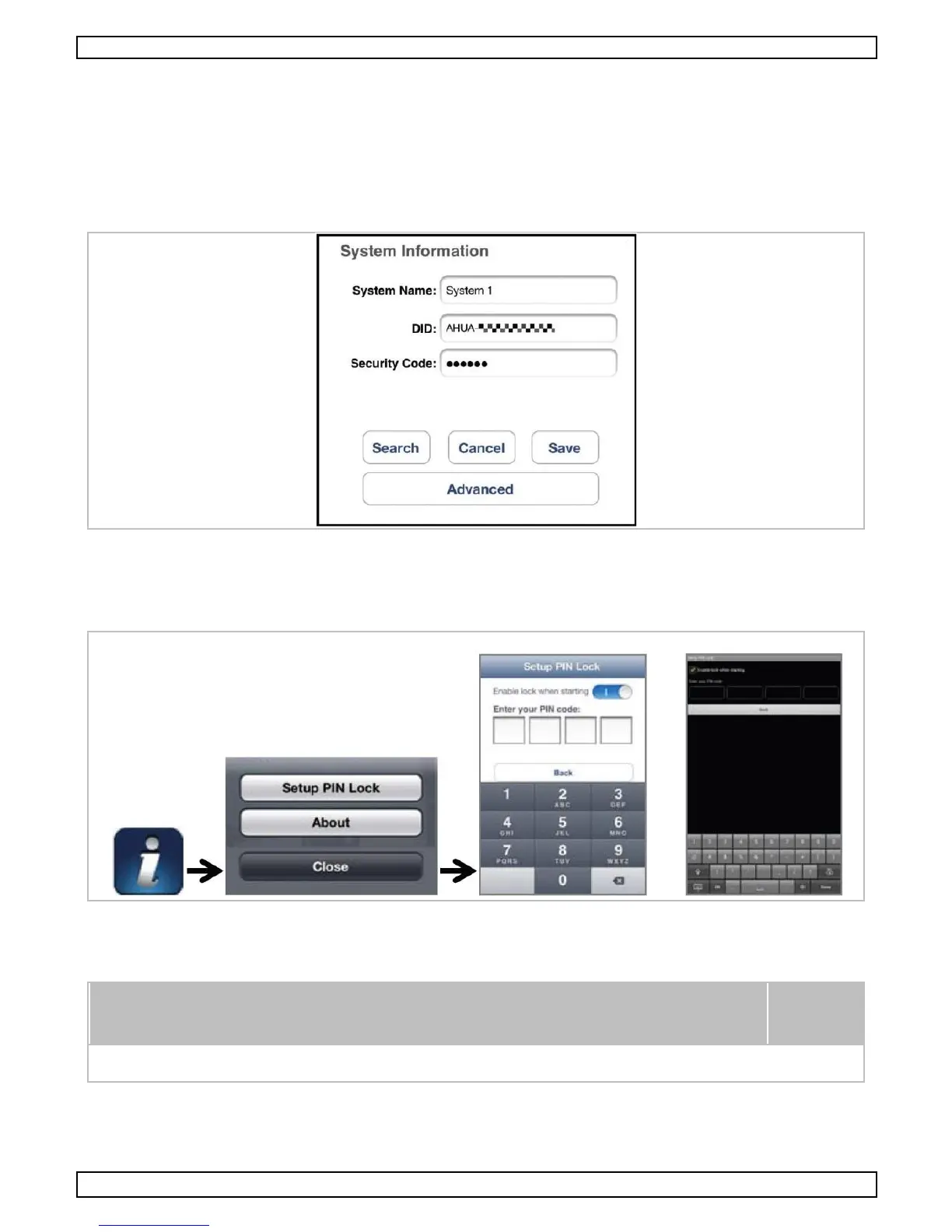
2. C lic k the A dd C amera icon. The System Information panel appears. Specify a name or use the
default name for your camera in the Sys tem N ame field.
3. Enter the DID c ode for the c amera located in the DI D c olumn.
4. Enter the default pas s word (123456) in the Sec urity C ode field.
5. C lic k Save to c omplete the c amera s ettings. T he app attempts to establish the camera connection.
O nce the camera is s uccessfully connected, the s tatus will be shown in the left upper c orner.
6. Repeat steps 2 to 5 to add more c ameras.
Setting the PIN Code
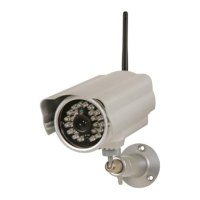
T his function will ask for the P IN c ode prior to enabling access to the user.
1. A c tivate the E nable Lock When Starting func tion and enter your (s ecret) P IN code.
2. Enter your P IN code again to c onfirm.
Have you los t your P IN code? Just uninstall the app and reins tall it on your
mobile device.
Notify Function
Y our C AMIP21 c amera s upports motion detection function. A ny motion-triggered event detected by the
camera will be sent to your mobile device.


 To Next Page