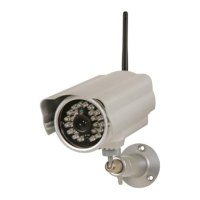
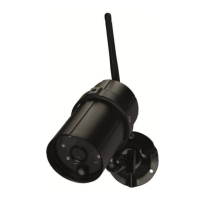
CAMIP21
V . 01 – 04/02/2015 14 ©V elleman nv
When the Wifi connection is established and the E thernet c able
unplugged, the C A MIP21 c amera will reboot. Reconnection will take
several minutes. P lease relaunch the app when the green s ignal lights.
If your C A MIP21 c amera fails to c onnect to the router, pleas e hold the
res et button on the camera pres sed for 5 s ec onds to res et the s ystem.
7.11 Sensitivity Settings
Detection Mode
P IR: hardware-based biomass detection
SO FTWARE: advance software analysis to enhance P IR accuracy
Motion Detection (only when SOFTWARE detection mode is enabled)
P lease s et the sensitivity level for the motion detection ac cording to your needs :
HI GH: s uitable for detecting s maller objects within 5 to 6 meters
LO W: suitable for detec ting larger objects within 3 to 5 meters
7.12 E-Mail Settings
T he e-mail s ettings allow the configuration of the e -mail environment, e-mail account and pas sword. A
gmail acc ount is s uggested.
Gmail Settings (suggested)
Enter the gmail SM TP server
Enter the SM TP port 4 65
Enter your e-mail address
Enter the pas s word for this gmail ac count
Enter the rec ipient’s e-mail address
7.13 SD Card Settings
Formatting the SD c ard will eras e all data s tored on the card. Be very careful : onc e erased, data c annot
be retrieved! For s ecurity reasons, please make a bac k -up of your files before formatting the SD c ard.
We recommend using a C lass 10 memory c ard for bes t res ults. A
memory c ard with lower specifications will dec rease rec ording and
playback efficiency.
During formatting, all rec ording and viewing will s top until the
formatting proc ess is c ompleted.
We recommend formatting your memory c ard from time to time to
ens ure bes t res ults.
Overwriting the SD Card
T his function will overwrite the oldest rec orded files when the memory c ard is full.
MicroSD Card Storage Capacity


 To Next Page