CAMIP21
V . 01 – 04/02/2015 6 ©V elleman nv
7.2 App Download and Setup
App Download
1. O n your s martphone or tablet, click the A pp or Google P lay Store. Search for O M Guard HD.
2. O nc e located, download the app.
3. O nc e the download c ompleted, you will find the app ic on on the dis play.
App Setup
1. C onnect your mobile device to the s ame Wifi router the C A MIP21 camera is connected to.
2. Locate the O MGuard H D icon on your mobile device. Launch the app.
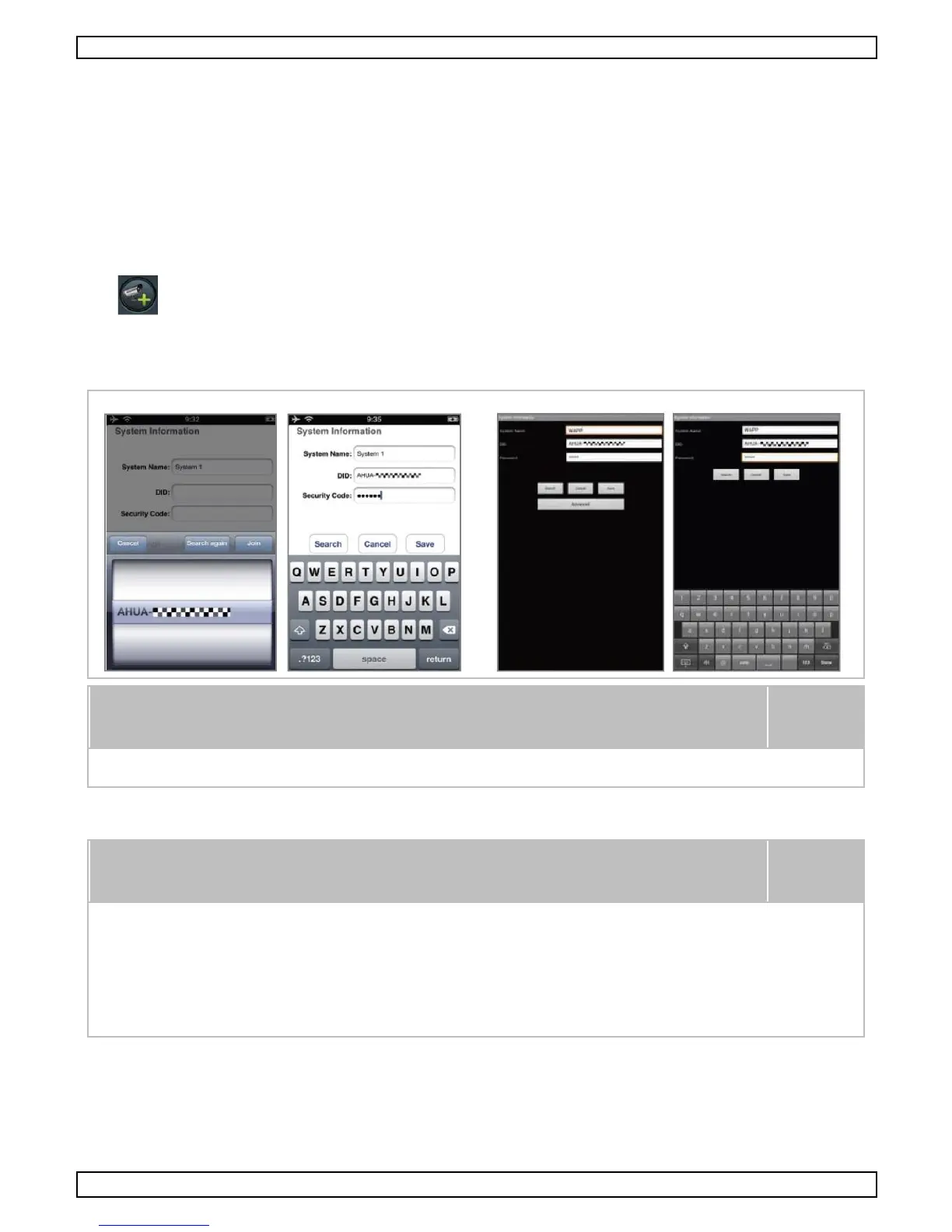
3. C lic k the A dd C amera icon to add a new camera.
4. C lic k the Search button for a quic k s etup. T he app will s earch the available camera(s ) c onnected to
the Wifi router and display the information in the pop -up list. Select your CAMIP21 camera from the
list, the app will automatic ally add the DID code to the c olumn. E nter c ode/password 123456.
It is advisable to change the password. C hoose a unique password, us ing a
mix of letters and s ymbols. Keep your pas sword s ecure.
5. C lic k Save to complete the c amera s ettings. T he s ystem confirms the us er identity and grants
permis s ion to us er ac cess.
T he C AMIP21 c amera will not find the network if the Wifi router turns
off the SSID (Service Set Identifier) broadcasting function. M ake s ure
to enable the SSID broadcasting to c omplete the s ettings.
M ost Wifi routers broadcast the SSID by default.
T he C AMIP21 c amera will only accept the SSID c omposed with E nglish
charac ters and A rabic numbers. Non-English and s pecial characters
(! @ # $ % , etc.) will not be ac c epted.


 To Next Page