11
6. VELTIUM APP
CONTACT
LEGAL TERMS & CONDITIONS
CLOSE SESSION
If you do have to change your email for any reason, you will have to
register as a new user and associate the charger to your new account
(don’t forget to rst of all delete the chargers associated to the account you
will no longer use). Consult the 1. GETTING STARTED section of this USER
GUIDE for instructions on how to proceed with this operation.
From here you can contact the User Support team at VELTIUM to solve
your doubts or ask for help if you notice your charger behaving strangely.
Once you have pressed the Submit button our team will receive your
message and contact you by email, WhatsApp or phone in less than 12
hours to give you the help you need. It is very important that the user
details appearing in your VELTIUM account are correct, since this is the
information we will use to contact you when required. Remember to
describe the problem in as much detail as possible so that we can help
you to solve it.
Read the VELTIUM App legal terms and conditions as often as you
want from this area.
For your comfort, once you have started a session in the VELTIUM
App it will stay open until you decide to close it. If you do want
to close it, a window will pop up in this area prompting you to
conrm your decision by pressing the Accept button.
USER
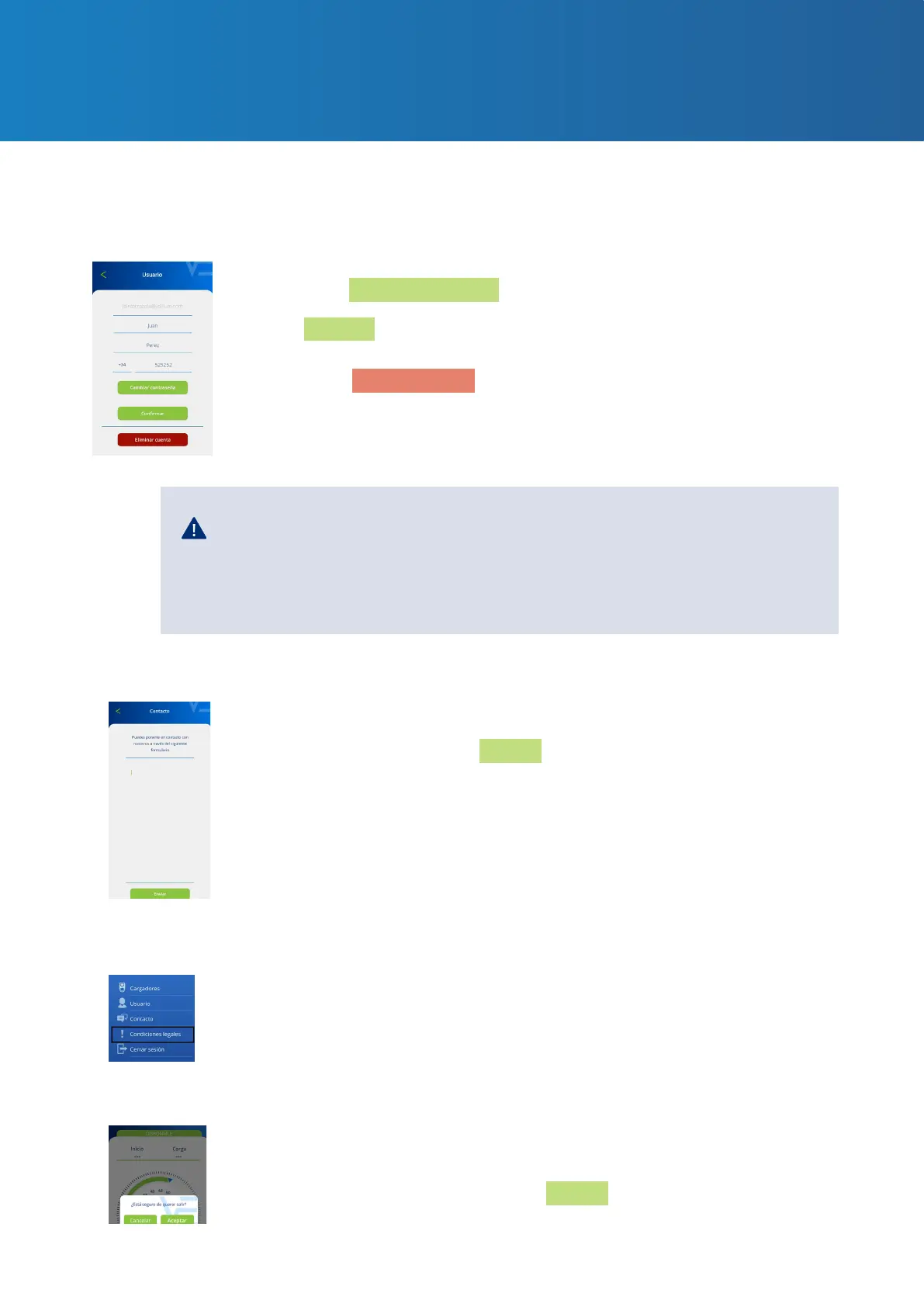
In this area you can consult and change all of your user account details (except your email). From
here you can:
1. CHANGE YOUR ACCOUNT PASSWORD
Press the Change password button, entering your current password
followed by your new password (repeating it twice). Remember to press
the Conrm button to save the changes.
2. DELETE ACCOUNT
Press the Delete account button, an intermediate screen will appear
asking you to enter your password. Once entered, you can delete the
account.



 To Next Page