22
7. MANAGING THE CHARGER
FROM THE VELTIUM APP
Only for
ADMINISTRATOR users
*
Select the mode in which the charger will connect to the Internet to enable real-time remote
communication with the VELTIUM App:
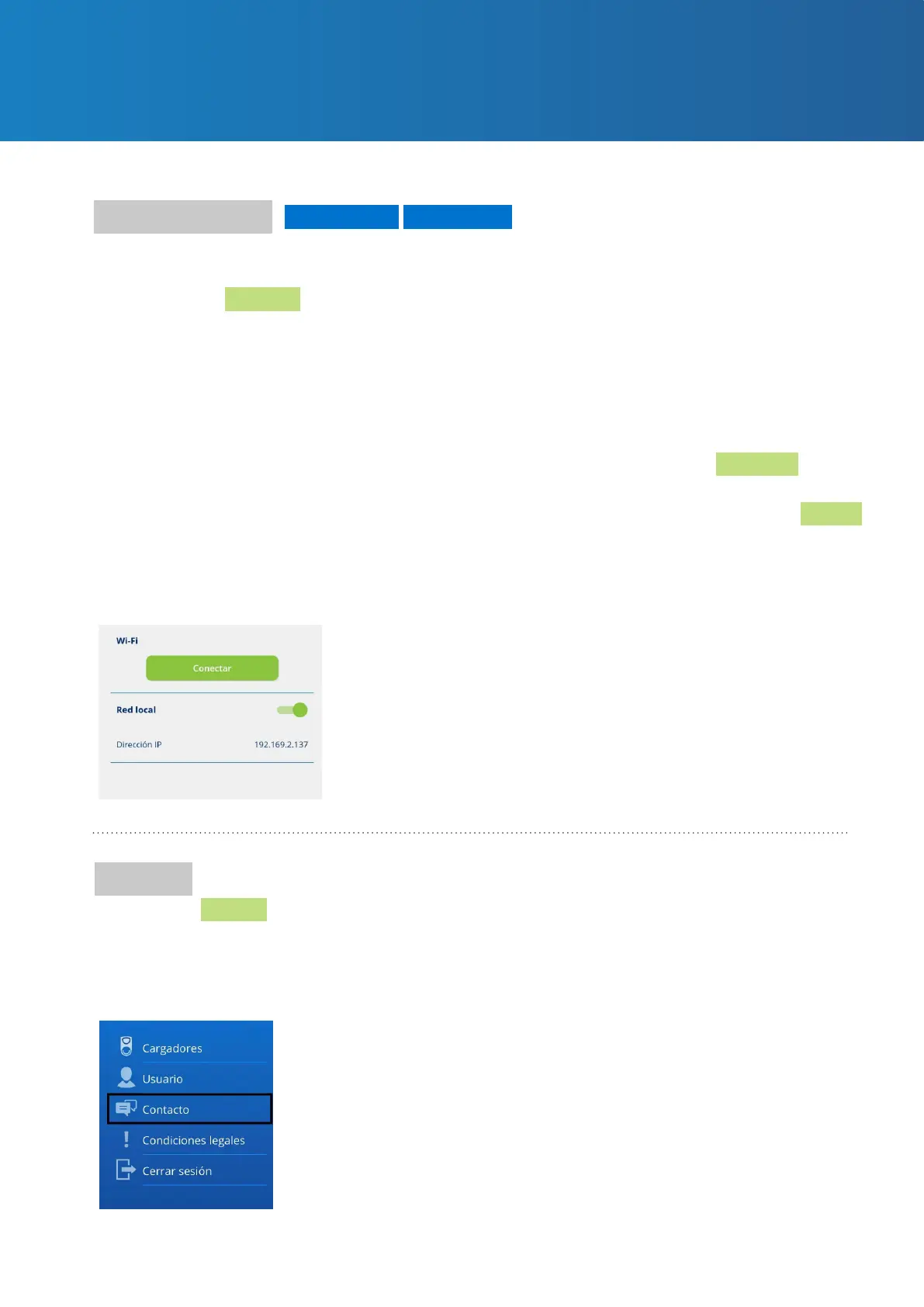
Wi-Fi: Press the Connect button and follow these steps:
1. The VELTIUM App will search the charger for Wi-Fi networks visible to the device. To do this,
the App will display a window with the message “searching for device” in order to connect
with your charger. Once found, it will ask you if you want to access the Wi-Fi network, where
you must press Access.
2. Next, the VELTIUM App will display a list of visible Wi-Fi networks, their signal strength and
protection level. Select the Wi-Fi network to which you want the charger to connect. If the
network is protected, enter the password in the pop-up window and press Connect.
3. The VELTIUM App will automatically proceed with the necessary actions to connect the
charger to your chosen Wi-Fi network. Once the process is complete, you must press Finish.
Local network: Scroll through the selector. If the charger is in a local area network, after a few
seconds the screen will display the IP address assigned to it.
Communications
Only in LITE Uno and
LITE Kubo chargers
*
Pressing the Restart button will switch the charger o and on again, rebooting its operating
system, but without ever aecting its conguration up until that time. This function must only be
used if the charger is locked and fails to respond to the user’s actions and orders. If you have any
doubts, consult the User Support service using the Contact section of the App.
Restart



 To Next Page