Software Upgrade
Vantage 5000
1.1v-09.2019 6 | Page
1.2 Formatting the USB drive
The USB formatting procedure is detailed as follows:
1. Software can only be updated using a FAT32 formatted
USB ash drive. If the drive is already formatted to FAT32,
the user can skip to step 9.
2. To verify if the drive is formatted using FAT32, insert the
memory stick into a Windows PC.
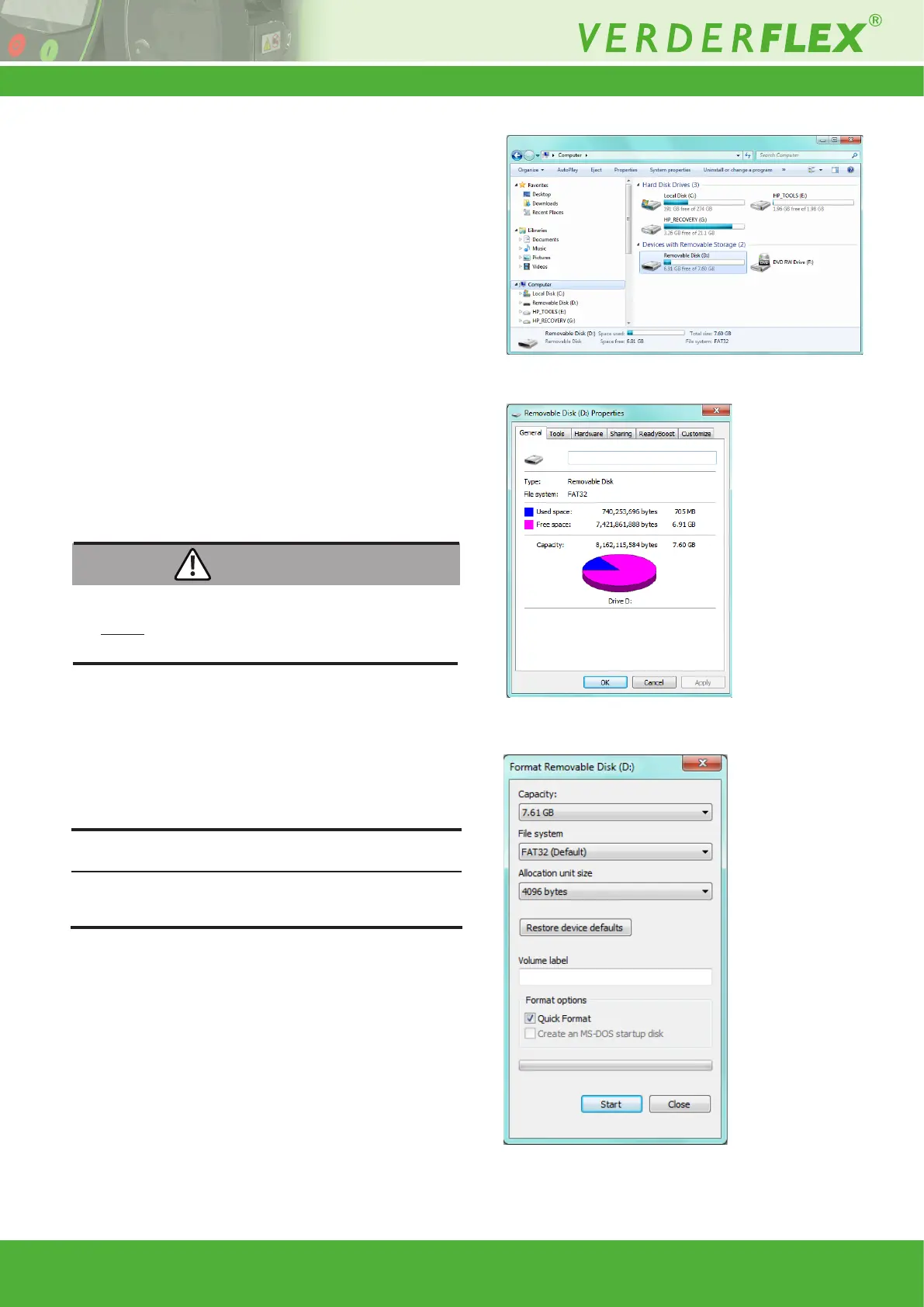
3. Open the ‘Computer’ folder and highlight the memory stick.
Note: If using Windows 7, the le system will be displayed
as per Figure 2. If the le system is not displayed,
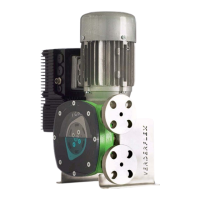
right-click on the USB drive and select ‘Properties’.
4. When ‘Properties’ has been selected the window will be
opened as shown in Figure 3.
5. If the le system is not FAT32, the user will need to format
the USB drive.
Formatting will destroy all data!
Do not perform unless you do not need the data on the
drive.
6. To format, close the properties page.
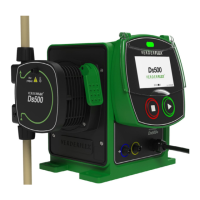
7. Right-click on the drive and select the option marked
‘Format’. The window will open as per Figure 4.
8. Ensure the “File system” reads “FAT32”, then the user can
press the ‘Start’ button.
9. Once formatting is complete, copy the rmware le to the
root path on the drive.
If the USB drive is added as drive ‘G’, the rmware path would
be ‘G:\Jupiter.bin’.
10. Make sure rmware le is named ‘Jupiter.bin’. (capital J)
Any other name will result in the pump not updating (e.g
‘Jupiter.bin.bin’).
11. Safely remove USB stick from computer.
Figure 2 ‘Computer’ Folder Opened
Figure 3 Properties of the USB Drive
WARNING
Figure 4 Format the USB Drive
Note


 To Next Page