Software Upgrade
Vantage 5000
1.1v-09.2019 7 | Page
1.3 Vantage 5000 Software Update Process
1.3.1 Introduction
This chapter outlines the process for updating the software
on the Vantage 5000.
1.3.2 Equipment
For updating the software on a Vantage 5000 pump the
following will be necessary:
• Vantage 5000 pump
• Firmware le
• USB 2.0 memory stick (g 1.2 Formatting the USB
drive)
• Format the USB drive to FAT32 (g 1.2 Formatting
the USB drive)
• Copy the rmware le with le name ‘Jupiter.bin’
onto the formatted USB drive.
1.3.3 Glossary
• File allocation tables (FAT) – MSDOS based le system
1.3.4 Procedure
Make sure rmware le is named ‘Jupiter.bin’. (capital J) Any
other name will result in the pump not updating (e.g ‘Jupiter.
bin.bin’).
Ensure the USB stick is formated to FAT32 le system before
copying the Firmware le.
Ensure the job le and log le are backed up before software
update.
Do not press the stop button for longer than 5 seconds when
updating software as this may lead to problems with the USB
software.
The software update procedure is detailed as follows:
1. Turn OFF the Vantage 5000 pump using the ON/OFF
switch on the back of the pump.
2. Hold down the red stop button and switch ON the
pump using the ON/OFF switch on the back of the
pump. Make sure the stop button is still depressed
whilst doing this.
3. The pump should now have a ashing red LED.
Release the red stop button.
4. Insert the USB drive into the back of the pump. The
pump will detect the USB drive automatically and start
the update/process.
5. Once the pump is being updated, the red LED will
stop ashing and turn solid red.
6. Wait for the red LED to switch OFF and the green LED
to switch ON.
This can take up to a minute to complete the update process.
7. Press the red ‘STOP’ button and the pump will start
normal operation.
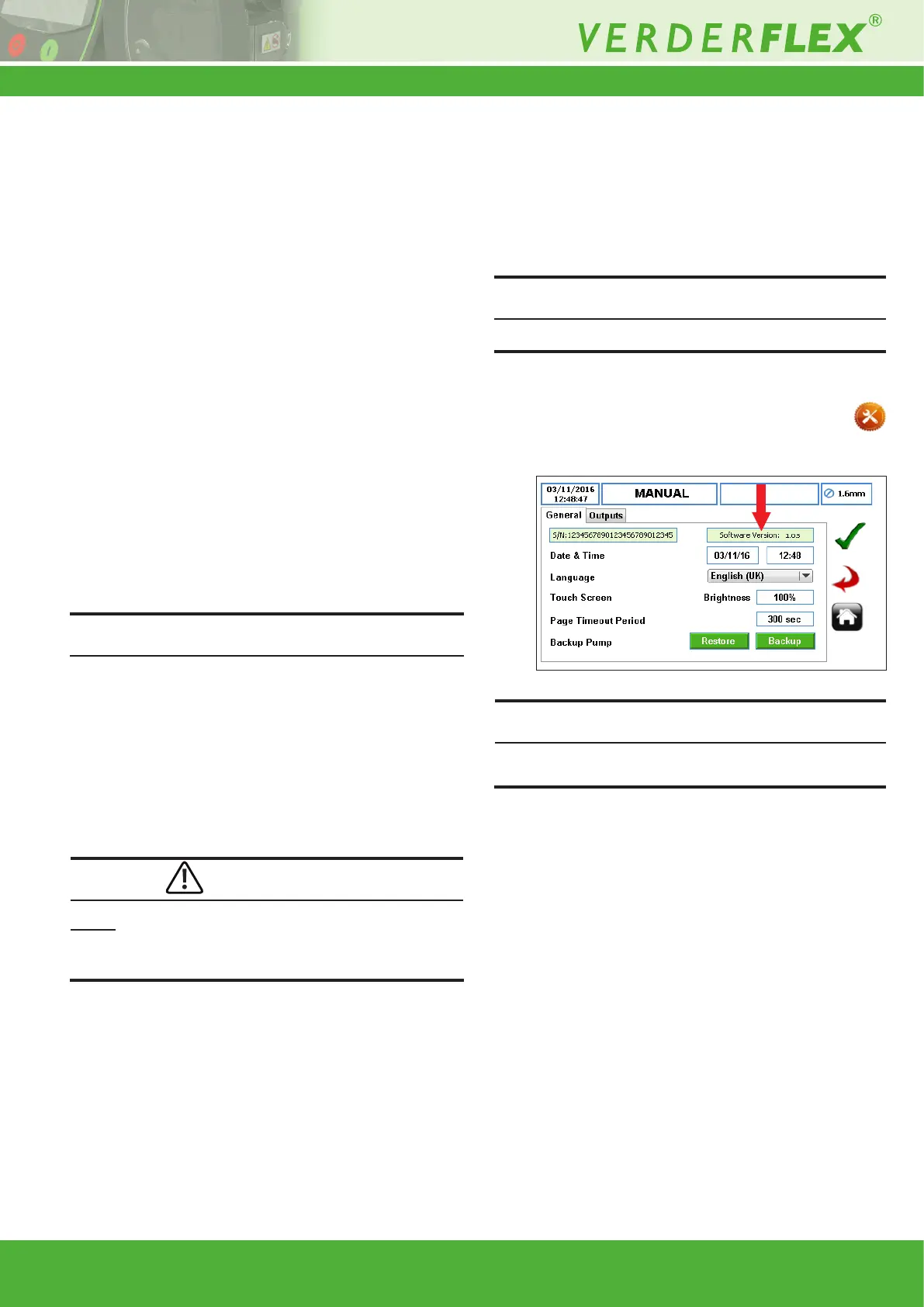
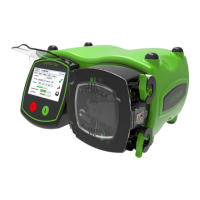
8. Check the software version. Select the icon
(settings menu) to verify that the new software has
been installed.
The pump has now been updated to the latest version of pump
software.
Note
Note
Note
CAUTION
Figure 5 Check the Software Version


 To Next Page