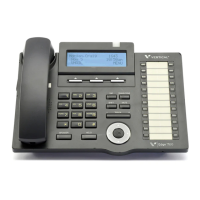
Page 46 Edge 120 Digital Executive Telephone User Guide
Busy Call Forward
1. Press FEATURE
or the feature button designated as CALL
FWD (if available). The display shows:
CALL FORWARD
all busy next
2. Press [busy]. The display shows:
BUSY FWD. _
bksp save chg
3. Input the extension number to which calls are to be forwarded.
4. Press [save]. The display shows:
BUSY FWD XXX
co icm/co icm
5. Select desired type of calls to forward.
5.1. co = outside line incoming or transferred calls
5.2. icm/co = both intercom and outside line calls
5.3. icm = intercom calls only.
6. You hear a confirmation tone and the extension returns to idle.
The Status Lamp is lit green and the display shows
FWD in the
middle of the bottom row.
No Answer Call Forward
1. Press FEATURE
or the feature button designated as CALL
FWD (if available). The display shows:
CALL FORWARD
all busy next
2. Press [next]. The display shows:
CALL FORWARD
n_ans ext follow
3. Press [n_ans]. The display shows:
NO_ANS FWD. _
bksp save chg
4. Input the extension number to which calls are to be forwarded.
5. Press [save]. The display shows:
NO_ANS FWD. XXX
co icm/co icm


 To Next Page