Last update: 2022/04/01 18:06 slice:qt https://www.vescent.com/manuals/doku.php?id=slice:qt
https://www.vescent.com/manuals/ Printed on 2022/04/05 13:27
Use caution grounding the shield (drain) at
the transducer end of the interface cable as
ground loops may be formed, degrading
performance. Consider floating the plant or
not connecting the shield to the plant
chassis.
You may purchase more cables separately from Vescent Photonics. We do not recommend making
cables, but if you do so, make sure the metal sleeve is well connected to the connector ground to
provide proper shielding to the signal cables.
Operating the SLICE-QTC
Screen Navigation
The touch screen interface and the Host GUI operate in a substantially similar way, except touch is
substituted for a click in the touch screen interface.
When presented with a given view, it is possible to select the functionality or edit the values in a field
bordered in blue. When a particular field is actively being edited, its border will change to yellow. The
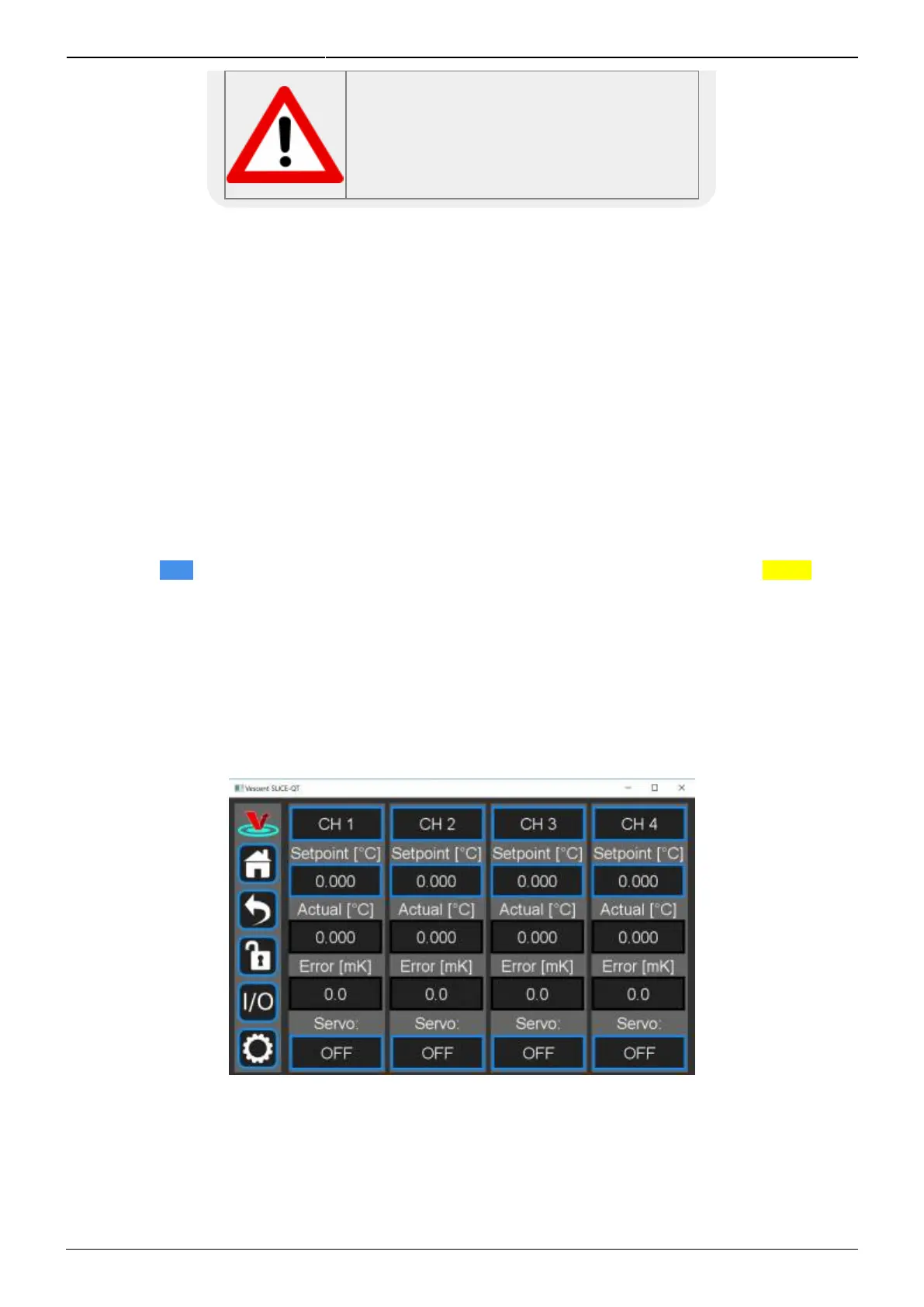
Home Screen of the SLICE-QTC is shown in figure 6. From the Home screen, summary control over the
four channels is possible, including setting T
set
, initiating lock, or entering an individual channel's
Detail screen.
In general, the status displayed in an editable field is the current status (not the result of touching the
button). Touch the field to select a new value/status. For instance, in figure 6 all of the channels are in
stand by. Touching the OFF button to initiate servo control over a plant will change this button to read
ON (figure 17).
Fig. 6: Home screen of SLICE-QTC
Control Bar
On the left edge of the screen is the Control Bar. At any given time, these buttons will have the
following effect.



 To Next Page