EasyManua.ls Logo

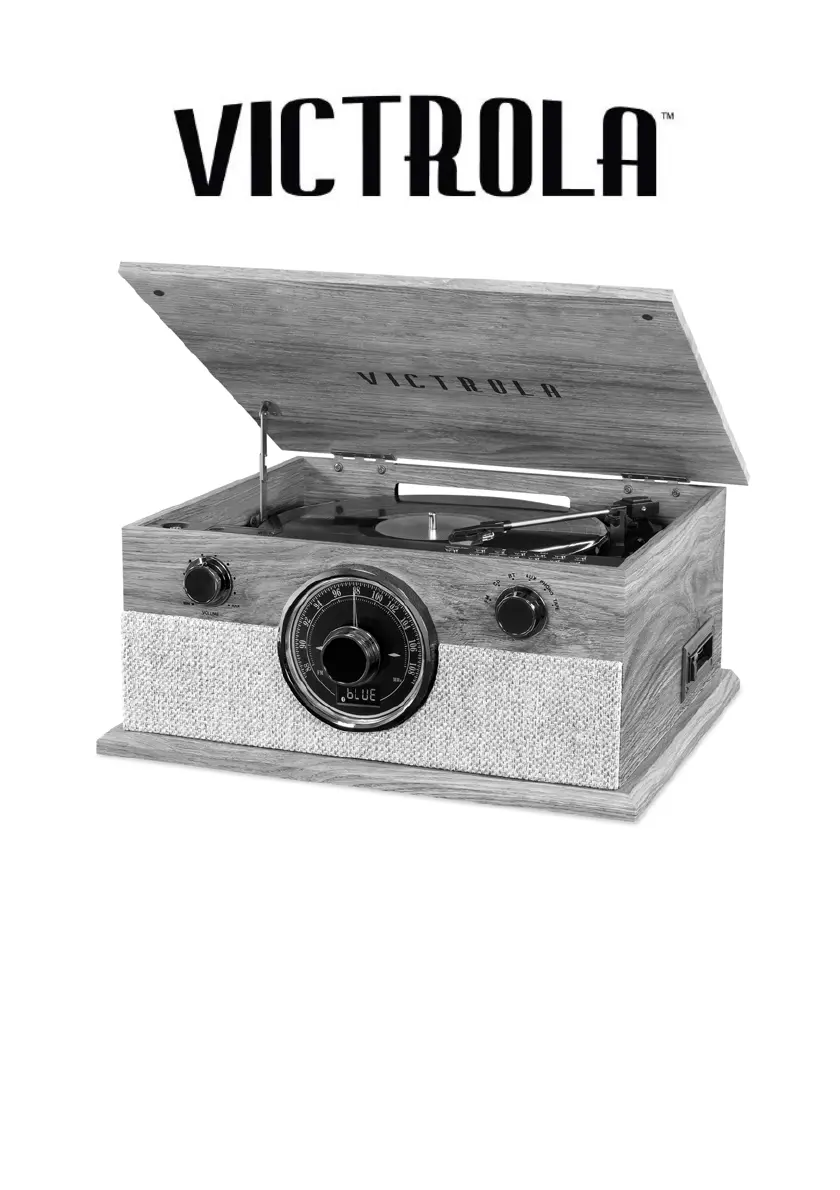
Victrola BROOKLINE - User Manual

Victrola BROOKLINE
17 pages
Print Icon
To Next Page IconTo Next Page
Loading...
1
MODEL: VTA-247B
BROOKLINE
6-IN-1 TURNTABLE
Instruction Manual
PLEASE READ THIS INSTRUCTION MANUAL CAREFULLY
BEFORE USE AND KEEP IT FOR FUTURE REFERENCE.

Questions and Answers

  • W
    William McbrideAug 20, 2025
    Why is there no sound from my Victrola BROOKLINE Turntable?
    • C
      Charles CastroAug 20, 2025
      If you're not getting any sound from your Victrola Turntable speakers, it could be due to a couple of things. First, check the volume level and make sure it's not set too low. Second, verify that the input selector matches the source you're trying to play.
  • L
    Lucas GonzalezAug 22, 2025
    What to do if my Victrola BROOKLINE Turntable will not power on?
    • H
      Howard EdwardsAug 22, 2025
      If your Victrola Turntable isn't powering on, the first thing to check is whether it's properly connected to the AC power supply. Ensure the unit is plugged in securely.
  • M
    Mary SpearsAug 25, 2025
    What to do if my Victrola Turntable has noise or distortion in sound output?
    • Z
      zrobertsAug 25, 2025
      If you're experiencing noise or distortion in the sound output of your Victrola Turntable, it might be too close to a TV or another device that could be causing interference. Try turning off nearby TVs or appliances and relocating the unit.
  • A
    Alexis BairdAug 26, 2025
    What to do if my Victrola Turntable is not pairing with a Bluetooth device?
    • R
      Richard AguilarAug 27, 2025
      If you're having trouble pairing your Victrola Turntable with a Bluetooth device, first confirm that your device is Bluetooth compatible. If it is, try repairing the unit and device again.
  • G
    gdiazAug 28, 2025
    What to do if my Victrola Turntable is not responding?
    • J
      Jeremiah JohnsonAug 28, 2025
      If your Victrola Turntable fails to respond, it could be due to external factors like electro-static discharge. Try disconnecting the power cord and any external audio devices. Then, plug the power cord back in after one minute.
  • A
    Ann VargasAug 29, 2025
    Why is the sound garbled on my Victrola Turntable?
    • B
      Bryan SmithAug 29, 2025
      If the sound is garbled on your Victrola Turntable, the volume on your device and/or the unit might not be adjusted properly. Try turning down the volume on both your device/phone and the unit.
  • B
    Benjamin Adams IIIAug 31, 2025
    Why is there no sound on my Victrola Turntable via Bluetooth?
    • T
      tracy05Aug 31, 2025
      If there's no sound on your Victrola Turntable when using Bluetooth, there are a few things to check: 1. Make sure the unit is switched to Bluetooth mode. 2. Ensure the volume is turned up on both your device and the unit. 3. Move your Bluetooth device closer to the unit, ensuring there are no obstacles between them. 4. Turn off your Bluetooth device and the unit, then power them both back on.
  • J
    Jack WatsonSep 2, 2025
    Why does my Victrola Turntable CD playback sound noisy?
    • V
      vwhiteSep 2, 2025
      If CD playback on your Victrola Turntable is noisy, or if playback stops or skips, the CD might be scratched, damaged, or warped. Try replacing the CD with an undamaged one. Alternatively, the disc could be very dirty, in which case you should carefully clean the CD.
  • K
    kelsey81Sep 4, 2025
    Why is there no sound when playing a CD on my Victrola BROOKLINE?
    • A
      Audrey PaulSep 4, 2025
      If there is no sound when playing a CD on your Victrola Turntable, check if the CD player is paused. If it is, press the PLAY/PAUSE button.
  • J
    john81Sep 6, 2025
    Why is there no sound output with external audio device plugged into AUX in jack of my Victrola Turntable?
    • M
      Michelle KimSep 6, 2025
      If you're not getting any sound output when an external audio device is plugged into the AUX in jack on your Victrola Turntable, make sure the unit is switched to AUX mode.

Summary

Important Safety Instructions

Product Overview: Top Controls

POWER Button

Turns the unit on or off.

3.5 mm Headphone Jack

Connect headphones for private listening.

3.5 mm AUX-IN Jack

Connect external audio sources via AUX.

CD Disc Tray Control

Open and close the CD disc tray.

Bluetooth Pairing Control

Pair, disconnect, and reconnect Bluetooth devices.

CD Playback Modes

Controls for Program, Repeat, Shuffle, and Intro playback.

Bass Control

Adjust bass levels for audio output.

Playback Controls

Play, Pause, Stop, Next, and Previous track controls.

Fast Rewind and Forward

Fast rewind and forward playback for CD mode.

Product Overview: Front and Side Views

Volume and Tuning Knobs

Adjust volume and tune radio stations.

Function Selection Knob

Select desired playback function (FM, CD, BT, etc.).

LED Display

Displays current mode and track information.

Disc Tray and Cassette Eject

Access the CD tray and eject cassette tapes.

Product Overview: Rear Connections and Turntable Parts

FM Antenna and Line Out Jacks

Connect FM antenna and external audio devices via RCA.

AC Power Cord Connection

Connect the unit to a wall outlet for power.

Turntable Components

Identifies turntable, speed selector, tone arm, stylus, and accessories.

Setup and Basic Operation

Initial Setup Procedures

Steps for initial setup, including needle cover removal and power connection.

Basic Operation Guide

Turning the unit on/off, mode selection, and volume adjustment.

Listening via RCA Line Out

Connect an external amplifier using RCA cables for audio output.

Private Listening with Headphones

Connect headphones for private listening and adjust volume control.

FM Radio Reception

How to select FM mode and tune into radio stations.

CD;CD-RW Playback Basics

Loading, playing, and pausing CDs or CD-RWs.

CD Playback Features

CD Track Navigation and Control

Skipping tracks, fast forward/rewind, and stopping playback.

Repeat Playback Modes

Options for repeating single tracks or the entire CD.

Shuffle Playback

Playing tracks in a random sequence and cancelling shuffle mode.

Programmed CD Playback

Creating custom playback sequences of up to 20 tracks.

External Audio Device Modes

Bluetooth Audio Playback

Pairing the unit with external Bluetooth devices for audio streaming.

Bluetooth Operation Notes

Information on the PAIR button and fast forward/rewind limitations.

AUX Mode Audio Playback

Connecting external devices using a 3.5mm cable to the AUX-IN jack.

Record and Tape Playback

Vinyl Record Playback Operation

Steps for playing vinyl records, including speed selection and tonearm operation.

Record Handling Precautions

Important tips for handling and storing vinyl records to prevent damage.

Cassette Tape Playback Operation

Instructions for loading, playing, fast-forwarding, and ejecting cassette tapes.

Maintenance and Handling

Compact Disc Handling Guidelines

Guidelines for handling, cleaning, and storing CDs to ensure longevity.

Vinyl Record Care and Stylus Replacement

Vinyl Record Handling Tips

Best practices for touching, cleaning, and storing vinyl records to maintain quality.

General Unit Care Instructions

Advice on unplugging, cleaning, and storing the unit safely.

Turntable Stylus Replacement Guide

Step-by-step guide for safely removing and installing a new turntable stylus.

Technical Specifications

General Specifications

Power requirements, consumption, dimensions, and weight.

Amplifier Specifications

Output power and frequency response of the amplifier.

Speaker System Details

Speaker type, impedance, and input power.

FM Radio Range

Frequency range for FM radio reception.

CD Player Performance

Frequency response and signal-to-noise ratio for CD playback.

Cassette Player Specifications

Track system, tape speed, wow/flutter, and frequency response.

Record Player Details

Motor type, drive system, speeds, S/N ratio, and cartridge type.

Bluetooth Connectivity

Bluetooth version, profiles, frequency range, and operating distance.

Troubleshooting Guide

General Issues

Troubleshooting for power, sound output, and unit response.

Tape Playback Problems

Solutions for tape not playing or poor signal reception.

CD Player Issues

Troubleshooting for distorted sound, playback errors, and tray issues.

AUX and Bluetooth Connectivity

Resolving issues with AUX mode, Bluetooth pairing, and sound quality.

Regulatory Statements

FCC Compliance Statement

FCC rules for device operation and interference.

Industry Canada IC Statement

Compliance with Industry Canada's license-exempt RSS standards.

California Proposition 65 Warning

Warning regarding potential exposure to chemicals like lead.

Warranty Information

Limited Warranty Details

Coverage for defects, period, and exclusions.

Obtaining Service

Procedure for requesting RMA, returns, and contact information.

Warranty Limitations and Rights

Exclusions, implied warranties, and consumer legal rights.

Victrola BROOKLINE Specifications

General IconGeneral
Drive TypeBelt Drive
Built-in SpeakersYes
BluetoothYes
USB OutputYes
Dimensions15.75 x 12.79 x 5.11 inches
Weight7.72 lbs
ConnectivityBluetooth, RCA, USB
OutputsRCA, USB
USB RecordingYes
TypeBelt Drive
Speed33 1/3, 45 RPM
CartridgeMoving Magnet
ColorBlack

Related product manuals