EasyManua.ls Logo

Victrola VTA-370B - User Manual

Victrola VTA-370B
20 pages
Print Icon
To Next Page IconTo Next Page
Loading...
1
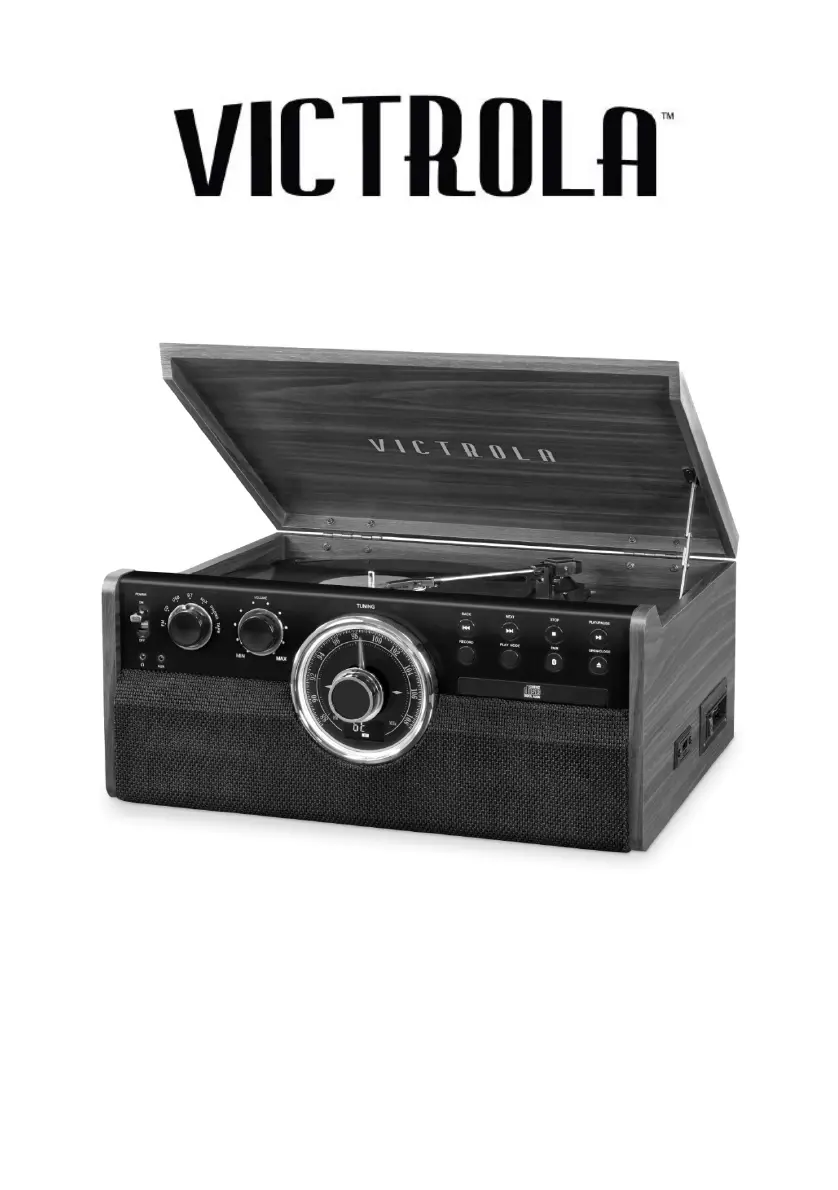
MODEL: VTA-370B
7-IN-1 TURNTABLE
Instruction Manual
PLEASE READ THIS INSTRUCTION MANUAL CAREFULLY
BEFORE USE AND KEEP IT FOR FUTURE REFERENCE.

Questions and Answers

  • A
    amy91Aug 19, 2025
    Why is there no sound from my Victrola VTA-370B speakers?
    • M
      Mike JohnsonAug 20, 2025
      If you are experiencing no sound from your Victrola Turntable speakers, first, make sure that the volume isn't too low by adjusting it to a suitable level. If the volume is adequate, verify that the input selector matches the source you're using for playback. Selecting the correct input source should resolve the issue.
  • M
    Manuel WhiteAug 21, 2025
    What to do if my Victrola VTA-370B Turntable fails to respond?
    • S
      Sean GrahamAug 22, 2025
      If your Victrola Turntable unit fails to respond, it might be due to external factors like electro-static discharge (ESD). To resolve this, disconnect the power cord and any external audio devices. Wait for one minute, and then plug the power cord back in.
  • B
    Beth LewisAug 25, 2025
    How to fix a Victrola Turntable that won't turn on?
    • C
      Crystal EstesAug 25, 2025
      If your Victrola Turntable will not power on, ensure that it is properly connected to the AC power supply.
  • W
    williamjohnsonAug 26, 2025
    Why is there no sound from my Victrola VTA-370B when using the AUX input?
    • J
      Jeremy DuranAug 26, 2025
      If you are experiencing no sound with an external audio device plugged into the AUX input jack on your Victrola Turntable, ensure that the unit is switched to AUX mode.
  • A
    Andrew CastroAug 27, 2025
    How to reduce noise and distortion in my Victrola Turntable's audio?
    • O
      obowersAug 27, 2025
      If you're getting noise or distortion in the sound output from your Victrola Turntable, it could be due to interference from nearby electronic devices. Try turning off any nearby TVs or other appliances, and relocate the unit to a different spot.
  • T
    Tanya SweeneyAug 30, 2025
    Why does my Victrola VTA-370B CD player stop playing?
    • J
      John DouglasAug 30, 2025
      If your Victrola Turntable CD stops immediately after starting, or pauses or stops during play, make sure the CD is inserted with the printed side facing up. Also, the CD might be dusty, dirty, or have condensation on it. In that case, carefully clean and dry the CD.
  • D
    Daniel MendezAug 31, 2025
    Why does my Victrola VTA-370B Turntable CD skip or have noisy playback?
    • T
      Tammy FisherAug 31, 2025
      If your Victrola Turntable CD playback is noisy, or playback stops or skips, the CD might be scratched, damaged, or warped. Try replacing the CD with an undamaged one. Alternatively, the disc could be very dirty, so carefully clean the CD.
  • N
    Natasha RodriguezSep 2, 2025
    Why is there no sound on my Victrola Turntable when connected via Bluetooth?
    • V
      Vincent ChangSep 2, 2025
      If you are experiencing no sound on your Victrola Turntable, ensure the unit is switched to BT mode. Also, turn up the volume on your portable device and/or the unit. If the issue persists, move your Bluetooth device closer to unit. You can also try to turn off your Bluetooth device and unit then power them both back on.
  • C
    Christine EllisSep 4, 2025
    How to fix garbled sound on my Victrola Turntable?
    • K
      Karen ThomasSep 4, 2025
      If the sound on your Victrola Turntable is garbled, turn down the volume on your device/phone and the unit.
  • G
    geraldwilliamsonSep 7, 2025
    What to do if my Victrola VTA-370B Turntable tape player isn't working?
    • O
      ortegajoseSep 7, 2025
      If your Victrola Turntable is not playing the tape, make sure that the cassette tape is inserted correctly. If it still doesn't play, the tape may have reached the end; try flipping the cassette.

Summary

Important Safety Instructions

Safety Guidelines and Warnings

Covers essential safety precautions, warnings, and cautions for operating the appliance safely.

Product Overview and Controls

Front Panel Controls and Indicators

Identifies and explains the functions of buttons, knobs, and the display on the front panel.

Product Views and Ports

Left Side View Ports

Details the ports and connectors located on the left side of the unit.

Rear View Ports and Connections

Describes the ports and connections available on the rear panel of the unit.

Turntable Component Identification

Turntable Parts Diagram and Labels

Illustrates and labels the various parts of the turntable mechanism for user reference.

Setup and Basic Operations

Initial Setup and Powering On

Guides users through the initial setup process and turning the unit on for the first time.

Listening to FM Radio

Steps for tuning into and listening to FM radio stations.

Listening Via RCA and Headphones

Instructions for connecting external amplifiers via RCA or listening privately with headphones.

CD Player Operation

Playing CDs and Supported Formats

Details how to play CDs, CD-MP3, and WMA files, including playback controls.

CD Playback Modes: Repeat, Shuffle, Program

Explains repeat, shuffle, and programmed playback modes for CDs.

External Audio Connectivity

Bluetooth (BT) Audio Streaming

Guides on connecting and streaming audio wirelessly from Bluetooth-enabled devices.

Auxiliary (AUX) Audio Input

Instructions for connecting external audio devices via the AUX IN jack using a cable.

Other Playback Sources

Playing Vinyl Records

Step-by-step guide for playing vinyl records, including speed selection and tonearm operation.

Playing Cassette Tapes

Instructions for loading, playing, fast-forwarding, and ejecting cassette tapes.

USB Memory Stick Playback

How to play music files from a USB memory stick and navigate tracks.

USB Playback Modes

USB Playback Modes: Repeat, Shuffle, Program

Explains how to use repeat, shuffle, and programmed playback modes for USB audio files.

Recording to USB

Recording from External Sources to USB

Details how to record audio from BT, AUX, Phone, and Tape sources onto a USB drive.

Recording from CD to USB

Instructions for recording audio tracks from a CD onto a USB drive.

USB Recording Management

Recording from CD-MP3 to USB

Guides on copying audio files from CD-MP3 discs to a USB memory stick.

Erasing Tracks from USB Drive

Procedures for deleting individual tracks or all tracks from the connected USB drive.

Maintenance and Proper Handling

Compact Disc Handling and Care

Best practices for handling, cleaning, and storing compact discs to prevent damage.

Vinyl Record Handling and Storage

Guidelines for proper handling, cleaning, and storage of vinyl records.

General Unit Care and Cleaning

Advice on cleaning the unit, maintaining the laser pickup, and unplugging for safety.

Turntable Stylus Replacement

Instructions on how to safely remove and install a new stylus for the turntable.

Product Specifications

Troubleshooting Guide

General and Tape Troubleshooting

Solutions for common issues like no power, no sound, or tape playback problems.

FM Radio and CD Player Issues

Troubleshooting steps for FM reception problems and CD playback errors.

Phono and CD Tray Issues

Addresses problems related to turntable audio performance and CD tray operation.

Connectivity Troubleshooting

AUX, Bluetooth, and USB Troubleshooting

Solutions for connectivity and playback issues with AUX, Bluetooth, and USB devices.

Regulatory and Safety Information

FCC and IC Compliance Statements

Details regarding compliance with FCC and Industry Canada regulations for radio frequency emissions.

California Proposition 65 Warning

Information about chemicals in the product that may be known to cause cancer in California.

Product Warranty Details

Victrola VTA-370B Specifications

General IconGeneral
Speeds33 1/3, 45, 78 RPM
BluetoothYes
Built-in SpeakersYes
USB PortYes
OutputsRCA
Power SourceAC adapter
TypeBelt-Drive Turntable

Related product manuals