EasyManua.ls Logo

ViewSonic XG340C-2K - User Manual

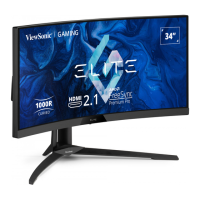
ViewSonic XG340C-2K
90 pages
Print Icon
To Next Page IconTo Next Page
Loading...
XG340C-2K
Display
User Guide
Model No. VS18863
P/N: XG340C-2K
IMPORTANT: Please read this User Guide to obtain important information on installing and using your product in
a safe manner, as well as registering your product for future service. Warranty information contained in this User
Guide will describe your limited coverage from ViewSonic® Corporation, which is also found on our web site at
http://www.viewsonic.com in English, or in specific languages using the Regional selection box in the upper right
corner of our website.

Table of Contents

Questions and Answers

  • J
    Jaime FloresAug 18, 2025
    What to do if my ViewSonic Monitor has no power?
    • D
      Dr. Veronica CookAug 19, 2025
      First, ensure that you have turned on the ViewSonic Monitor by pressing the power button. Next, verify that the power cord is properly and securely connected to both the monitor and the power outlet. Finally, plug another electrical device into the power outlet to confirm that the outlet is supplying power.
  • T
    Taylor JonesAug 21, 2025
    What to do if power is on, but no image appears on my ViewSonic XG340C-2K Monitor screen?
    • W
      Wayne ClarkAug 21, 2025
      First, make sure the video cable connecting the ViewSonic monitor to the computer is properly and securely connected. If that doesn't work, adjust the brightness and contrast settings. Also, make sure the correct input source is selected.
  • K
    knightpaulaAug 23, 2025
    What to do if the external device is connected, but no image appears on the ViewSonic monitor screen?
    • K
      Kevin WeeksAug 23, 2025
      Make sure the power is on. Adjust brightness and contrast via the OSD Menu. Loose or broken pins in the cable connector could cause an improper connection, so check the connecting cable and make sure it is properly and securely connected.
  • K
    Kathleen ReynoldsAug 26, 2025
    Why are the colors wrong or abnormal on my ViewSonic monitor?
    • D
      Deborah DavisAug 26, 2025
      Loose or broken pins in the cable connector could cause an improper connection. If any colors (red, green, or blue) are missing, check the video cable to make sure it is properly and securely connected. You can also connect the ViewSonic monitor to another computer to test it.
  • J
    Joel AriasAug 28, 2025
    What to do if the screen image cuts in and out on my ViewSonic XG340C-2K Monitor?
    • S
      Steven VasquezAug 28, 2025
      First, make sure the correct input source is selected. Bent or broken pins in the video cable connector could cause an improper connection, so check for bent or broken pins in the video cable connector. Also, make sure the video cable connecting the ViewSonic monitor to the computer is properly and securely connected.
  • J
    Jessica EllisonAug 30, 2025
    What to do if the screen image is too light or dark on my ViewSonic XG340C-2K Monitor?
    • S
      Sonya JohnsonAug 30, 2025
      Adjust the brightness and contrast settings via the OSD Menu. If the issue persists, reset the ViewSonic monitor to factory settings.
  • R
    Ronald PearsonSep 1, 2025
    How to fix a blurred screen image on my ViewSonic XG340C-2K Monitor?
    • P
      Patrick RuizSep 1, 2025
      To fix a blurred screen image on your ViewSonic monitor, adjust the resolution to the correct Aspect Ratio. If the problem continues, reset the monitor to factory settings.
  • B
    brownpriscillaSep 3, 2025
    Why does the screen appear yellow on my ViewSonic monitor?
    • J
      Jessica McclainSep 3, 2025
      Make sure the “Blue Light Filter” is Off.
  • J
    Joshua EwingSep 6, 2025
    What to do if the OSD Menu does not appear on the screen or the OSD controls are inaccessible on my ViewSonic XG340C-2K?
    • J
      Joseph JohnsonSep 6, 2025
      Check whether the OSD Menu is locked. If it isn't, try turning off the ViewSonic monitor, unplugging the power cord, plugging it back in, and then turning on the monitor. If the problem persists, reset the monitor to factory settings.
  • S
    Stephen PachecoSep 8, 2025
    What to do if control panel keys do not work on my ViewSonic monitor?
    • D
      dunncourtneySep 8, 2025
      Press only one key at a time. If the keys still don't work, restart the computer.

Summary

Safety Precautions

Initial Setup

Installing the Stand

Step-by-step guide on how to attach the monitor stand.

Wall Mounting

Guide to mounting the monitor using a VESA-compatible bracket.

Making Connections

Connecting to Power

Steps to connect the monitor to a power outlet.

HDMI Connection

Instructions for connecting the monitor via HDMI cable.

DisplayPort Connection

Instructions for connecting the monitor via DisplayPort cable.

USB Connection

Guide to connecting peripherals and computers via USB ports.

Audio Connection

How to connect headphones or speakers to the monitor's audio output.

Using the Monitor

Adjusting the Viewing Angle

Methods for adjusting height, tilt, and swivel for optimal viewing.

Configuring the Settings

Advanced Features and Settings

Detailed explanation of advanced monitor features like FreeSync and HDR.

KVM Functionality

Picture-in-Picture (PIP) and Picture-by-Picture (PBP) Modes

Firmware Update

Troubleshooting Common Issues

Limited Warranty Coverage

Mexico Limited Warranty

ViewSonic XG340C-2K Specifications

General IconGeneral
Panel typeVA
Color gamut90 %
Pixel pitch0.232 x 0.232 mm
Display diagonal34 \
Display technology-
Native aspect ratio21:9
Maximum refresh rate180 Hz
NTSC coverage (typical)85 %
Screen curvature rating1000R
sRGB coverage (typical)120 %
Contrast ratio (dynamic)120000000:1
Contrast ratio (typical)3000:1
Display number of colors16.7 million colors
Digital vertical frequency48 - 165 Hz
Digital horizontal frequency30 - 255 kHz
Display brightness (typical)550 cd/m²
CertificationcTUVus, FCC-B, ICES003, CEC, TUV S-Mark, RoHS, REACH, WEEE
Product colorBlack
Market positioningGaming
Cables includedAC, DisplayPort, HDMI, USB
Quick start guideYes
Package typeBox
Package depth282 mm
Package width940 mm
Package height685 mm
Package weight14200 g
Pivot angle0 - 25 °
Operating temperature (T-T)0 - 40 °C
Operating relative humidity (H-H)20 - 90 %
Power consumption (max)152 W
Power consumption (typical)100 W
USB upstream port typeUSB Type-B, USB Type-C
Number of upstream ports2
USB Type-A downstream ports quantity3
Number of USB Type-B upstream ports quantity1
Weight and Dimensions IconWeight and Dimensions
Depth (with stand)383 mm
Width (with stand)795 mm
Height (with stand)601 mm
Weight (with stand)9500 g
Depth (without stand)150 mm
Height (without stand)370 mm
Weight (without stand)6600 g

Related product manuals