User’s Manual
Add a New Device
1. Click the Start button on the taskbar and select Programs Æ Viola Configurator Æ Viola
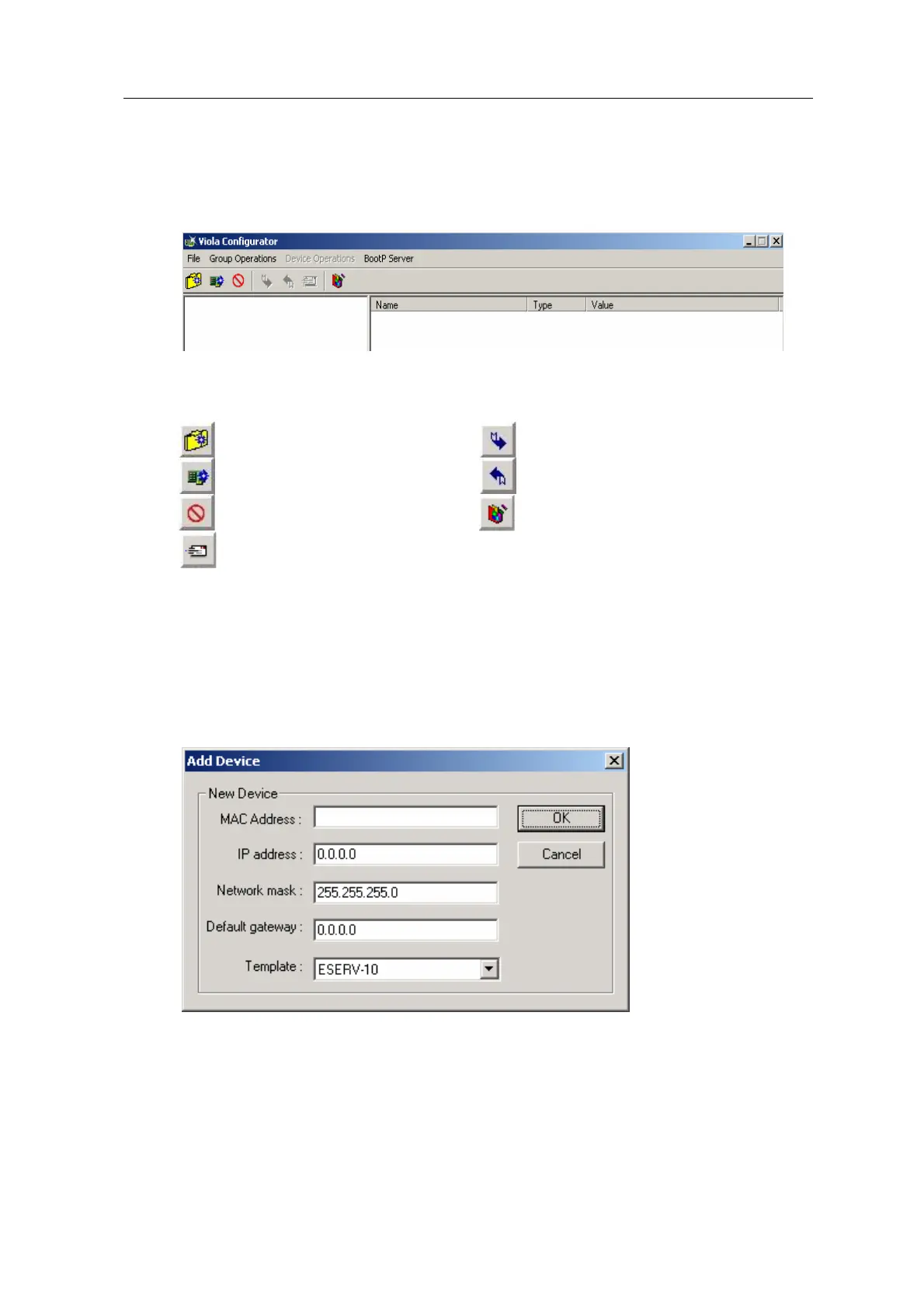
Configurator. The Viola Configurator window opens
On the taskbar of the Viola Configurator are following icons:
Add a new group
Send parameters to the device
Add a new device
Retrieve parameters from the
device
Delete an item (a group or a
device) and all it’s children
Build downloadable image file
Send image file to ESERV
(containing WEB pages)
2. Add new group by clicking Add a new group -icon or by selecting Group Operations Æ
Add Group.
3. Give name for that group, by entering the name to the appearing New Group field.
4. Add new device by clicking Add a new device -icon or by selecting Group Operations Æ
Add Device. Add Device window displays:
5. Enter the Ethernet address of the ESERV-10 (in format: 00:06:70:XX:XX:XX) to the MAC
Address field (The MAC address is given in the product information label of ESERV-10)
and other network settings.
6. Verify that in the Template field reads ESERV-10. If this is not case, select that from the
options available.
ESERV-10 17 Viola Systems Ltd.


 To Next Page