- 27 -
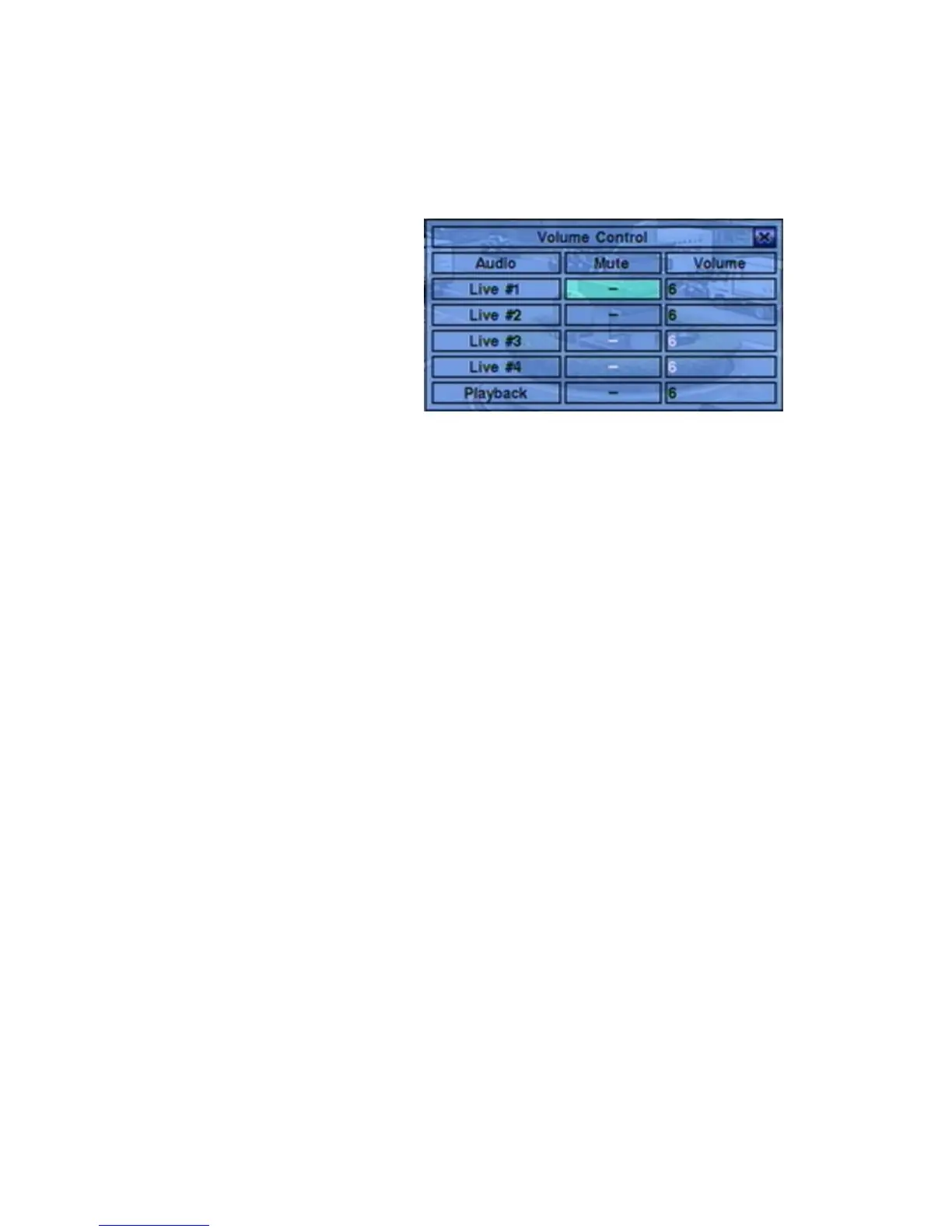
5.2 Volume Control
In Menu display, press
▲▼◄► to change the
highlighted option to Vo lum e,
and then press ENTER to call
up Volume Control display as
shown.
The general operations are as
below:
▲▼◄► (Mouse: Click in the respective item)
Press these buttons to select the items.
ESC (Mouse: Right Click)
Press this button to escape from this screen, and return to Menu display. If the
contents have been modified, a Save dialog will be shown to ask the user to save
the changes, press ENTER to exit and save, ESC to exit without saving.
Following is a brief description for each item and its specific operations:
Mute – to mute the selected audio channel. Press ENTER or +/- to
check/uncheck this item. The default setting is “-” - unchecked.
Volume – the volume of the selected audio channel. Press +/- buttons to change
the value (1-10).
5.3 Video Adjustment
In Menu display, press ▲▼◄► to change the highlighted option to Video
Adjustment, and then press ENTER to call up Video Adjustment display as shown.


 To Next Page