- 77 -
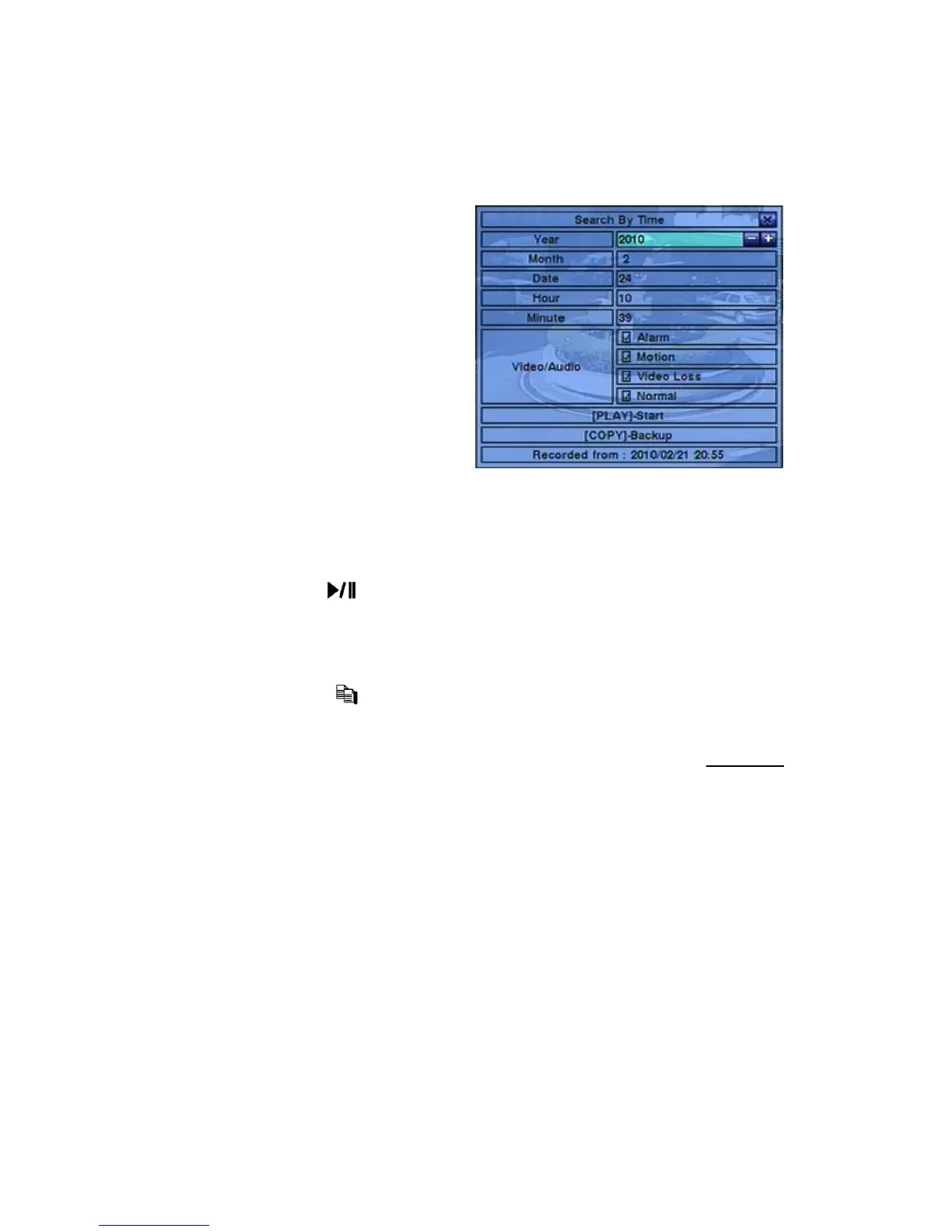
8.1 Search By Time
The screen for Search By Time is
shown on the right side:
The Status field will show the
‘Recorded from’ time based on the
selected Video/Audio before searching
- alarm partition if any of Alarm,
Motion, or Video Loss, is checked, and
normal partition if Normal is checked.
The general operations are as below:
▲▼(Mouse: Left click)
Press these buttons to select the items.
ESC (Mouse: Right Click)
Press this button to escape from this screen, and return to split-window display.
Play Button (
) (Mouse: Left click)
Press this button to start playing the recorded video/audio with the selected search
time and video/audio type. If there’s no camera in playback mode, all the
cameras in the current split window will be set to playback mode.
Copy Button (
) (Mouse: Left click)
Press this button to backup (copy) the selected type of recorded video/audio
starting from the Search Time (described below) in the HDD to the connected
backup device without playback. The Backup display (described in Section 8.6
)
will be shown. Please note that this kind of backup is performed in the
background, and the user can still do almost all the operations.
Note: Please do not block the tray from ejecting, esp. while the DVD is in backup
process. Blocking the tray from ejecting may damage the DVD writer.
Following is a brief description for each item and its specific operations:
Search Time – (Yea r, Month, Date, Hour, Minute) for the recorded video/audio.
The playback (or backup) will start from the time entered here when the user
press the playback buttons (or Copy button) later. Press +/- buttons to modify
each item.
Video/Audio – (Alarm, Motion, Video Loss, Normal). Check the types of the


 To Next Page