- 55 -
6.6.1 HDD Format/Clear
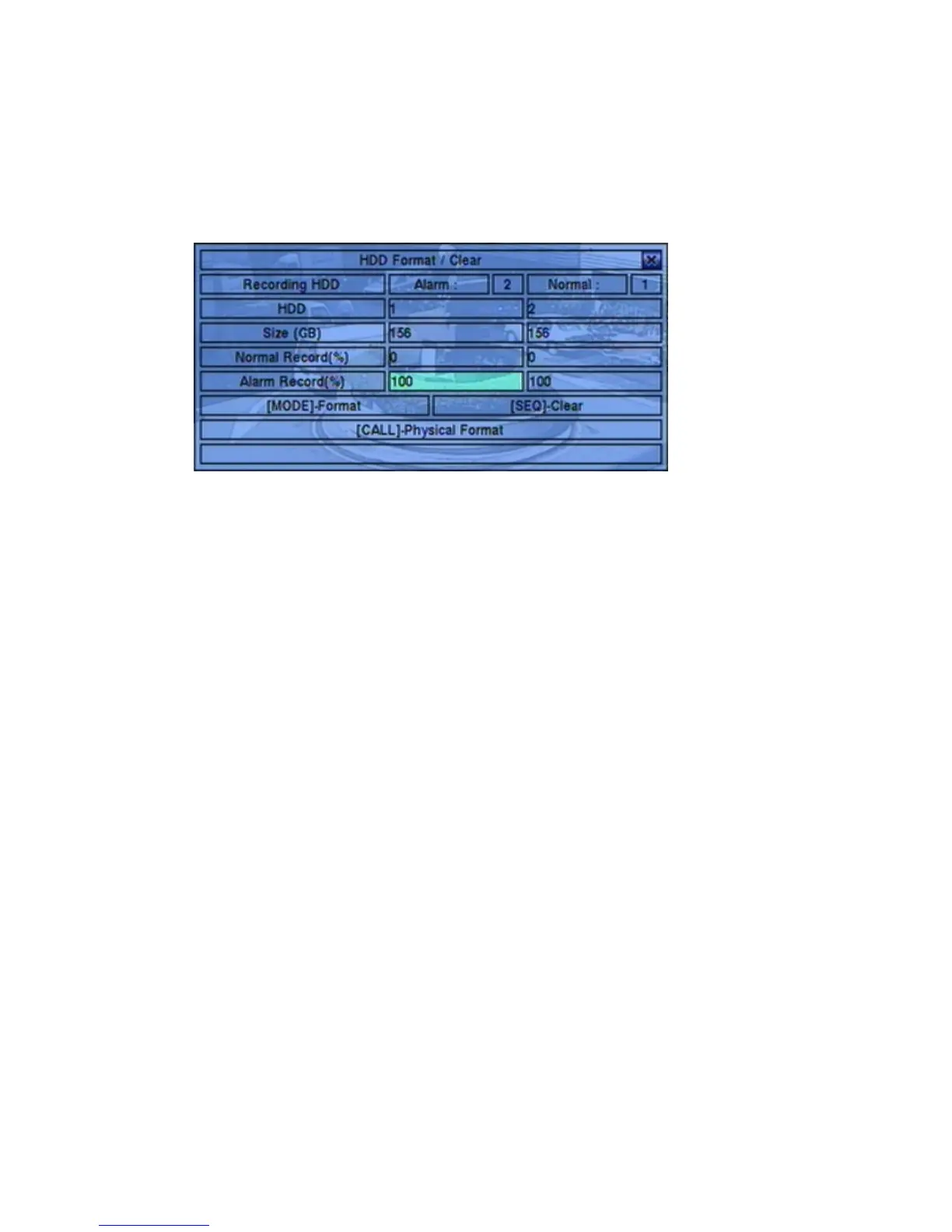
In HDD Setup display, press MODE to call up HDD Format/Clear screen as shown.
Each of the HDDs must be formatted before it can be used to record video/audio.
The HDD Format/Clear screen allows the administrator to format and/or clear each
HDD, and set the size for Alarm Record partition and Normal Record partition for
each HDD. Please note that the HDD IDs for the HDDs start from ID 1.
Please use only HDD with maximum storage size as 2TB, and make sure there’s
no remote user before formatting the HDD.
The general operations are as below:
▲▼◄► (Mouse: Left click)
Press these buttons to select the items. The display will scroll left/right if the
selected item is not shown on the screen.
MODE => Format (Mouse: Left click)
Press this button to format the selected HDD. A confirmation dialog will be
shown on the screen, press ENTER to confirm, or ESC to cancel. Please note
that it would take about 40 seconds to format a brand new 160GB HDD.
Note: If the HDD has not been formatted, it will be formatted and partitioned with
default record size, 100% for Alarm and 0% for Normal. If it has been
formatted, it will be formatted according to the Alarm REC Size (%) and
Normal REC Size (%) displayed on the screen, but the previously recorded
contents within the new size won’t be cleared and will be accessible.
SEQ => Clear (Mouse: Left click)
Press this button to clear the selected HDD. A confirmation dialog will be
shown on the screen, press ENTER to confirm, or ESC to cancel.


 To Next Page