- 37 -
360x288. Press +/- buttons to select the resolution.
Watermark – to record with digital watermark or not. If yes, all the recorded
images for all the cameras will have digital watermark embedded. Press
ENTER or +/- (Mouse: Left click) to check/uncheck this item. The default
setting is “ˇ” - checked.
Installed – whether this camera is installed or not. If installed, the following
items will be settable. Press ENTER or +/- (Mouse: Left click) to
check/uncheck this item. The default setting is “ˇ” - checked.
PTZ ID – the PTZ ID of this camera if it’s a PTZ camera. The PTZ ID has to be
consistent with the setting of this camera. Please refer to the manual of the
camera for the ID setting. Press +/- buttons to change the value (N/A or 0-255).
The default setting is “N/A” – Not Available, which means that it’s not a PTZ
camera.
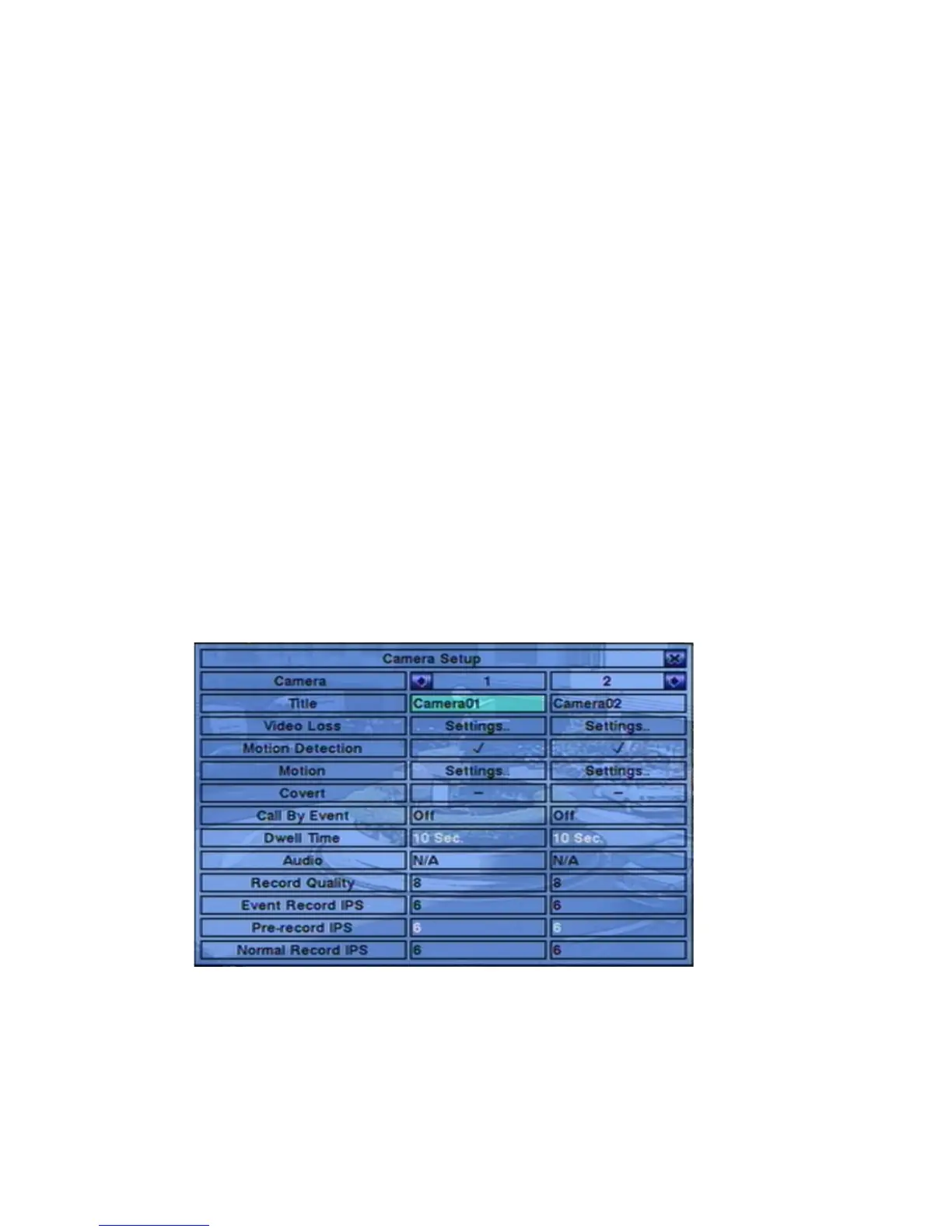
6.2 Camera Setup
In Setup Menu display, press ▲▼◄► to change the highlighted option to Camera,
and then press ENTER (Mouse: Left click) to call up Camera Setup display.
The Camera Setup allows the administrator to define the attributes for each camera.
There are up to 8/4 cameras which can be connected to the system.
The general operations are as below:


 To Next Page