- 87 -
Copy ( ) (Mouse: )
Press this button to copy or stop copying the playback video/audio to the storage
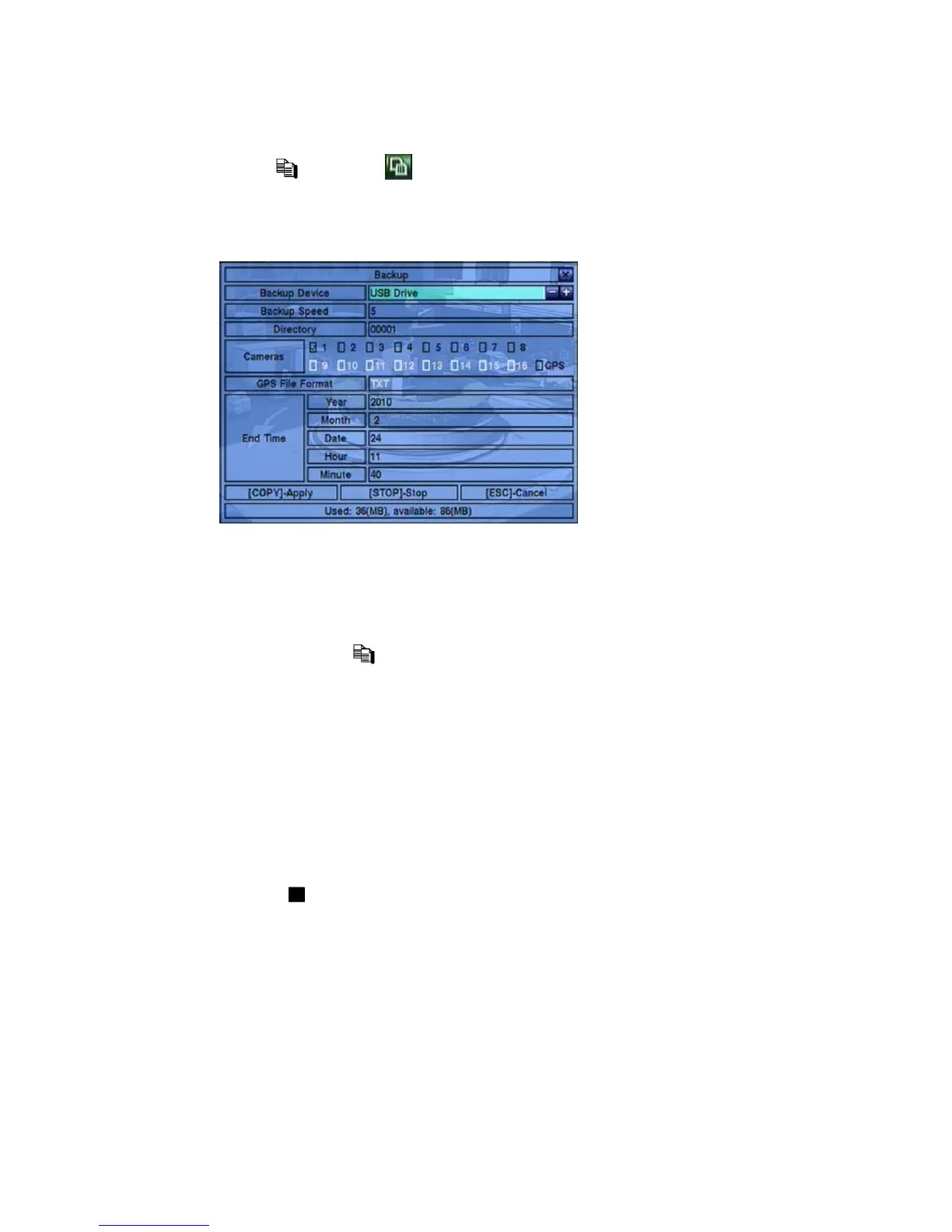
device connected to the USB port or internal DVD. The Backup display will be
shown as below.
Following is a brief description for the operations in Backup display:
▲▼◄► (Mouse: Left click)
Press these buttons to select the items.
Copy Button (
) (Mouse: Left click)
Press this button to start backup (copy) or apply the revised settings if it’s
copying, and return to the previous display. There will be a Copy icon on
the lower-right corner indicating that the selected video/audio is being
archived to the storage device. For DVD disc, the files won’t be written to
the disc until the storage size reaches 1 GB or the user stop copying.
Writing to the disc may take more than 1 minute for every 100 MB
(depending on the disc type).
Note: Please do not block the tray from ejecting, esp. while the DVD is in backup
process. Blocking the tray from ejecting may damage the DVD writer.
Stop (
) (Mouse: Left click)
Press this button to stop copying and return to the previous display. The
Copy icon will be disappeared.
ESC (Mouse: Right Click)
Press this button to cancel, and return to the previous display.
The description for each item and its specific operations is as below:


 To Next Page