11
How to connect to Wi-Fi
Connect power supply
Connect power plug to the socket.
Reseing Wi-Fi
When your router is replaced or Wi-Fi password is changed, you
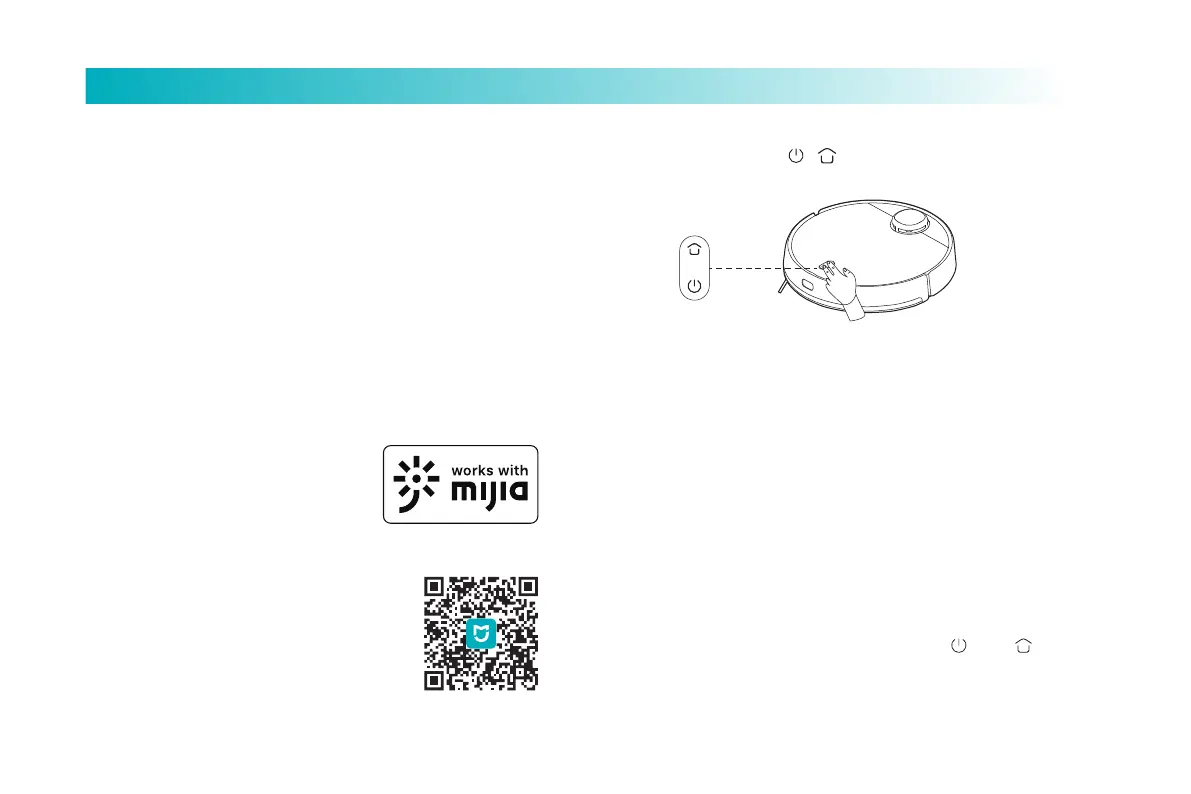
have to reset Wi-Fi seings by holding both and keys for
7 seconds till the Wi-Fi indicator light flashes in blue color and a
voice prompt is given, indicating that the Wi-Fi seings are reset
successfully.
Bind iOS-based cell phone to Wi-Fi
Select robot's hotspot in Wi-Fi seings of your phone, and
wait for connection; Return to the App, tap "next" and follow
the tips to finish connection.
Notes: Please refer to How to Reset Wi-Fi when your phone is
unable to connect Viomi vacuum (as following); Please
connect to Wi-Fi for optimal user experience.
Bind Android-based cell phone to Wi-Fi
Tap the available product, and tap "connect" to proceed. Just
follow the tips.
Download the App
Search for "Mi Home" in app store; or scan the QR code to
download and install the app.
Configure the network
Press and hold the “ + ”buons for 7s to configure the
network
Connect to Mi Home App
This product works with Mi Home app. Control your device, and
interact it and other smart home devices with Mi Home app.
Notes: As Mi Home App is subject to improvement and update
from time to time, the actual operations may vary from what is
described above. Please perform your operations by following
the instructions in current Mi Home App.
Aention: "works with Mijia" validates
in soware level only. MIUI and Mi
Home is not responsible for the
enterprise and its production, standard
implementation, quality supervision
and other aspects of the product.
Scan the QR code to download and install
the app. You will be directed to the connec-
tion setup page if the app is installed
already. Or search "Mi Home" in the app
Store to download and install it. Open the
app, tap"+" on the upper right, and then
follow prompts to add your device.



 To Next Page