27
Viscount Chorum
User Manual
o ALL: all the instrument, i.e. the settings and functions of the SETTING menu, the four organ Styles
(in other words the settings of the STYLE menu for all four organ Styles), all combinations, both
general and divisional, Crescendo (for models that have it), Tutti, the Local Off status of stops.
o COMBINATIONS: all combinations, both general and divisional, Crescendo (for models that have
one) and Tutti.
o STYLE - ALL: the four organ Styles (i.e. the settings of the STYLE menu for all four organ Styles).
o STYLE – CURR.: the currently selected organ Style (i.e. the settings of the STYLE menu for the
currently selected Style).
o SETTINGS: settings and functions of the SETTINGS menu and the Local Off status of stops.
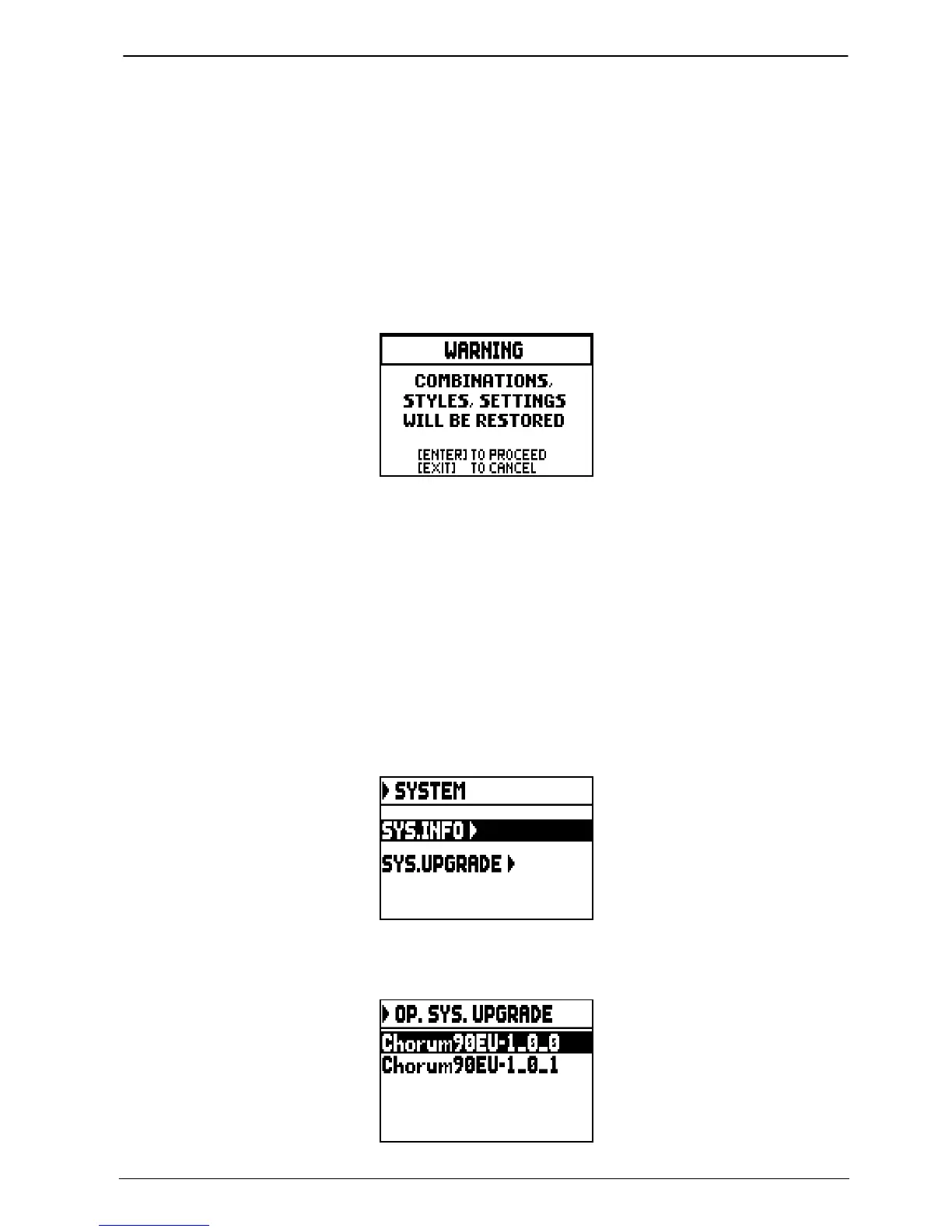
To restore the factory settings, select one of these five modes and press [ENTER]. The display will show the
settings that will be restored and will ask for confirmation.
Press [ENTER] again to start the process or [EXIT] to abort it. When the process is complete, the “FACTORY
SETTINGS SUCCESFULLY RECALLED” message will appear.
In the previous phase, if the message “SOME PARAMETERS ARE LOCKED” is showed please check the
SECURITY options (par. 5.8) as it is not possible to proceed with the restore operation.
5.10 UPGRADING THE OPERATING SYSTEM (OP. SYS. UPGRADE function)
Every time the Chorum operating system is updated, the update file will be available on the website
www.viscountinstruments.com. First download the file, then copy it to the main (root) folder of an USB drive.
Connect the pen drive to the [USB] connector of the instrument, located on the rear panel under the manuals (see
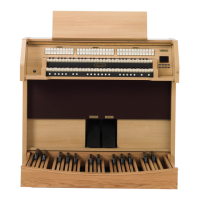
point 19 chap. 2); wait a few seconds then select the SYSTEM field under the SETTINGS menu:
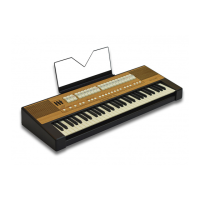
now select the SYS. UPGRADE field. The system displays the Chorum organs update file(s) (different updates
can be stored in the same USB pen, when updating select the file you wish to install) on your USB drive:



 To Next Page