14
Windows 10 - Display Setup
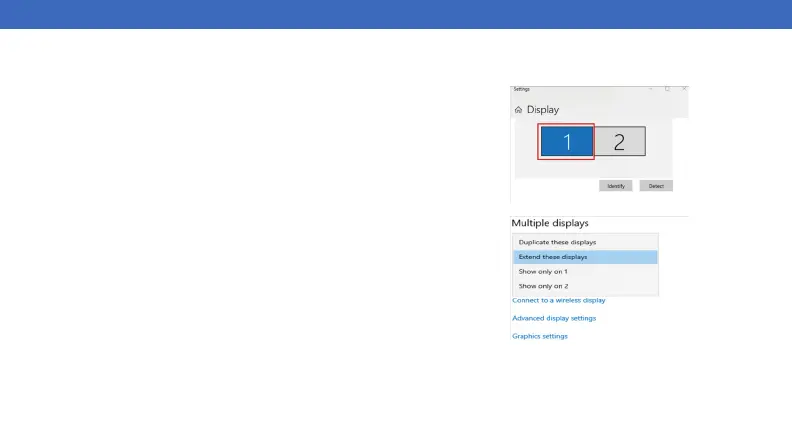
1. Right Click on any open spot on your desktop and select “Display Settings”
Arranging Displays
2. In “Display”, select the desired display that you want to adjust. Click and drag
the selected display to your preferred arrangement
Extending or Duplicating Displays
3. Scroll down to “Multiple displays” and select the mode in the drop-down list that
fits your needs
Adjusting Resolution
4. To adjust resolution select your desired resolution from the supported list under
“Display resolution”
Adjusting Refresh Rate
5. To the refresh rate of the connected display click on “Advanced display settings”
6. Select the display you want to adjust from the drop down menu at the top
7. Under “Refresh Rate” select from the supported refresh rates in the drop down
menu
DISPLAY SETTINGS (Windows)



 To Next Page