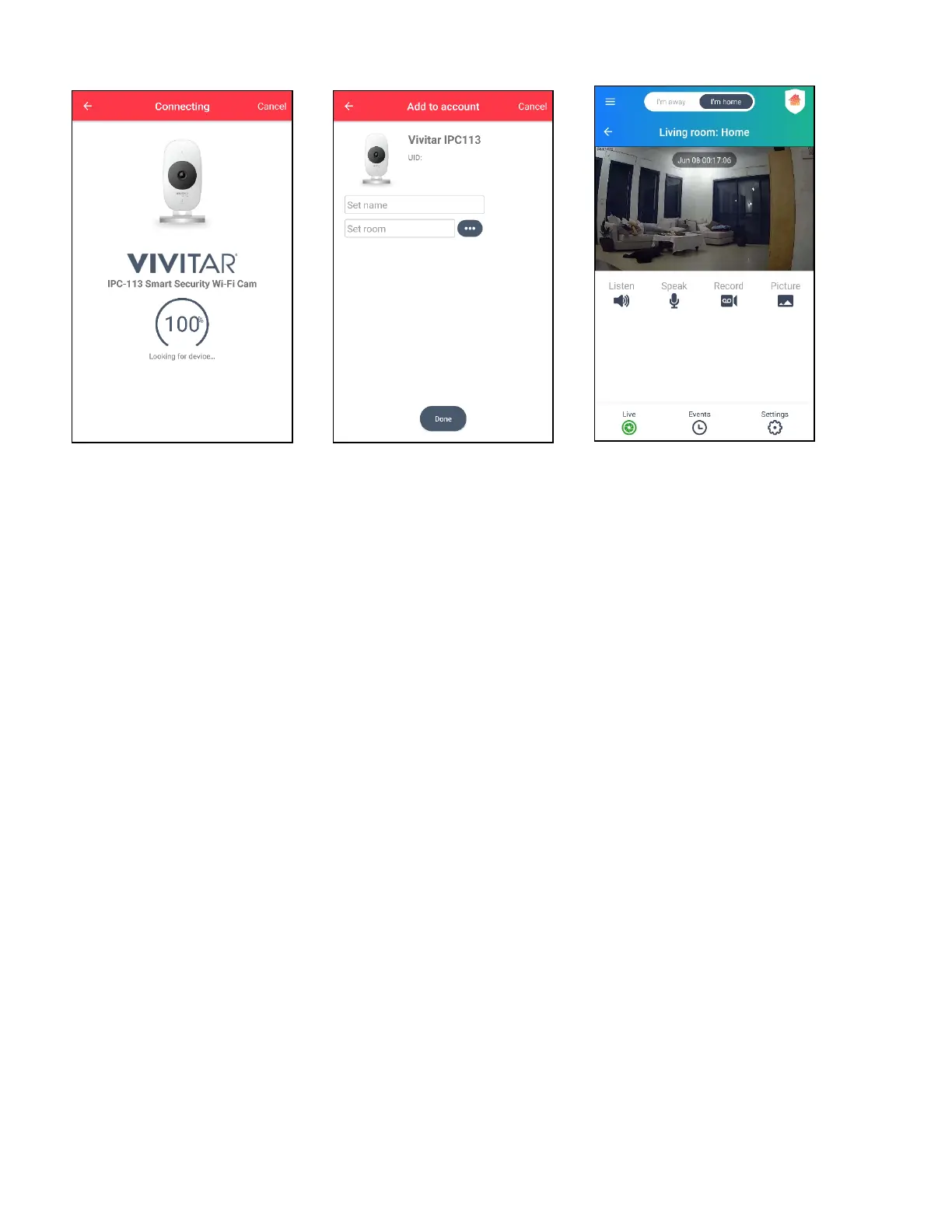
6. Connecting screen 7. Enter camera name and 8. Enter Live IP Camera View
tap Set Room to select
location, then tap Done.
NOTE: The Cloud Subscription
window then appears.
Follow the prompts to subscribe.
NOTE:
• After initial setup and after connecting additional IP Cameras, the ‘Devices’ home screen
appears. Tap IP Cameras to view the list of your connected IP Cameras. Then tap on a
video thumbnail view to open the selected camera in the ‘Live IP Camera’ view.
• When re-launching the app, the ‘Devices’ home screen appears by default.



 To Next Page