NAVIG ATION B AR
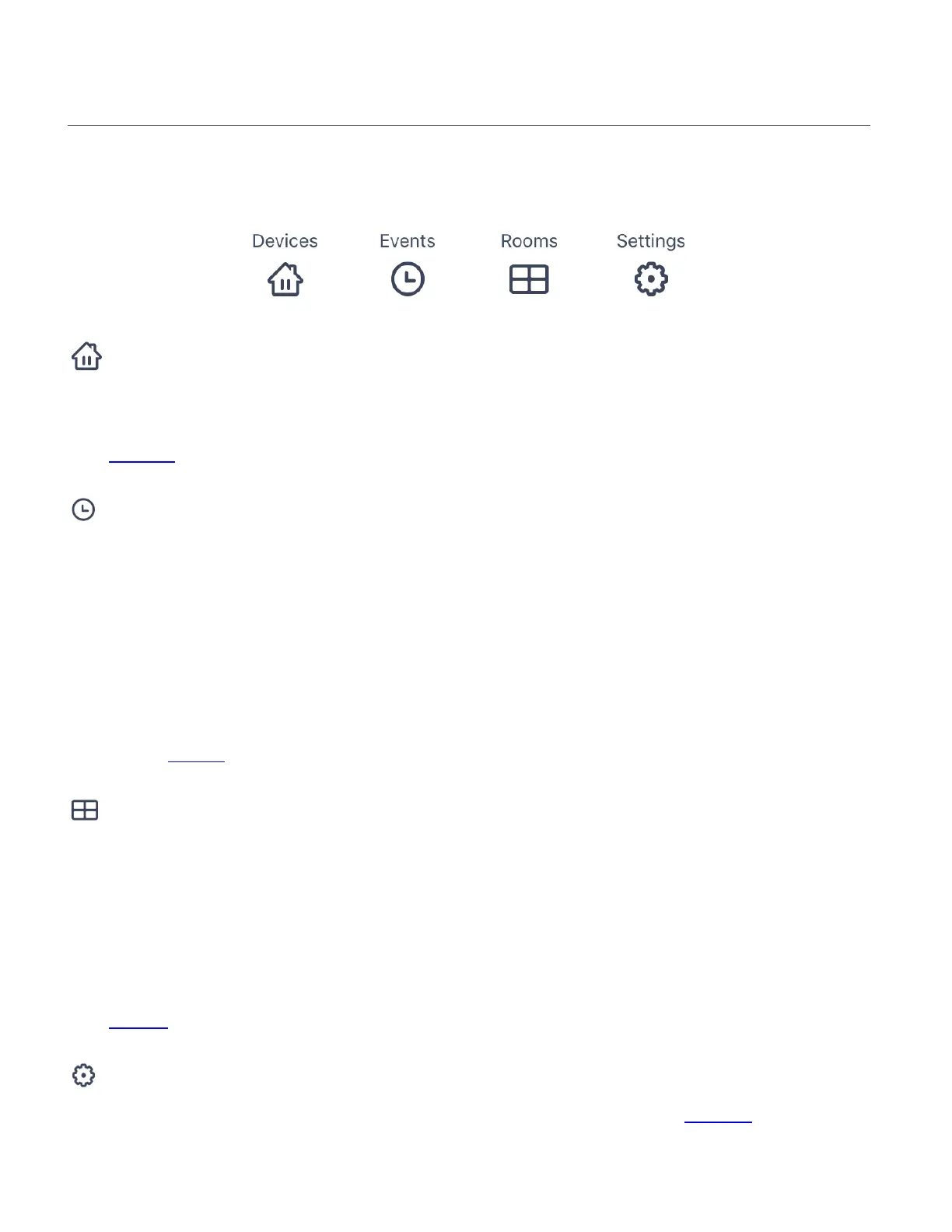
The bottom navigation bar allows you to quickly and easily access the controls for your Smart
Home Security. When selected, the navigation button appears in green.
Devices:
Tap Devices to open the Devices screen. The Devices screen displays the list of Vivitar Smart
Home Security devices: IP Cameras, Lights, Outlets, Power Strips, Doorbell, Robobcam.
See Devices for more information.
Events:
Tap Events to open the Events screen. If you have more than one registered camera, the list of
cameras appears. Tap on one of the cameras from the list to open the ‘Events’ screen for the
selected camera. If you have only one registered camera, that camera’s ‘Events’ screen
automatically opens.
The ‘Events’ screen displays the video recordings captured as per the sound/motion detection
recorded by your IP Camera. The video recordings are based on your Home & Away motion
detection and sound detection settings. Your Events can be saved to your SD Card and to your
Cloud. See Events for more details.
Rooms
Tap Rooms to open the Rooms screen. The Rooms screen displays the room that your camera
is connected to. If you have multiple cameras registered and connected or shared to the app,
then the room name and icon for each camera is shown.
NOTE: Each camera includes a room name as per the room name added during initial setup or
via the camera’s settings. The room name options include: Kitchen, Office, Living Room, Dining
Room, Bathroom, Bedroom, Hallway, Cellar and New Room (custom added room name)
See Rooms for more information.
Settings
Tap Settings to open the settings screen for your connected camera. See Settings for more
information.



 To Next Page