The connected camera displays the following:
ITEM NAME FUNCTION
1 Main Menu Displays the Main Menu options:
Devices, Events, Rooms, Settings, Accounts, Help
2 Back Button Tap to go back to the previously viewed screen.
3 Full Screen View Tap the arrows to switch between streaming video
display in portrait view and Full Screen Landscape view.
4 Camera Controls
(Manual)
Tap to activate the selected option(s):
Listen, Speak, Record, Picture
NOTE: These options can be used simultaneously.
5 View / Settings Tap to change between Live View, Events View or
Camera Settings.
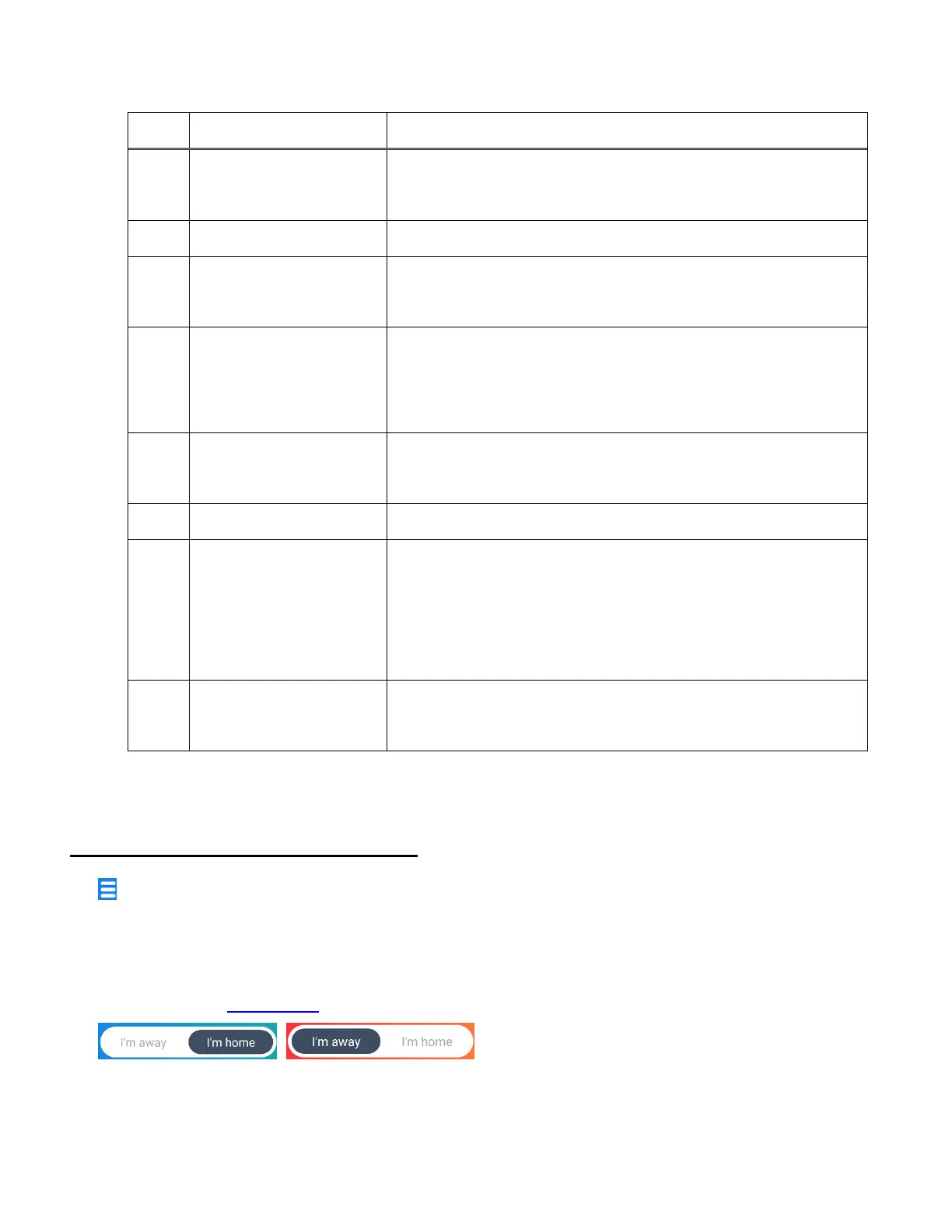
6 Away / Home Mode Tap to toggle between the Away and Home Modes
7 Camera Location:
Camera Name
Displays the camera name and room name you entered
during the setup.
NOTE: You can change the names at any time via the
Camera ‘Settings’.
8 Live Camera View Streaming Video of your selected camera is shown, with
the date and time.
LIVE IP CAMERA VIEW: OPTIONS
• Main Menu:
Tap the Main Menu button to open the list of menu options:
Devices, Events, Rooms, Settings, Accounts, Help
Please see the Main Menu section for more information.
• Home and Away:
Tap I’m away or I’m home at the top of the screen to switch between Home Mode and Away
Mode. Remember to adjust when you leave your home and when you come back to



 To Next Page