Events Playback Screen
The Events Playback screen plays back the selected captured sound or motion event.
The Events Playback Screen displays the following information:
• Camera Location: Name
• Type of detection: Sound detection or Motion detection
• Date and Time. The time progression is shown as the video is played.
• Playback screen: Displays the recording of the video/sound event.
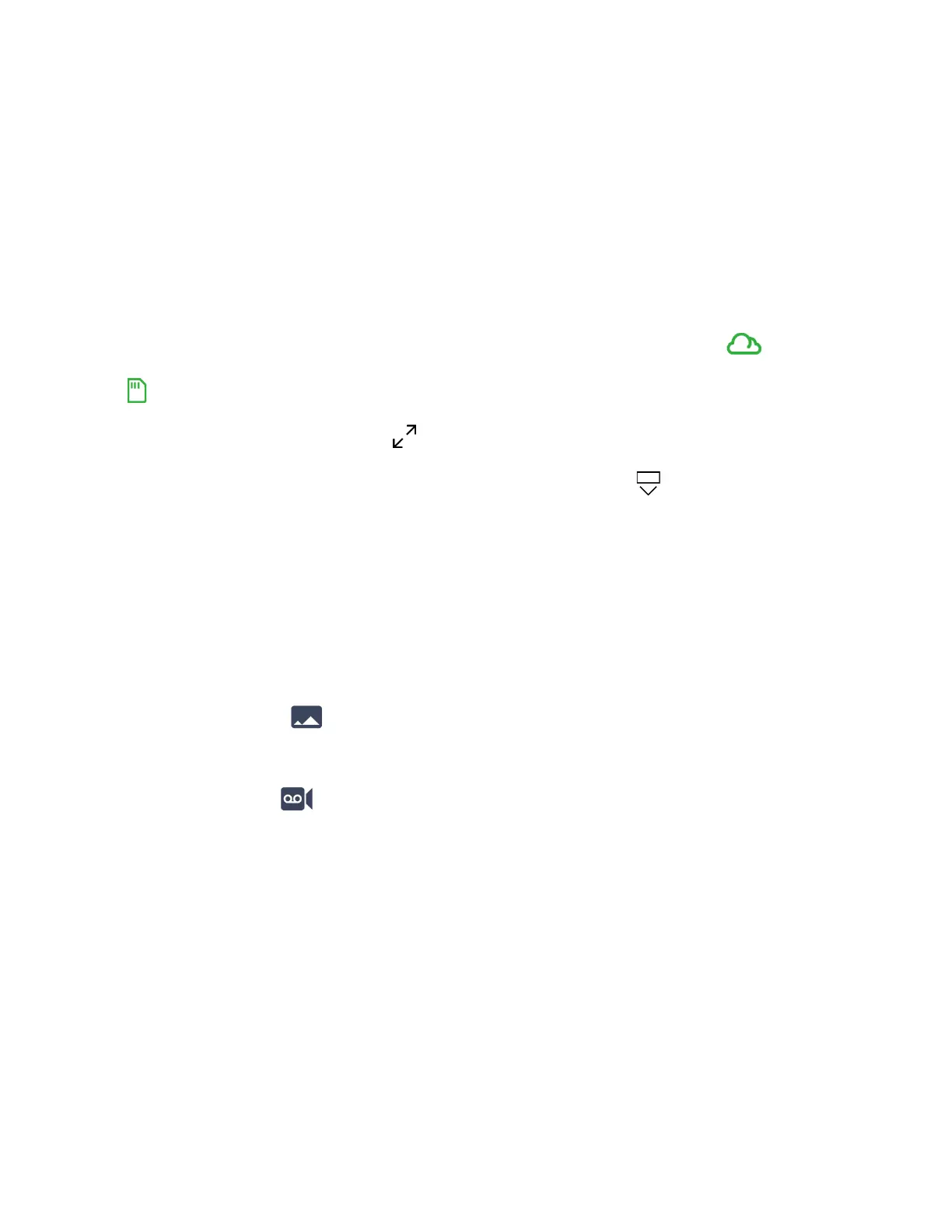
- Event Type: An icon is displayed on the video indicating whether it is a Cloud or
SD Card event.
- Full Screen Playback: Tap the arrows to display the playback in full screen
landscape view. The date and elapsed time appears. Tap the capture button to take a
picture or record a video of the displayed event.
• Video Controls: Play / Pause
Tap the controls to Play or Pause the event.
• Time duration of the captured video – with a slide control to view a specific time within the
recorded time.
• Picture: Tap on the Picture button to take a picture from the recorded event as you
play the event. The photo is saved to your phone’s Photos app.
• Video: Tap on the Record button to save a video of an event or a selection of the
event that is currently playing.
- Ta p the Record button to start saving the video. The Record button turns green. A red
record indicator blinks with the elapsed recording time next to it, indicating that the
recording is in progress.
- Tap the Record button again to stop recording the video. The Record button turns gray.
The video is saved to your phone’s Photo app.
NOTE: Newly recorded cloud events may take a few minutes to become available for playback.
If the new recording does not immediately playback, please wait a few moments and then
playback the event.



 To Next Page