VIVOTEK
User's Manual - 59
Image settings
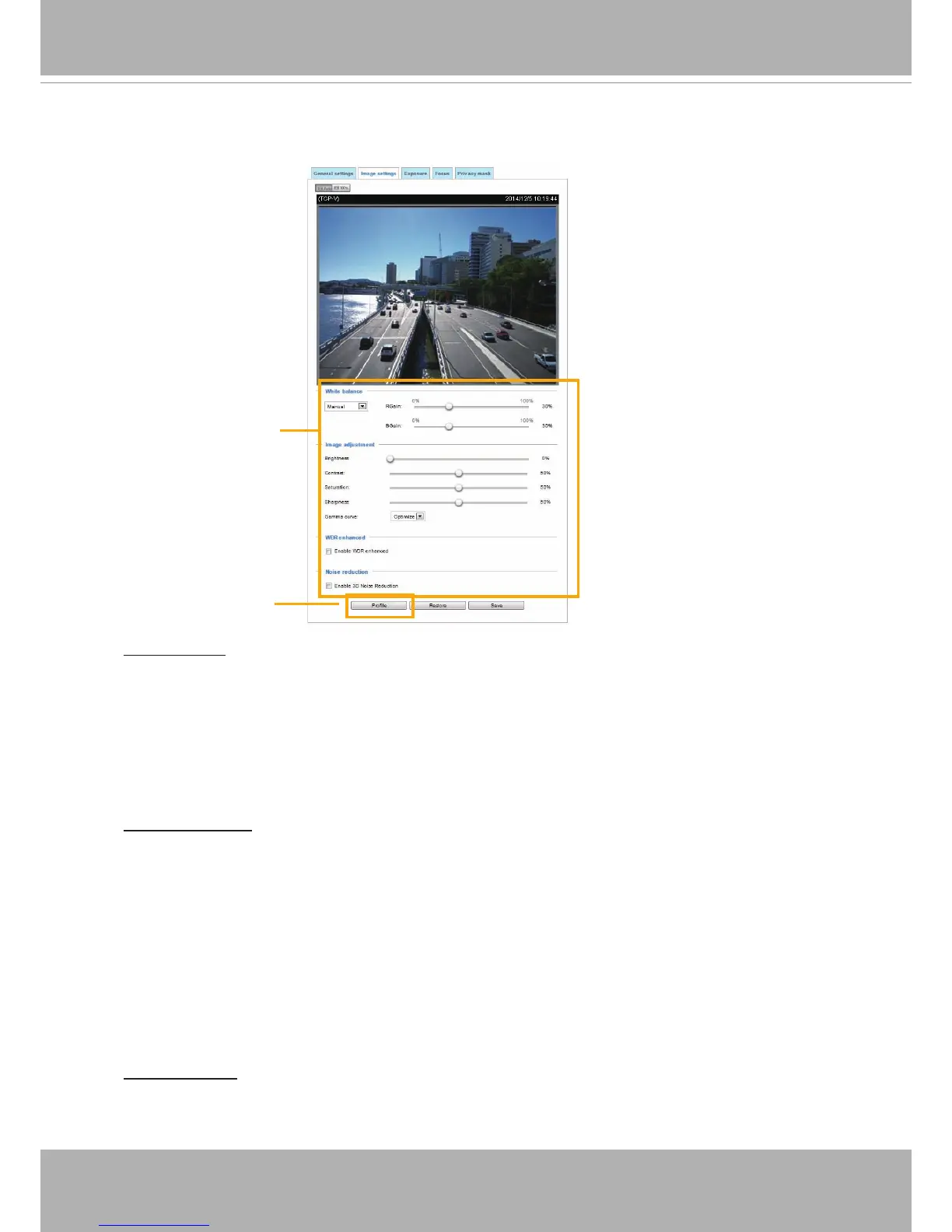
On this page, you can tune the White balance, Image adjustment and WDR enhanced �
White balance: Adjust the value for the best color temperature.
■ You may follow the steps below to adjust the white balance to the best color temperature.
1� Place a sheet of paper of white or cooler-color temperature paper, such as blue, in front of the
lens, then allow the Network Camera to automatically adjust the color temperature�
2� Click the On button to Fix current value and conrm the setting while the white balance is being
measured�
■ You may also manually tune the color temperature by pulling the RGain and BGain slide bards.
Image Adjustment
■ Brightness: Adjust the image brightness level, which ranges from 0% to 100%.
■ Contrast: Adjust the image contrast level, which ranges from 0% to 100%�
■ Saturation: Adjust the image saturation level, which ranges from 0% to 100%�
■ Sharpness:
Adjust the image sharpness level, which ranges from
0% to 100%
�
■ Gamma curve:
Adjust the image sharpness level, which ranges from
0�45 to 1
�
You may let firmware Optimize your display or select the Manual mode, and pull the slide bar
pointer to change the preferred level of Gamma correction towards higher contrast or towards the
higher luminance for detailed expression for both dark and lighted areas of an image�
Sensor Setting 2:
For special situations
Sensor Setting 1:
For normal situations
WDR enhanced
■
This function allows users to identify more details of objects in the high contrast environments
especially for details in the shaded area� You may check the Enable WDR enhanced checkbox,
and then adjust the strength (low, medium, high) to reach the best image quality�



 To Next Page