VIVOTEK
54 - User's Manual
Media > Video
► All the items in the “Region of Interest” should not be larger than the “Output Frame Size“
(current maximum resolution)�
■ The parameters of the multiple streams:
When completed with the settings in the Viewing Window, click Save to enable the settings and
click Close to exit the window� The selected Output Frame Size will immediately be applied to
the Frame size of each video stream� Then you can go back to the home page to test the e-PTZ
function� For more information about the e-PTZ function, please refer to page 92�
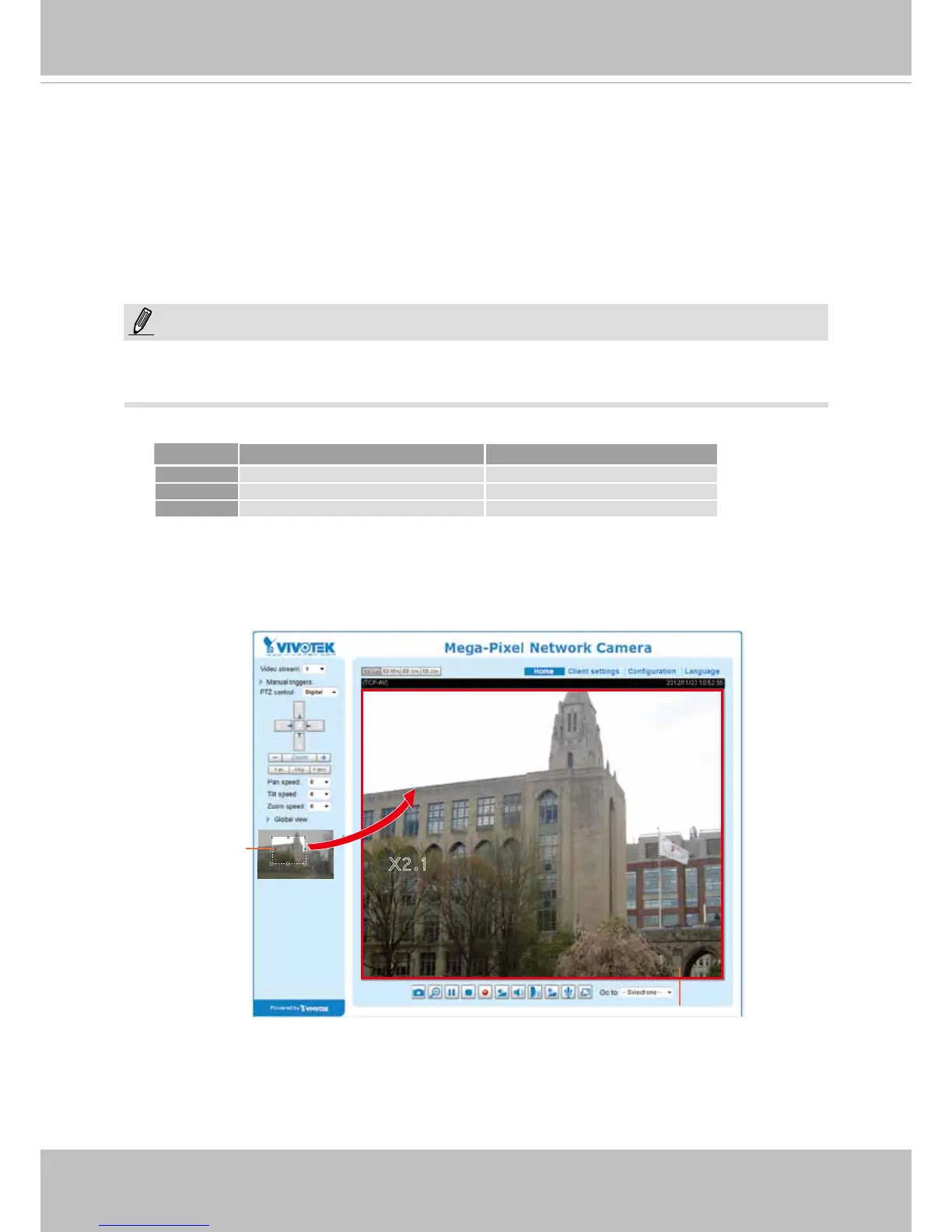
Output Frame Size
(Size of the Live View Window)
X2.1
Region of Interest
(Viewing Region)
Region of Interest Output frame size
Stream 1 2048 X 1536 ~ 176 x 144 (Selectable) 2048 X 1536 ~ 176 x 144 (Selectable)
Stream 2 2048 X 1536 ~ 176 x 144 (Selectable) 2048 X 1536 ~ 176 x 144 (Selectable)
Stream 3 xed xed
NOTE:
2� Select a Region of Interest from the drop-down list. The oating frame, the same as the one
in the Gloabl View window on the home page, will resize accordingly� If you want to set up a
customized viewing region, you can also resize and drag the oating frame to a desired position
with your mouse�
3� Choose a proper Output Frame Size from the drop-down list according to the size of your
monitoring device�
Please follow the steps below to set up those settings for a stream:
1� Select a stream for which you want to set up the viewing region�


 To Next Page