EasyManua.ls Logo

Vizio VA22LF - User Manual

Vizio VA22LF
52 pages
Print Icon
To Next Page IconTo Next Page
Loading...
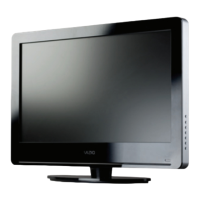
VIZIO VA22LF HDTV10T User Manual
Version 9/12/2008 1
www.VIZIO.com
Dear VIZIO Customer,
Congratulations on your new VIZIO VA22LF HDTV10T High Definition
LCD Television purchase. To get the maximum benefit from your HDTV,
read these instructions before making any adjustments, and retain them
for future reference. We hope you will experience many years of
enjoyment from your new HDTV.
For assistance, call (877) 698-4946 or e-mail us at
techsupport@VIZIO.com.
To purchase or inquire about accessories and installation services for
your HDTV, visit our website at www.VIZIO.com or call toll free at 888-
VIZIOCE (888-849-4623).
We recommend you register your HDTV either by visiting our website
(www.VIZIO.com) or by completing and mailing in your registration card.
For peace of mind and to protect your investment beyond the standard
warranty, VIZIO offers on-site extended warranty service plans. These
plans give additional coverage during the standard warranty period. Visit
our website or call us to purchase a plan.
Write down the serial number located on the back of your HDTV.
__ __ __ __ __ __ __ __ __ __ __ __ __ __
Purchase Date _____________________
VIZIO is a registered trademark of VIZIO, Inc. dba V, Inc.
HDMI logo and “High Definition Multimedia Interface” are registered
trademarks of HDMI Licensing LLC.
Manufactured under license from Dolby Laboratories.
Dolby and the double-D symbol are trademarks of Dolby Laboratories.
THE TRADEMARKS SHOWN HEREIN ARE THE PROPERTY OF THEIR RESPECTIVE OWNERS; IMAGES USED ARE FOR
ILLUSTRATION PURPOSES ONLY. BRAVO, VIZIO AND THE V LOGO AND WHERE VISION MEETS VALUE AND OTHER VIZIO
TRADEMARKS ARE THE INTELLECTUAL PROPERTY OF VIZIO INC. PRODUCT SPECIFICATIONS ARE SUBJECT TO
CHANGE WITHOUT NOTICE OR OBLIGATION. © 2008 VIZIO INC. ALL RIGHTS RESERVED.

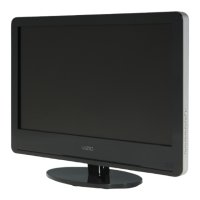
Table of Contents

Questions and Answers

  • C
    Cheryl GuzmanAug 20, 2025
    Why is my Vizio VA22LF showing a black screen?
    • T
      Timothy GarciaAug 20, 2025
      If your Vizio LCD TV screen is black, try the following: check the connections on the back of your HDTV and on the back of the component; ensure the power cord is securely connected to the back of your HDTV and a grounded power outlet; verify the power is ON (the VIZIO logo will be white); confirm that the selected input source (e.g., DVD player) is working properly; and if connected to a computer in RGB or HDMI mode, press any key to wake the computer.
  • A
    Amanda ScottAug 22, 2025
    What to do if my Vizio LCD TV has no power?
    • R
      Russell SantiagoAug 22, 2025
      If your Vizio LCD TV has no power, ensure that the power is ON (the VIZIO logo will be white); check that the power cord is securely connected to the back of your HDTV and the power outlet; test the power outlet by connecting another electrical device to verify it's supplying the proper voltage.
  • S
    Steven WilliamsAug 25, 2025
    Why does my Vizio VA22LF LCD TV have a picture but no sound?
    • A
      Adam MartinAug 25, 2025
      If your Vizio LCD TV has a picture but no sound, make sure that the volume is not turned down, ensure that the sound is not muted, and check the connections on the back of your HDTV and on the back of the component.
  • E
    Elizabeth PhillipsAug 26, 2025
    How to fix Vizio VA22LF LCD TV remote control that is not working?
    • B
      Brian SmithAug 27, 2025
      If your Vizio LCD TV remote control isn't working, make sure the batteries are inserted correctly, replace expired batteries, and press the correct source button on the remote control (e.g., TV to control the TV source).
  • R
    Ryan FloresAug 27, 2025
    What to do if my Vizio VA22LF has no sound?
    • N
      Nicholas HallAug 28, 2025
      If your Vizio LCD TV has no sound, check your audio connections on the back of your HDTV and the connected component. Also, ensure the volume isn't turned down, the sound isn't muted, and headphones aren't connected. Check your audio settings in the OSD, as your HDTV audio may be set to SAP, minimum, or speakers off.
  • M
    meghanscottAug 30, 2025
    Why is my Vizio VA22LF LCD TV power on but there is no screen image?
    • B
      brennanamandaAug 30, 2025
      If your Vizio LCD TV is powered on but shows no screen image, check the connections on the back of your HDTV and the connected component, and adjust the brightness and contrast. You may also need to press INPUT to select a different source.
  • M
    megan10Sep 1, 2025
    Why does my Vizio VA22LF have distorted picture?
    • S
      Sarah KingSep 1, 2025
      If your Vizio LCD TV picture is distorted, it may be due to interference from electrical appliances, cars, motorcycles, or fluorescent lights. If it's not wall-mounted, try moving your HDTV to another location. The distortion might also be from a device on the same electrical circuit, so try plugging your HDTV into another power outlet.
  • W
    William HooperSep 3, 2025
    Why are the colors wrong on my Vizio VA22LF?
    • K
      Kenneth MorenoSep 3, 2025
      If the colors on your Vizio LCD TV are wrong or abnormal, and any colors (red, green, or blue) are missing, check the video cable to ensure it is securely connected.
  • D
    Daniel KleinSep 5, 2025
    Why is there an unusual sound coming from my Vizio VA22LF?
    • T
      Thomas PerkinsSep 5, 2025
      If there is an unusual sound coming from your Vizio LCD TV, it may be due to interference from electrical appliances, cars, motorcycles, or fluorescent lights. If you have not mounted it on the wall, try moving your HDTV to another location to see if this resolves the issue.
  • X
    xchapmanSep 7, 2025
    Why does my Vizio LCD TV picture have abnormal patterns?
    • R
      Rebecca HughesSep 7, 2025
      If your Vizio LCD TV picture has abnormal patterns, check the connections on the back of your HDTV and on the back of the component. Also, make sure that the video input source is within the range of your HDTV by comparing the video input source’s specifications with your HDTV specifications.

Summary

Important Safety Instructions

Understanding Controls and Connections

VIZIO Remote Control

Covers remote functions, range, precautions, and setup.

Setting Up Your HDTV

Connecting Your Cable or Satellite Box

Connecting Coaxial (RF) Sources

Using Antenna or Digital Cable

Connects antenna or digital cable for TV reception.

Connecting Your DVD Player

Using HDMI (Best)

Connects DVD player via HDMI for best digital quality.

Connecting VCR, Camera, and Computer

Using Your HDTV for the First Time

Fine-Tuning the Picture

Using the On-Screen Display (OSD)

Advanced Settings and Adjustments

Adjusting Picture Settings

Controls for brightness, contrast, color, sharpness, and advanced video.

Adjusting Audio Settings

Controls for volume, bass, treble, balance, and surround sound.

Adjusting TV Settings

Configures tuner mode, auto search, MTS, and time zone.

Adjusting Setup Settings

Manages language, source, sleep timer, and closed captions.

Adjusting Parental Control Settings

Restricts channel and program viewing using passwords.

Maintenance, Troubleshooting, and Support

Troubleshooting Common Issues

Solves common problems like no signal, no power, or picture issues.

Warranty and Return Information

Vizio VA22LF Specifications

General IconGeneral
Screen Size22 inches
Display TypeLCD
Aspect Ratio16:9
Brightness250 cd/m²
Contrast Ratio1000:1
Response Time5 ms
HDMI Ports1
USB Ports1
Refresh Rate60 Hz
Speakers2 x 5W
InputsHDMI, USB, Composite, VGA
Viewing Angle178° (horizontal and vertical)

Related product manuals