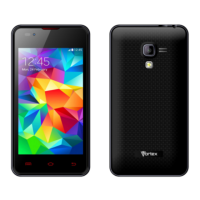
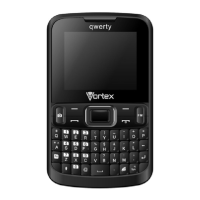
The Vortex V22 is a smartphone running Android™ 11, designed for general communication, multimedia, and application usage.
Function Description:
The Vortex V22 serves as a mobile communication device, allowing users to make and receive calls, send and receive text and multimedia messages, and manage contacts. It features internet connectivity via mobile networks (GSM/WCDMA) and Wi-Fi, enabling web browsing and access to various online services. The device includes a camera for taking photos and recording videos, and supports multimedia playback. It also offers a range of applications for productivity and entertainment, such as a file manager, clock with alarm and stopwatch functions, and access to the Google Play Store for additional apps.
Important Technical Specifications:
- Operating System: Android™ 11
- Connectivity: GSM/WCDMA mobile networks, Wi-Fi, Bluetooth®
- Storage: Supports microSD cards for expanded storage.
- FCC ID: 2ADLJ-V22 (indicates compliance with FCC Part 15 rules)
Usage Features:
Getting Started:
- SIM and microSD Card Insertion: After opening the phone case, insert the SIM card into the lower slot and the SD card into the upper slot. Users are cautioned to use properly sized SIM cards and avoid cutting or forcing them.
- Power On/Off: To turn on, hold the "Power button" until the screen lights up.
- Volume Adjustment: Press "Volume +" to increase volume and "Volume -" to decrease volume.
Screen Control:
- Touch: Select items, open applications, or input characters using the keyboard.
- Swipe/Slide: Move a finger across the screen quickly without pausing.
- Touch & Hold: Access available menus for certain items.
- Drag: Relocate icons or perform specific operations.
- Landscape/Portrait Mode: Rotate the phone to switch between modes, valid for certain interfaces like text input, message viewing, and compatible applications.
- Pinch: Zoom in or out in apps like Maps and Photos by placing two fingers on the screen and pinching them together (zoom out) or spreading them apart (zoom in).
Application Management:
- Opening/Closing Apps: Swipe up on the home screen to view applications. Touch an icon to open an app. Touch the Home key to return to the home screen.
- Switching Apps: Touch the recent apps icon (square) on the home screen to view a list of recently used apps. Touch an app to open it, or swipe it up to remove it from the list.
- Home Screen Customization:
- Widgets: Explore widgets from the widgets tab on any application screen.
- Adding Apps: Download apps from the Play Store.
- Notifications: Drag the notification bar down from the top of the screen to open the notifications panel. Respond to a notification by touching it, dismiss by swiping sideways, or close by swiping left.
- App Icons: Touch and hold an app icon, then slide and lift to drop it in place on the Home screen.
- Deleting Items: Touch and hold an app icon, then slide it toward the top of the screen and drop it over the "Remove" icon.
- Folders: Combine app icons by dropping one over another. Open a folder by touching it, rename by touching its name, and move icons by touching, holding, and sliding.
- Wallpaper: Touch and hold an empty space on the home screen to change the wallpaper from Photos, Live Wallpapers, or Wallpapers.
Sleep Mode and Wake Up:
- Sleep Mode: The phone automatically enters sleep mode after a period of inactivity to save power and prevent accidental operations. Press the Power button to enable sleep mode.
- Wake Up: Press the Power button to turn on the screen. Swipe up to unlock. If an unlock pattern or password is set, input it to access the main interface.
Calling Features:
- Making Calls:
- Direct Dialing: On the home screen, touch the phone icon to display the dialing keypad. Input the number and touch the call button.
- From Contacts: Touch the Contacts icon, select a contact, and touch the phone number.
- From Call Log: Touch the phone icon to view recent calls. Touch a phone icon in the call log to dial.
- International Calls: On the dialing keypad, touch and hold "0" until "+" appears, then dial the country/region code, city code, and phone number.
- From Messaging: In a message conversation, touch the phone icon at the top to dial the number.
- Answering Calls: Slide from the middle to up to answer. If headphones are inserted, press the key on the headphones.
- Rejecting Calls: Swipe down the middle to deny a call.
- Ending Calls: Touch the red phone icon to hang up.
- Adjusting Volume: Use the volume keys during a call.
- Speakerphone: Touch the Speaker button to turn it on or off during a call.
- Adding a Call: During a call, touch the "Add call" button, dial a number, and touch the phone icon to add a new call and put the current caller on hold (requires network operator compatibility).
- Dialing Keypad in Call: Touch the keypad icon during a call to open the dialing keypad for additional numbers.
- Viewing Contacts: Access contacts from the Phone app, Contacts app, or other apps displaying contact information. Contacts are divided into Recents (call history), Contacts (list), and Favorites.
- Adding New Contact: In Contacts, touch the "+" icon at the bottom right, input information, and touch "Save."
- Deleting Contacts: In Contacts, hold the contact and select "Delete contact."
- Editing Contact Details: In Contacts, touch the contact to edit its information.
- Searching Contacts: In Contacts, touch "Search contacts" and type a keyword.
- Adding to Favorites: In the contact interface, touch the star icon in the upper right corner to add a contact to Favorites. Only contacts stored on the phone can be added.
- Accounts Synchronization: Synchronize contact information from a Google™ Account by touching the profile icon in Contacts and selecting "Sign In."
- Sharing Contacts: In Contacts, tap the contact, then touch the menu icon (three dots) and "Share," or touch and hold, then choose the share icon and select an application (Bluetooth, Email, Gmail, MMS, SMS, SD Card).
Messaging:
- Sending Messages: In Messaging, touch "Start chat," input the recipient's number or select from Contacts. Touch the "+" icon to attach pictures, videos, or audio files. Input text in "Text message" and touch the send icon.
- Receiving Messages: New messages are indicated in the notification area. Slide down to view the notification panel. Touch the message to open it.
- Replying/Managing Messages: Directly input text to reply. Touch the phone icon at the top to call back. Touch and hold the text to access options like Copy, Forward, Lock/Unlock, or Delete.
- Settings: In Messaging, touch the Menu key and then "Settings" to change relevant settings.
Gmail:
- Accessing Gmail: Touch the Gmail icon on the home screen or in the All Apps screen.
- Setting Up Account: For first-time use, set up a Gmail account. If existing, enter address and password. If new, follow prompts to create one.
- Sending Emails: In the Gmail inbox, touch the compose icon. Fill in recipients (CC/BCC via Menu key), subject, and message. Attach photos/videos via Menu key > "Attach picture/Attach video." Touch the send icon.
- Replying/Forwarding Emails: In the Gmail inbox, touch the email message. Touch the reply icon or the menu icon (three dots) and choose "Reply all" or "Forward." Enter your reply or specify recipients for forwarding.
Network Applications:
- Internet Connection: Connects via mobile network (GSM/WCDMA) or Wi-Fi. Data charges may apply.
- GSM/WCDMA Data: Configured to use the fastest mobile network. Users can configure different networks or roaming behavior via Settings > Network & internet > Mobile networks.
- Wi-Fi:
- Turn On/Off: Settings > Network & internet. Toggle OFF/ON.
- Connect: Turn on Wi-Fi. Touch Wi-Fi to search for networks. Select a network. Open networks connect automatically; secure networks require a password.
- Browser (Chrome):
- Open: Touch the Chrome icon.
- Input URL: Touch the URL field at the top.
- Bookmarks/History: Touch the menu icon (three dots) > Bookmarks/History or SAVED PAGES/HISTORY to open saved pages.
- Browse: Slide finger on screen to view different parts of a web page.
- Zoom: Use two fingers to pinch (zoom out) or spread (zoom in).
- Options: Touch the menu icon (three dots) for options like Save to bookmarks, Share page, Find in page, Request desktop site.
- Settings: Adjust browser settings for content display, privacy, and security via the menu icon (three dots) > Settings.
Bluetooth®:
- Function: Exchange data with other Bluetooth® devices within a short range.
- Turn On/Off: Settings > Connected devices > Connection preferences > Bluetooth. Toggle ON/OFF.
- Pairing: Touch "Pair new device" when Bluetooth is on. The phone scans and displays available devices. Touch the desired device ID.
- Sending Files: Select a file (e.g., contact, media) from an application or File manager. Open it, touch the Menu key and "Share," or touch and hold, then choose the share icon and the Bluetooth icon. Search and pair with a Bluetooth-enabled device.
- Changing Bluetooth Name: Settings > Connected devices > Connection preferences > Bluetooth. Touch "Bluetooth," then "Device name" to edit and "Rename."
- Visibility Timeout: Touch the phone's name to toggle visibility timeout, allowing other Bluetooth® devices to find it.
Airplane Mode:
- Activation: In restricted areas, activate Airplane mode to disable phone functions (calls, messages) while still using other features like calendar, music, and games.
- Enable: Settings > Network & internet. Check the box for "Airplane mode." This turns off all wireless connections.
- Camera:
- Take Photos: On the home screen, touch the Camera icon. Tap the shutter icon to take a photo. View pictures by touching the thumbnail in the bottom left corner.
- Record Videos: Use the "Video" option to switch to camcorder mode. Tap the record icon to start, and the stop icon to end. View recorded video by touching the frame in the bottom left.
- Photos: Categorizes pictures and videos by storage location. Tap a folder to view contents.
More Applications:
- File Manager: On the home screen, touch the Files icon to view files saved on the phone or memory card.
- Clock: On the home screen, touch the Clock icon.
- Adding Alarm: Touch "Alarm," then the "+" icon.
- Turning Alarm On/Off: On the Alarms screen, slide the ON/OFF button next to an alarm.
- Stopwatch: On the Clock screen, touch "Stopwatch." Touch the play icon to start, pause icon to pause.
- Timer: On the Clock screen, touch "Add timer." Set the countdown length. Touch the play icon to begin. Touch the stop icon to stop the alert.
Application Management:
- Install New Applications:
- From Play Store: Touch the Play Store icon, search for apps, and install.
- Not from Play Store: Copy the application to the SD card, find the file in File manager, check "Unknown sources" in settings, then touch the file and follow installation prompts.
- Uninstall Applications: Settings > Apps & notifications. Scroll the list and touch the application to uninstall.
Maintenance Features:
- Proper Operation and Longevity: Users are advised to read the guide carefully to ensure proper phone operation and longevity.
- FCC Compliance: The device complies with FCC rules, meaning it has been tested and found to meet limits for a Class B digital device. Users are advised that changes or modifications not expressly approved by the party responsible for compliance could void their authority to operate the equipment. In case of interference, users are encouraged to reorient/relocate the receiving antenna, increase separation between equipment and receiver, or connect to a different circuit.
- RF Exposure: The device has been evaluated to meet general RF exposure requirements and can be used in portable exposure conditions without restriction.

 Need help?
 General

 To Next Page