EasyManua.ls Logo

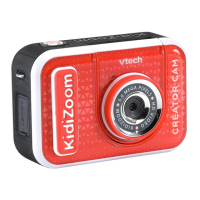
VTech KidiZoom Creator Cam - User Manual

VTech KidiZoom Creator Cam
30 pages
Print Icon
To Next Page IconTo Next Page
Loading...
Parents Guide
91-003803-000
US

Questions and Answers

  • S
    Sarah CrawfordJul 27, 2025
    How to fix VTech KidiZoom Creator Cam when it isn’t working?
    • D
      Debra SheltonJul 27, 2025
      If your VTech Digital Camera isn't working, first, try turning the Master Power Switch on again and then press the Home button. If that doesn't solve the problem, try recharging the battery.
  • R
    Richard HuberJul 31, 2025
    Why are the photos and videos not clear on my VTech KidiZoom Creator Cam Digital Camera?
    • D
      dkimAug 1, 2025
      If the photos and videos from your VTech Digital Camera aren’t clear, ensure the shooting environment has adequate lighting. Also, check if the lens is clean. Using a Class 10 or above microSD / microSDHC card is recommended. If the issue persists, back up your files and re-format the card. Check the USB cable connections and turn the Master Power Switch on and connect to the computer again.
  • K
    Kelsey MejiaAug 5, 2025
    What to do if I can’t view the downloaded video or photo files from VTech Digital Camera?
    • S
      Sarah WilliamsAug 5, 2025
      If you can’t view the downloaded video or photo files from your VTech Digital Camera, make sure they are in the correct directory: photos in the DOWNLOAD/PHOTO folder, and videos in the DOWNLOAD/VIDEO folder. Also, ensure the files are in the supported formats: Standard Baseline JPEG for photos and AVI (Motion JPEG) for videos created by the camera.
  • T
    Timothy ThompsonAug 9, 2025
    What to do if the screen display is abnormal on VTech Digital Camera?
    • L
      Luke GoodwinAug 9, 2025
      If the screen display of your VTech Digital Camera is abnormal, try turning the Master Power Switch on again and then press the Home button.
  • G
    grant25Aug 13, 2025
    Why is the memory card not detected on my VTech KidiZoom Creator Cam?
    • G
      greentroyAug 13, 2025
      If your VTech Digital Camera memory card can’t be detected, first, make sure it's correctly inserted. Ensure that it is a supported type (microSD or microSDHC card). Also, check if the file system is FAT or FAT32, as the camera does not support NTFS or exFAT. Remember to back up your data before formatting the card.
  • H
    Hunter MendozaAug 18, 2025
    Why is there flickering in recorded video on my VTech Digital Camera?
    • R
      Rebecca JonesAug 18, 2025
      If you see flickering in recorded video on your VTech Digital Camera, check if the Indoor Light Frequency setting is correct. Avoid having both sunlight and indoor lighting in your video. Check if the Green Screen fabric is evenly lit and without wrinkles. Verify the room lighting isn't too warm or cool. Try adjusting your Green Screen Detection Setting by pressing the Star button while filming.
  • B
    Bryan VargasAug 22, 2025
    Why do colored dots appear in Green Screen Studio videos on VTech Digital Camera?
    • R
      Ryan ClayAug 22, 2025
      If you observe colored dots in Green Screen Studio videos on your VTech Digital Camera, check if the Green Screen fabric is evenly lit and free of wrinkles. Also, verify that the room lighting isn't too warm or cool and try adjusting your Green Screen Detection Setting by pressing the Star button while filming.

Summary

INTRODUCTION

INCLUDED IN THIS PACKAGE

Lists all items that come with the Kidizoom Creator Cam.

WARNINGS AND SAFETY

Unlock Packaging Lock

Step-by-step instructions for removing the packaging lock.

PRODUCT FEATURES

Master Power Switch

Describes the function of the master power switch for charging and resetting.

Shutter Button

Explains how to use the shutter button for photos and videos.

Star Button

Details how the star button adjusts volume and camera options.

Home;On;Off Button

Instructions for turning the camera on/off and navigating menus.

OK Button

Explains the OK button's role in confirming actions and game control.

Directional Buttons

How to use directional buttons for menu navigation and game input.

Play Button

Function of the play button for reviewing media.

Delete Button

How to use the delete button to remove photos or videos.

Memory Card Slot

Information on the memory card slot for expandable storage.

PRODUCT SPECIFICATIONS

Display and Language

Information about the LCD display size and available language settings.

Photo and Video Resolution

Specifications for photo and video resolution modes.

STORAGE CAPACITY FOR REFERENCE

Internal and MicroSD Card Capacity

Approximate number of photos and video minutes stored on different capacities.

GETTING STARTED

Battery Charging

Instructions on how to connect and charge the camera's battery.

Charging Guidelines

Important safety and usage guidelines for charging the device.

BATTERY MANAGEMENT

Battery Life and Auto Shut-off

Information on battery duration and the camera's automatic power-off feature.

Battery Maintenance and Notice

Guidelines for maintaining the battery and important safety precautions.

MEMORY CARD OPERATIONS

Memory Card Installation

Detailed steps for inserting and ejecting a memory card.

Memory Card Formatting

Recommendation to format memory cards before use.

GREEN SCREEN BACKGROUND SETUP

Indoor Setup Recommendations

Tips for optimal green screen placement and lighting indoors.

USING YOUR CREATOR CAM

Initial Setup

Guide for selecting language, date, and time upon first use.

Home Menu Navigation

How to access and select different modes from the main menu.

Adjust Speaker Volume

Instructions for adjusting the audio output volume.

Photo and Video Playback

How to view recorded photos and videos.

MANAGING MEDIA AND FILES

Turning Off the Camera

Procedure for powering down the Kidizoom Creator Cam.

Transferring Files to Computer

Steps for connecting the camera to a PC or Mac to transfer files.

MODES AND SYSTEM REQUIREMENTS

Minimum System Requirements

Specifies the operating systems and ports needed for computer connection.

Video Mode Overview

Introduction to the Video mode and its capabilities.

Recording Video

Instructions on how to start and stop video recording.

VIDEO AND GREEN SCREEN MODES

Timer and Microphone Settings

How to use self-timer, face-timer, and adjust microphone volume.

Green Screen Studio

Guide to using simulated backgrounds with the green screen.

GREEN SCREEN AND PHOTO MODES

Green Screen Themes and Settings

Using news, weather, photo backgrounds and adjusting detection settings.

Photo Mode and Zoom

Instructions for taking photos and using digital zoom.

CREATIVITY TOOLS

Timer Modes and Creativity Tools Menu

Using timers and navigating the creative tools menu.

Invisibility Trick

Instructions for creating invisibility illusions using the green screen.

Video Editor

How to edit recorded videos using the built-in editor.

VIDEO EDITING AND TRICKS

Video Trimming and Openings

Editing video start/end points and adding introductory clips.

Background Music and Saving

Adding background music and saving edited videos.

Trick Video Maker

Creating videos with special effects by recording in parts.

ADVANCED CREATIVITY MODES

Floating Object Effect

How to make objects appear to float in videos using the green screen.

Time Lapse Video Creation

Steps to create time-lapse videos by capturing sequential photos.

GAMES AND SETTINGS

Built-in Games

Descriptions of the three games available on the camera.

Settings Menu

How to access and navigate the camera's settings menu.

Brightness and Memory Settings

Adjusting LCD brightness and checking memory status.

Format Memory

Instructions for formatting internal memory or memory cards.

ADVANCED SETTINGS AND CONTROLS

Factory Reset and Camera Settings

Procedures for resetting the camera and configuring options like resolution.

Date, Time, Language, and Parental Controls

Setting date/time, language, and managing game playtime limits.

CARE AND MAINTENANCE

General Camera Care

Recommendations for keeping the camera clean and protected.

Green Screen Fabric Care

Instructions for washing and caring for the green screen fabric.

Health and Safety Warning

Important warning about potential health effects from flashing lights.

ACCESSORY ATTACHMENT

Tripod;Selfie Stick Attachment

Step-by-step guide for mounting the camera onto the tripod/selfie stick.

ACCESSORY ATTACHMENT AND FAQ

Wrist Strap Attachment

Procedure for securely attaching the wrist strap to the camera.

Frequently Asked Questions (FAQ)

Answers to common queries about green screen usage and file compatibility.

TROUBLESHOOTING

Camera Not Working

Steps to resolve issues where the camera fails to turn on or operate.

Display and Clarity Issues

How to fix screen abnormalities and blurry photos/videos.

Video Smoothness and Connection

Troubleshooting recorded video quality and computer connectivity.

TROUBLESHOOTING CONTINUED

Video Flickering and Dots

Resolving flickering video and colored dots in Green Screen Studio.

Memory Card Detection Issues

Solutions for when the memory card is not detected or formatted correctly.

File Viewing and Format Compatibility

Addressing issues with viewing downloaded files and supported formats.

TECHNICAL SUPPORT

Contacting Support

Details on contacting customer service via internet or phone.

Safety Warning (Choking Hazard)

Critical safety warning regarding small parts and age appropriateness.

DISCLAIMER AND LIMITATION OF LIABILITY

Important Notes and Cautions

Contains important notes, cautions, and legal disclaimers.

FCC COMPLIANCE AND OPERATION

Suppliers Declaration of Conformity

Official statement of compliance with FCC rules.

Accessing Compliance Statement

Instructions on how to locate the FCC compliance statement in the software.

VTech KidiZoom Creator Cam Specifications

General IconGeneral
Camera Resolution5 MP
Display Size2.4 inches
Internal MemoryUnknown
Expandable StoragemicroSD card up to 32GB
Battery TypeRechargeable lithium-ion battery
ConnectivityUSB
Special FeaturesVoice Changer
Age Range5 to 10 years

Related product manuals