Calibration
For optimum performance, calibrate your pen display to align the screen cursor with the position of the pen on the screen. This is
required to compensate for viewing angle, and to adjust for parallax.
1. Set up your pen display in its working position.
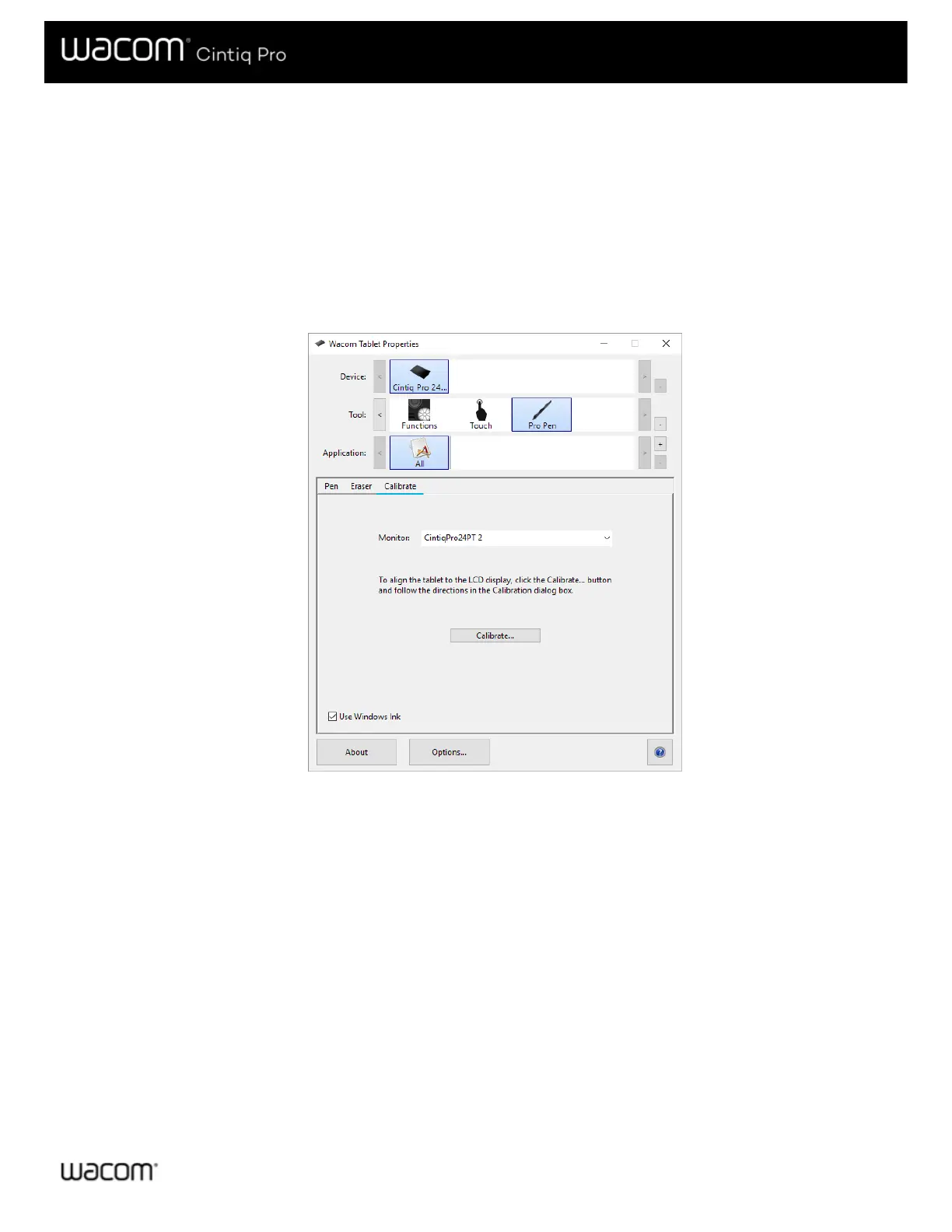
2. Open Wacom Tablet Properties. If more than one pen display is installed on your system, select the one you are working
with from the Device list.
3. Select a pen from the Tool list.
4. Select the Calibrate tab.
The above screenshot is for descriptive purposes; it may not match your screen.
5. If you are working with multiple monitors, select the monitor corresponding to your pen display from the dropdown menu.
6. Click Calibrate... to activate the calibration screen.
7. Holding the pen, sit or stand as you normally would when working with the pen display. Use the pen tip to click on the
center of the crosshairs in the upper-left corner.
8. Click on the center of the crosshairs that are displayed in the remaining corners.
9. Test the alignment by positioning the pen at a few different points on the display.
10. Click OK to accept the calibration, or Try Again to recalibrate.





 To Next Page